Zynq-7000 AP SoC Spectrum Analyzer part 5 - Accelerating Software - Accelerating an FFT with ACP Coprocessor Tech Tip 2014.3
Zynq-7000 AP SoC Spectrum Analyzer part 5 - Accelerating Software - Accelerating an FFT with ACP Coprocessor Tech Tip 2014.3
Table of Contents
Document History
| Date |
Version |
Author |
Description of Revisions |
|
| 23 October 2014 |
1 |
Faster Technology |
Initial posting - updated to 2014.3 |
|
| Date |
Author |
Comment |
||
|---|---|---|---|---|
Description/Summary
In Tech Tip "Zynq-7000 AP SoC Spectrum Analyzer part 4 - Accelerating Software - Building and Running an FFT Tech Tip 2014.3" an FFT application was created to run on both the ARM processor and the NEON SIMD engine of the Zynq-7000 AP SoC. Execution time comparisons were captured demonstrating a speed up of 1.25 to 1.85 using the NEON SIMD engine versus the ARM processor. In this Tech Tip we will expand that application to include a hardware FFT unit in the PL fabric to demonstrate the additional 9.3X speed up that is possible with the tightly coupled hardware co-processing capabilities of the Zynq-7000 AP SoC versus execution on the NEON SIMD engine. In addition, this Tech Tip will demonstrate use of the IP Integrator (IPI) capability in Vivado for creation of the overall system being utilized and provide an overview of the use of user space I/O (UIO) for managing interrupts within the Linux application.
Key techniques that will be illustrated with this Tech Tip include:
- Information passing between the PS and PL using DMA through the high speed ACP port to maximize performance
- Use of IP Integrator to build the Hardware FFT in PL from building blocks in the standard library
- Interrupt handling to manage signaling between the PL hardware and the operating software in the PS
- Mapping between virtual addresses used in Linux and physical addresses required by hardware operations
Implementation
| Implementation Details |
|
| Design Type |
PS & PL |
| SW Type |
Linux (PetaLinux) |
| CPUs |
1 CPU - standard ZC702 frequency |
| PS Features |
ARM Processor and NEON SIMD engine, OCM, DDR and other peripherals in standard PetaLinux OS |
| PL Cores |
Hardware FFT, AXI DMA, AXI Interconnect, Xlconcat |
| Boards/Tools |
ZC702 |
| Xilinx Tools Version |
Vivado / SDK 2014.3; PetaLinux 2014.2 |
| Other Details |
Standard ZC702 setup for console terminal and Ethernet required |
| Files Provided |
|
| **fft-zynq2014dt3.zip** |
FFT Application source code files |
| **HWfft2014dt3.zip** |
Vivado 2014.3 files to build Hardware FFT block in PL fabric |
| **fftApp2014dt3.zip** |
Optional starting point SDK workspace file set |
| **boot.zip** |
Optional updated boot files (BOOT.bin and image.ub flies) |
Block Diagram

Step by Step Instructions
This Tech Tip proceeds in two major operations; building the Hardware FFT and then building the software that controls and uses the Hardware FFT in conjunction with the software in the PS.
As noted above, Vivado 2014.3 will be used to create the hardware FFT used in this Tech Tip.
All of the required files to build the hardware are in the HWfft2014dt3.zip file noted above. Download that file to the directory where you are building the hardware for this Tech Tip. This does not need to be in the same directory structure as the workspace used by SDK for building the software. In our case this is:
G:\FFT
NOTE:
Because of the possibility of very long path names being generated by Vivado in the elaboration of the various IP blocks, it is a strong suggestion to keep the starting directory name very short and close to the root of the drive being used. Odd errors can occur in the design implementation steps if the path names become too long.
With the download completed, unzip HWfft to the location where the hardware will be built.
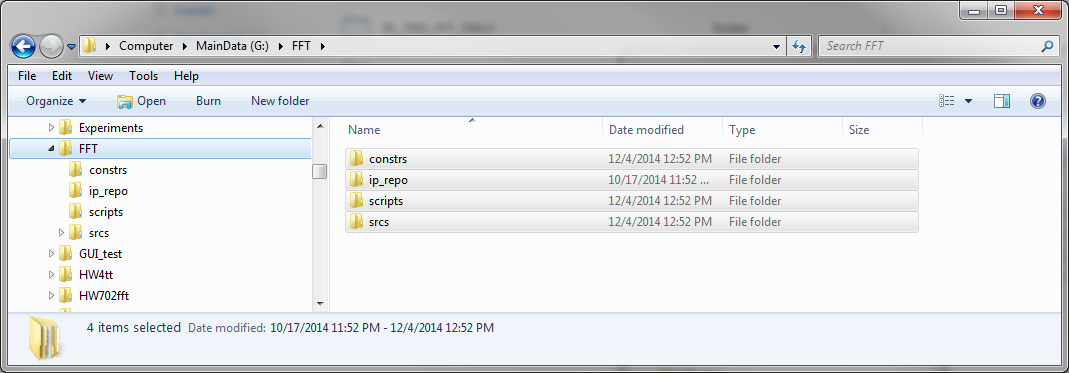
The base directory where the HWfft.zip files are saved is referred to as $ZYNQ_TRD_HOME. In our case then $ZYNQ_TRD_HOME is G:\FFT. If you have a different base directory, note that it will be used where $ZYNQ_TRD_HOME is referenced.
Vivado 2014.3 is used to build the hardware, while PetaLinux 2014.2 and SDK 2014.3 are both used in the process of building the software. The result will be revised boot files for the ZC702 that contain updated hardware for the base TRD with the hardware FFT, appropriate drivers for the interrupt handling and an application file that builds on the capabilities of the "Zynq-7000 AP SoC Spectrum Analyzer part 4 - Accelerating Software - Building and Running an FFT Tech Tip 2014.3".
Building the hardware
Supplied with this Tech Tip is a tcl script file that will simplify the process of building the hardware FFT in Vivado. This file is:
project.tcl
The file is supplied within the HWfft2014dt3.zip that was previously obtained and un-zipped. Verify that it is in the /scripts folder.
We then run Vivado to build the hardware system.
On Windows, select Start > All Programs > Xilinx Design Tools > Vivado 2014.3 > Vivado 2014.3
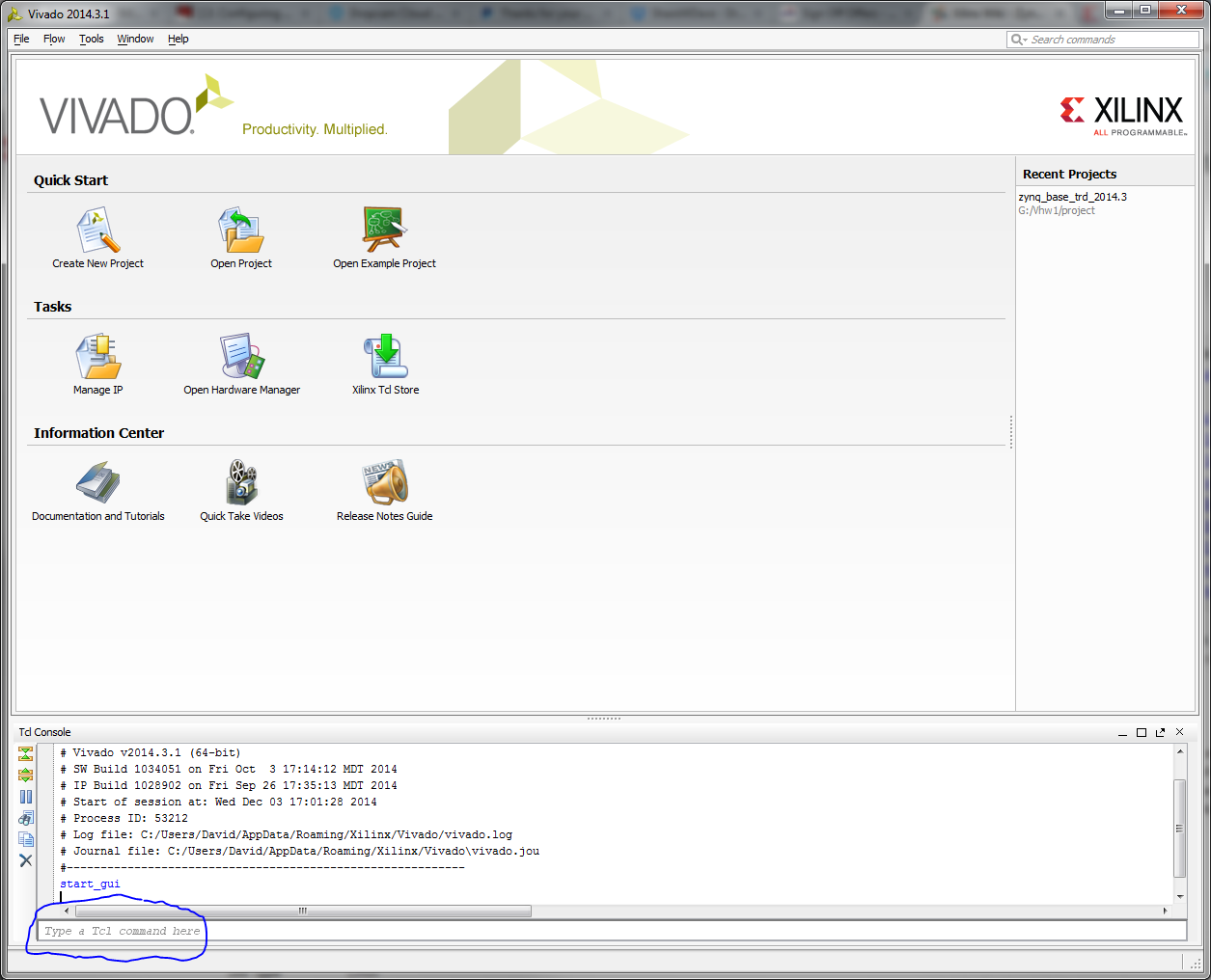
Vivado will start and show the welcome screen
CAUTION:
Before starting the process of building the hardware, verify that you have installed valid hardware licenses for the IP cores used in the ZC702 Base TRD design. These include the Chroma-Resampler, Video Timing controller, etc. If a hardware implementation license is not in place when bitstream generation starts, the whole project will need to be deleted and started from the beginning.
In the tcl console input line, run the following commands
cd $ZYNQ_TRD_HOME - in our case this is cd G:/FFT
source ./scripts/project.tcl
- project.tcl will build the complete base TRD hardware system with the PS and various video processing hardware blocks used by the TRD software and the FFT block that contains the Hardware FFT.
If you encounter any licensing issues or other implementation errors in running the project.tcl script, these must be resolved before running script. Otherwise the hardware will not build properly.
After running the project.tcl script successfully (there will likely be some warnings), you should have the following with the FFT block connected into the TRD blocks:

IP Integrator has both placed the functional blocks but also connected them with their corresponding signal bundles to the other blocks in the design. This greatly simplifies the process of generating a complex design and assuring that the components are connected properly. Any block of logic created from scratch or configured within Vivado can be saved as a reusable IP core for later use. See the Vivado IP Integrator documentation for details on how this is done.
In the diagram pane, we can zoom into the hardware FFT to see what it contains. Move the cursor to hover over the upper left corner of the FFT block. When it changes to double chevrons, click to expand the hierarchy of the FFT IP core.
Using the zoom controls, either the magnifying glass with the + or selecting and dragging a zoom window in the diagram pane, zoom in to better see the contents of the FFT block. It is also useful to maximize the diagram pane (click the maximize icon in the upper right corner).
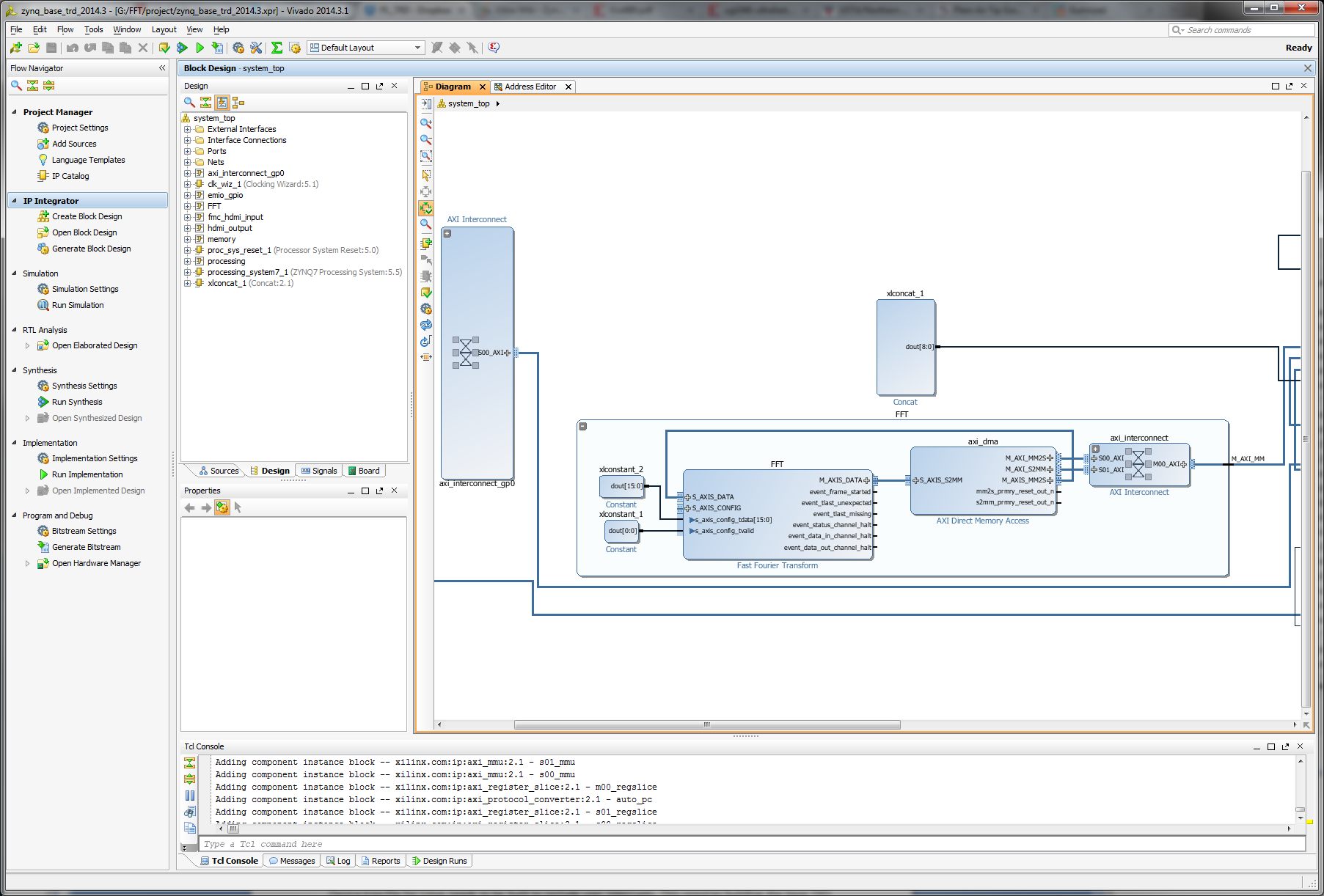
The FFT block is a standard IP core that is configured through the Core Generator. In this instance it is configured to perform a 4096 FFT to match the largest FFT size that we previously supported in software execution. This will enable us to compare results between the various implementation options.
The axi_dma block is used to move the data from the PS into the FFT core and then back to the PS. It also performs the critical function of converting between the memory mapped format of the AXI interconnect and the streaming format used by the FFT core. The memory based FFT data uses physical addresses versus the virtual addresses used by Linux in the PS. Thus, the requirement for virtual to real address translation in the operating software.
Data to or from the AXI DMA core flows through the ACP port on the AXI interconnect structure. Note that there is also a slow speed interface to the AXI DMA block. This is for control and status communication between the hardware and the operating software in the PS. It is through this mechanism that the signal flags to start the FFT and that the FFT is complete are passed.
The xlconcat block is used to vectorize the various interrupt sources in the design. For proper operation, interrupts from the PL to the PS must be enabled. To verify this, we examine the configuration of the ZYNQ7 Processing System block.
Double click on the Zynq block to enter it's configuration screens.
From the items in the left column, select "Interrupts" and click on it.
Expand the Fabric Interrupts item and the PL-PS Interrupt Ports line
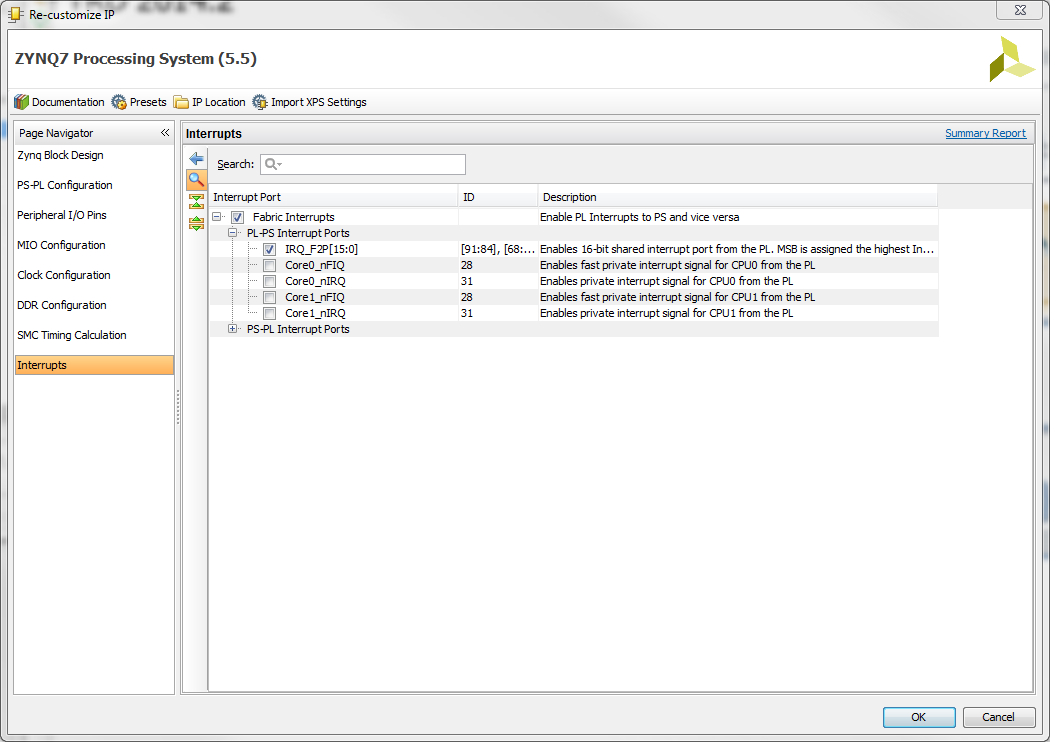
Note the range of interrupt numbers that are assigned to the IRQ-F2P inputs. As can be clearly seen, they are assigned to the higher order bits first; the first is 91, then 90, etc. These are the ARM A9 hardware interrupt numbers and are numbered differently in Linux. This will be noted later in discussing the device tree used by the kernal to manage the interrupts.
Also, the interrupt numbers are not contiguous, but that is not of concern for this application.
By expanding the PS-PL Interrupt Ports line, you can see that none of the possible interrupts from the PS into the Fabric are enabled; they are not used in this application.
With the interrupts enabled, we need to verify that they are connected properly in the hardware.
While the interrupts in the hardware are scaler items, the Interrupt handler in the PS expects a vector of interrupts. The Concat block will be used to concatenate all of the interrupt sources into a vector to be supplied to the IRQ_F2P port.
Exit from the Zynq Processing System configuration screen by hitting the Cancel button.
Double click on the Concat block (xlconcat_1) to enter its configuration screen.
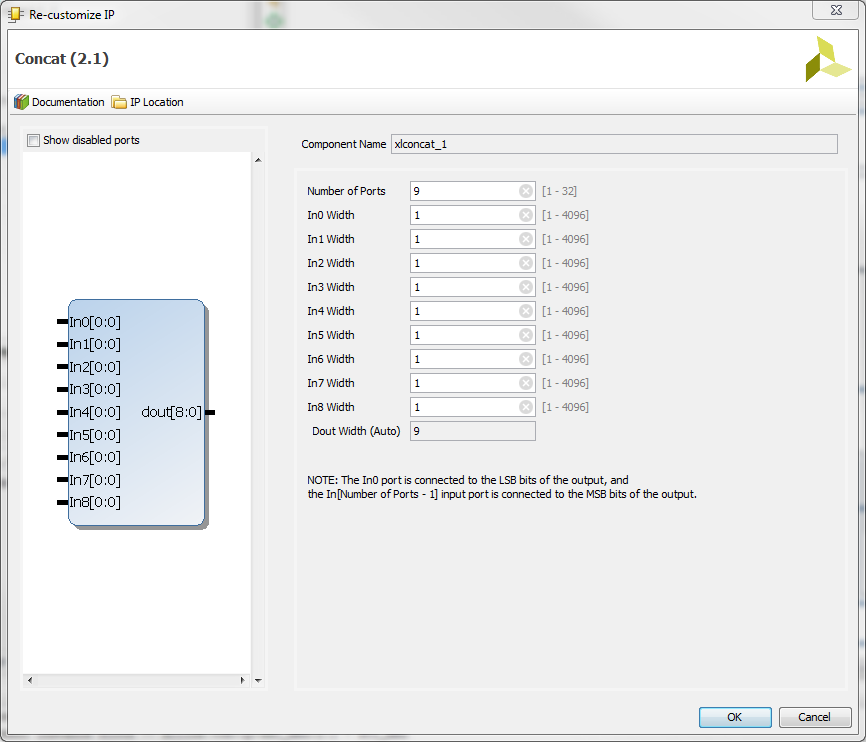
In addition to interrupts already used in the TRD, we have added two signals to monitor the read and write channels of the DMA used in the FFT block.
No changes to the Concat block are needed at this time so it can be exited by clicking the Cancel button.
While the build script has connected the interrupt sources to the Concat block, they may not be shown in the Block Design view within Vivado.
If the Block Design is not shown, click Open Block Design under IP Integrator in the Flow Navigator at the left side of the Vivado window.
With the Block Diagram shown, click on the icon at the top left corner of the Block Design Window adjacent to Block Design Options.
The items to be displayed will be listed. If display of interrupts is currently enabled (a check mark next to them) and they are not shown, simply disable and re-enable them.
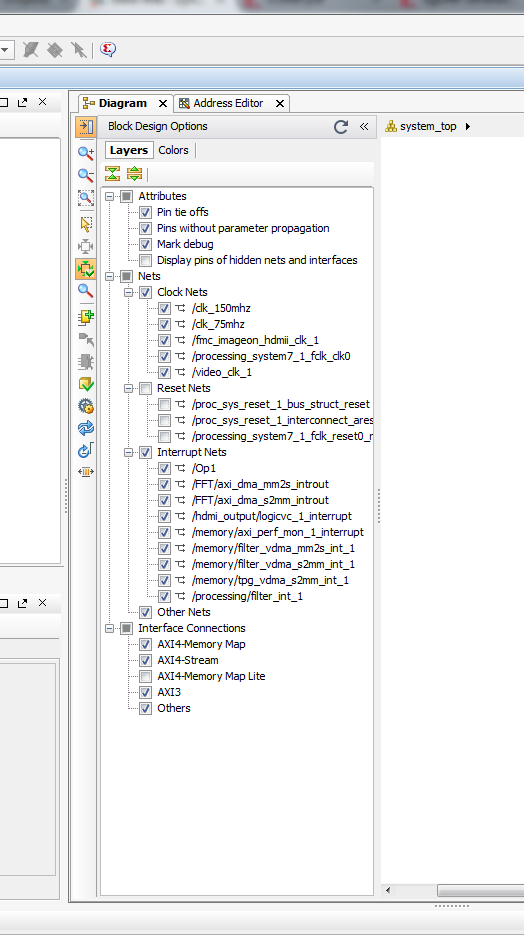
We can now see the various interrupt sources connected to the Concat block and the connection back to the IRQ_F2P port of the Zynq block.

We will also need to know the location of the control registers used to manage the DMA block. These are set properly by the build script so this step is just to illustrate how to check the addresses.
Click on the Address Editor tab at the top of the block design display window.
The address map of the hardware in the system will be shown. Note the address range for the AXI LITE interface for the FFT/axi_dma.

Return to the block design diagram by clicking on the Diagram tab on the block design display window.
To complete the hardware design, synthesis and implementation must be run. This can be done by initiating each step individually or if "Generate Bitstream" is selected, the Synthesis and Implementation steps will be run automatically.
In the flow Navigator panel, click Generate Bitstream (in the Program and Debug group at the bottom of the panel)
Synthesis, implementation and bitstream generation may take as long as two hours for this design. There will be some warnings, but these are not critical to the proper operation of the hardware. If there are any Launch Critical Warnings, simply click OK to accept them and allow Synthesis to continue.
When Vivado completes processing the design, verify that there are no errors; warnings are expected with most relating to optimizations that are being done and have no impact on operation of the hardware. In the "Bitstream Generation Completed" accept the "Open Implemented Design option and click OK.

Vivado will then display the chip view of the implemented design
The next step is to export this hardware design in a form that SDK can use to build the files needed to properly configure the ZC702 to run the hardware FFT.
The block diagram must be in view. If it is not in view, expand the IP Integrator category in the Flow Navigator pane, click on Open Block Design and select system_top.bd.
With the block diagram in view, we can perform the export hardware.
From the File menu select
File > Export > Export Hardware...

NOTE: If the block diagram is not displayed, the export option will not be visible. Select Window > Diagram to display the block diagram if it is not in view.
In the dialogue box that appears, leave the defaults selected and click OK. The option to Include bitstream should be visible and checked. This is convenient as it enables Vivado to put all of the information required in a single file.

Vivado creates a hardware description file in a directory branch off of the "project" area as shown below. The file in this branch will be used in the next step so remember where it is. (You may be prompted to save the project before the hardware is exported.)

At this point, we are done with Vivado and it can be closed. Save the project for future reference if prompted.
Building the Software
With the hardware for the FFT in the PL fabric complete and included in the base TRD hardware, we need to build the software to move data into and out of the FFT block. Recall from the block diagram that the data movement in the PL is controlled by a DMA block. The software for operating the hardware FFT is simply the driver to start the DMA and to service the interrupts that are generated by the DMA block when it is complete. Because DMA is used both to load the FFT block and move the results back to the PS, there are two interrupts to service.
Building the software will be done in two separate steps; building new boot files that include the hardware and interrupt service software in the base PetaLinux system and then separately building the application that controls the overall operation and display of the results.
Building the boot files:
Because we are adding an interface to the hardware system from the user application and using interrupts, the device tree structure (dts) that is used to describe the system to the kernel at boot time must be modified. Information on how user space device drivers operate and their basic implementation can be found the slide set "Linux User Space Device Drivers" located in the Xilinx forums. Other resources such as the PetaLinux Tools Reference Guide describe various aspects of both modification of the dts as well as importing new hardware and building new boot files for the ZC702.
We assume that the PetaLinux SDK has been installed on an appropriate Linux system. See section 5 of the Zynq Base TRD 2014.2 for instructions on installing the PetaLinux system. In addition, be sure that Qt and Qwt are properly installed according to the Qt and Qwt Base Libraries Build Instructions. If Qt and Qwt are not properly installed, the build of the boot files will fail to run properly for either the TRD or other graphics applications.
Start by creating a new project (UG1124 page 21).
We then import the hardware description from Vivado into PetaLinux to configure this project. Recall that we exported the hardware from Vivado, saving it to the file system_top_wrapper.hdf.
NOTE:
As of the 2014.2 release, Vivado exports the hardware description in the hdf (hardware description file) whereas previous versions exported a XML file. Similarly, PetaLinux now expects to import the hdf format only.
Follow the instructions on page 23 of UG1124 to import the hardware into the just created project.
The device tree is an ASCII file that will be compiled into a binary form called the "device tree blob" when we build the PeraLinux for our system. The dts file is locaed in the project at .../<project_name>/subsystems/linux/configs/device-tree/<project_name>.dts. In that directory there is also a symbolic link called "system-top.dts" that points to the <project_name>.dts file. system-top.dts is the name of the device tree structure that the PeraLinux Makefiles are expecting, so creating a symbolic link of that name pointing to another device tree file is a convenient way of switching between device trees.
The device tree structure describes the system as a hierarchy of elements. The FFT DMA engine is part of two hierarchies; the bus hierarchy and the interrupt hierarchy. The bus hierarchy is the main one and the FFT DMA engine description block will be located inside of the ps7_axi_interconnect_0 block, starting around line 65 of this project.
The dts description of the FFT DMA engine starts around line 464 and looks like the following:
fft_1: fft-axi-dma@40400000 {
compatible = “generic-uio”;
interrupt-parent = <&ps7_scugic_0>;
interrupts = <0, 52 4>;
reg = <0x40400000 0x10000>;
};
The fields of the description are:
- fft_1:
Just a label in the dts
fft-axi-dma:
The name that will show up in the PetaLinux/sys file system describing this device
@40400000:
The address on the bus in Hex for documentation purposes (Recall that we verified this address when the hardware was built in Vivado.)
compatible="generic-uio":
States that this is compatible with the driver named "generic-uio" - This is critical to link the DMA engine to user space I/O
interrupt-parent=<&ps7-scugic_0>:
States that interrupts from this device go to that controller described elsewhere in the dts
interrupts=<0, 52, 4>:
The 52 is the number assigned in IRQ_F2P minus 32. The numbers 0 and 4 are required for proper operation of IRQ_F2P interrupts.
reg=0x40400000 0x10000:
This specifies that this device has a 0x10000 (64K) address space starting at 0x40400000 (Recall that we verified this address when the hardware was built in Vivado.)
It is important that the fft_1 block be within the ps7_axi_interconnect_0 block that describes the AXI interconnect to which this block is connected. However, the location within the block is not important.
With this information now in the device tree structure, PetaLinux can be built and our device will show up in the /sys and /dev directory trees and the Xilinx provided platform UIO device driver will be able to be used with it to allow our application to service the interrupts in user space (not within the kernel).
Follow the instructions in section 5 of the Zynq Base TRD 2014.2 for re-building the PetaLinux system and creating new boot.bin and image.ub files. Be sure to use the bitstream and hdf file created by Vivado for the design that includes the hardware FFT block and associated control logic.
The new boot file now includes the additional hardware for the FFT block and accompanying DMA engine as well as a modified device tree blob that enables interrupts from the DMA block to be serviced in user space within Linux.
Building the Application:
With the fft hardware included in the new boot files, and the dts modified to include interrupts from the DMA engine we can now build the application which will interact with the hardware using interrupts.
The various software source files required are in the compressed file "zynq-fft2014dt3.zip" that is associated with this Tech Tip. Download this zip file from the Xilinx wiki and unzip it to a convenient location on your hard drive. In our case, we put it in our current working directory G:\Projects. Several aspects of using interrupts in this application can be seen by examining the source file fft-zynq.c and the directory structure of the re-built PetaLinux which includes our hardware fft and the modified dts.
The hardware FFT block is visible to the Linux application software as part of the /sys, /proc, and /dev directory trees.
In /sys/class/uio will be a series of links, one for each UIO device in the system. In that directory, typing the command “ls –lash” will show the target of the links. In this design, we can see that the link named uio1 points to the fft-axi-dma device that we added to the design and device tree structure.
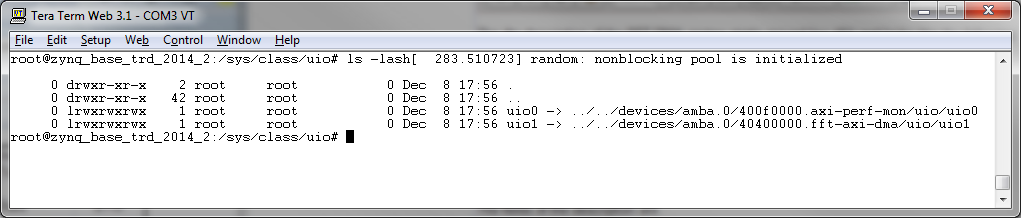
In /sys/devices/amba.0/ we see a directory for all of the devices connected to the amba interconnect hierarchy connected to the PS7. In our example 40400000.fft-axi-dma is the directory belonging to our FFT core. The 40400000 is from the base address of the IP core, and the fft-axi-dma is the name we used in the dts.

Looking in that directory, we can see information about our device, including that it is uio1. We can also see that the driver controlling our device is the uio_pdrv_genirq. This is the Xilinx provided UIO platform driver. It is a general purpose UIO driver that can be used with any UIO device without having to write any kernel code. It provides the ability for us to service interrupts in user space, by signaling the interrupts through the file system.
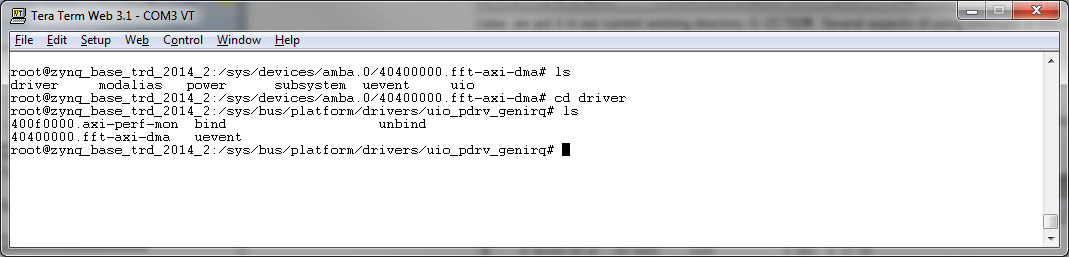
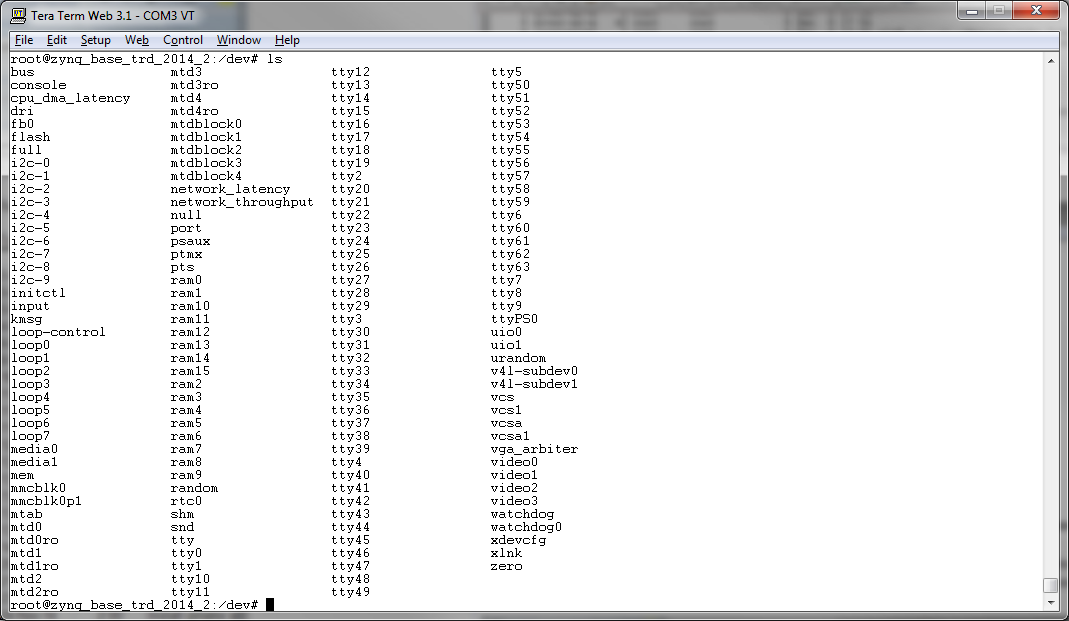
Our device is also present in /dev as /dev/uio1. We will take advantage of adding our device to the device tree by using /dev/uio1 with mmap directly, instead of using /dev/mem.
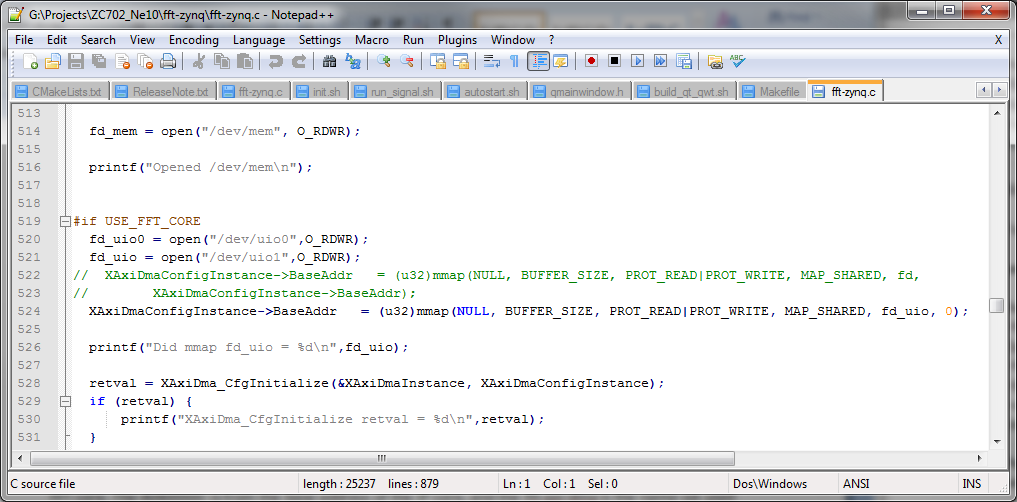
In the application source file fft-zynq.c at line 520 we open /dev/uio1, and then use mmap to get a pointer to the virtual address of the base address register of our device. Notice how we use an offset of 0 with mmap. Since our device is in the device tree and we opened it, mmap know its physical address and we don’t have to pass it in as an offset as is required if we opened /dev/mem instead. We can now use the pointer returned by mmap to directly access the control and status registers of our device.
The next way we take advantage of using UIO with our device is to be able to service interrupts from user space. Around line 380 is the code that queues up an FFT, and then waits for it to finish. Previously, we would have had to poll on the status of our device, or create a kernel driver to deal with interrupts. Now we can use UIO to sense when an interrupt has happened. We do this by performing a read on the /dev/uio1 file representing our device. We had opened /dev/uio1 in the last step, and already have a file pointer to it. Around line 395, we have “status = read(fd_uio,(void *)&pending,sizeof(int));”

This line of code will block until an interrupt has happened for our device, then it will finish. The number returned in the “pending” variable we pass to the read will be how many interrupts have happened since the last read. The “select” command may also be used to watch multiple UIO devices at once.
After we have received an interrupt, we perform the task required by the device, acknowledge the interrupt to the device, and then acknowledge the interrupt to the UIO driver by writing to the UIO file, /dev/uio1 in this example.
SDK will be used to build the application and run it on the ZC702. Earlier we unzipped the source files in "fft-zynq2014dt3.zip"
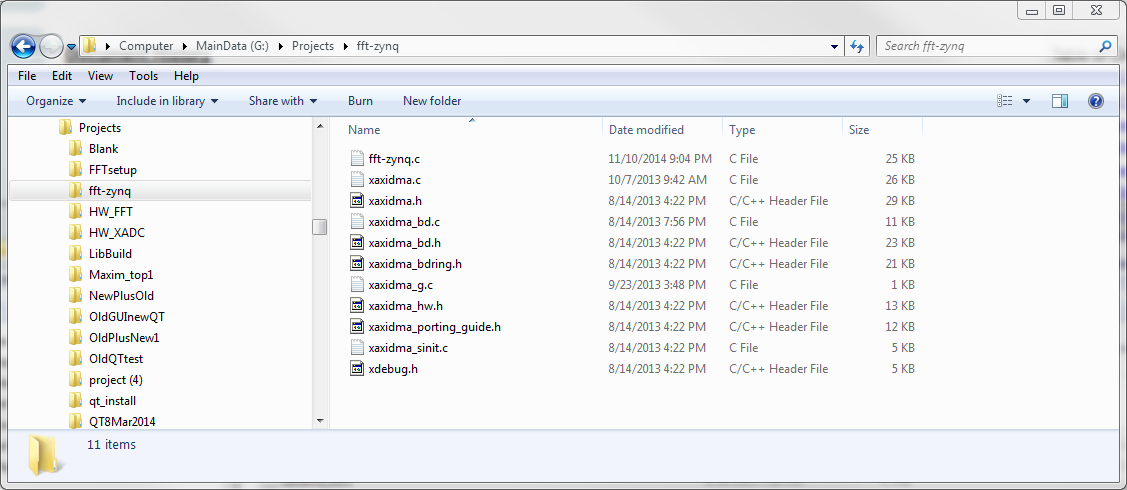
At the conclusion of the Tech Tip "Zynq-7000 AP SoC Spectrum Analyzer part 4 - Accelerating Software - Building and Running an FFT Tech Tip 2014.3" the workspace contains the library of signal processing functions built and tested in prior Tech Tips. It also has the tested application code for the FFT application. This Tech Tip is built upon that existing workspace. If you have that workspace in place, skip to the instructions to start SDK after the workspace is in place (below the heading "Old Workspace in Place").
If the workspace is not available, or if there is any question if it was completed properly (or you simply want to skip those earlier steps), the referenced file fftApp.zip can be used to create a known working starting point for this Tech Tip.
Download the zip file from the fftApp2014dt3.zip link.
Create an empty directory where you will be implementing this Tech Tip. To be consistent with the balance of these step by step instructions, the directory could be:
G:\Projects\ZC702_Ne10
However, these steps to import a known workspace will work with any new folder of the user's choosing.
CAUTION:
Some Windows users have problems with SDK when using different directory structures and names. If you encounter any odd behaviors with SDK, it is advised to use the suggested directory structure and names.
Start SDK
Start -> All Programs -> Xilinx Design Tools -> Vivado 2014.3 -> Xilinx SDK 2014.3
In the Workspace Launcher, browse to and select the previously created empty folder. In our case, that is G:\Projects\ZC702_Ne10
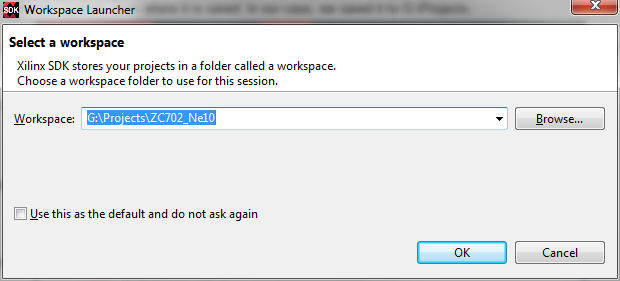
Click OK to continue
If you are presented with a Welcome tab, close it by clicking on the x on the tab.
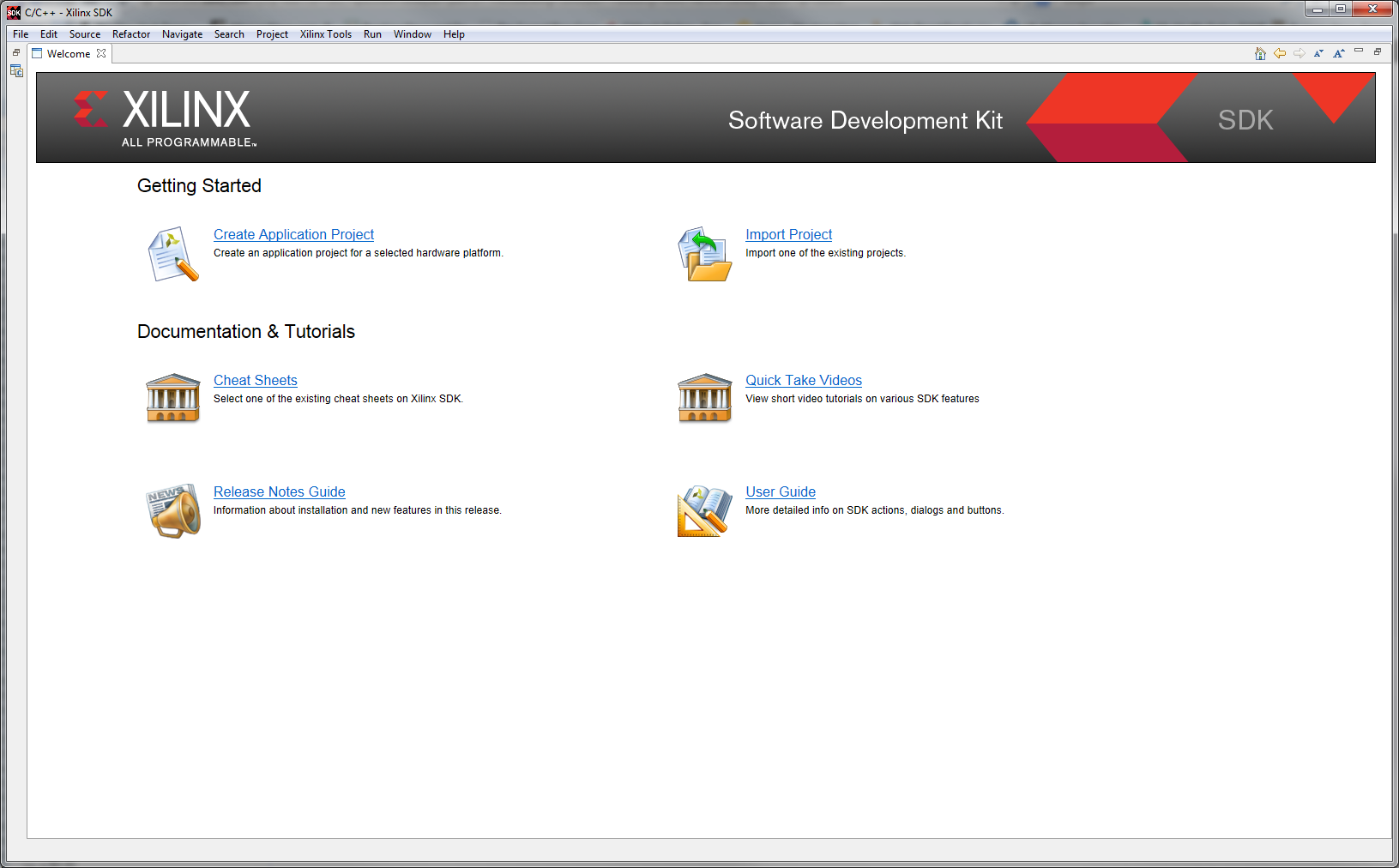
SDK will start with a blank Project Explorer pane
Select File -> Import
The Import dialogue box will appear. Expand the General line and select Existing Projects into Workspace
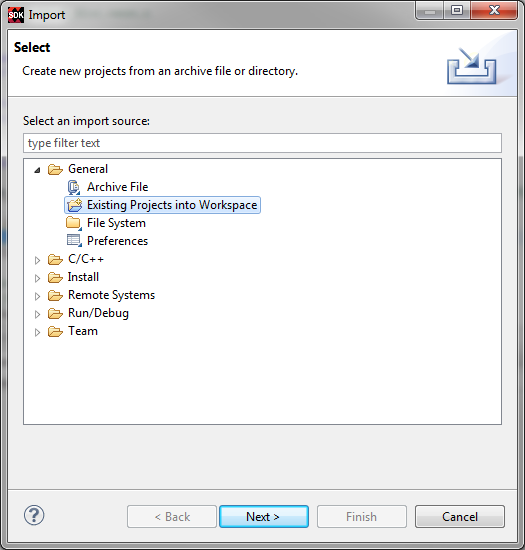
Click Next
Click the Select archive file button. Then click Browse to navigate to the saved workspace file that you want to import and click Open. In our case this is fftApp2014dt3.zip.

Click Finish
SDK will build the workspace automatically. Because SDK is already started and the workspace is in place, you can skip the following instructions on starting SDK and go directly to after SDK is running with the workspace in place (Starting Projects Ready).
Old Workspace in Place
We start with the workspace that resulted from the completion of the "Zynq-7000 AP SoC Spectrum Analyzer part 4 - Accelerating Software - Building and Running an FFT Tech Tip 2014.3".
Start SDK
On Windows, select Start > All Programs > Xilinx Design Tools > Vivado 2014.3 > Xilinx SDK 2014.3
When the Workspace Launcher appears, be sure that it is pointed to the workspace used for the "Zynq-7000 AP SoC Spectrum Analyzer part 4 - Accelerating Software - Building and Running an FFT Tech Tip 2014.3".
Click OK
Starting Projects Ready
SDK should have the files and projects in place as we last saw them. If it has changed, use the known working workspace from above or repeat the various steps to be sure this is a tested working set of files and projects before proceeding.

Because we previously built the BOOT.bin and image.ub files in the PetaLinux environment, we only need to build the application within SDK.However, because the application includes interfaces to the low level hardware for the hardware FFT block, DMA engine, etc., we need to have access to the low level drivers for these portions of the hardware system. In addition, we will need to be sure any specifics of the hardware (address map in particular) is available to SDK when the application is built. To accomplish this, we need to build a board support package for our particular application use.
Building the Board Support Package
Building the Board Support Package (BSP) involves two main steps; importing the hardware specifics from Vivado and then building the supporting file system.
From the main menu bar select File -> New -> Board Support Package
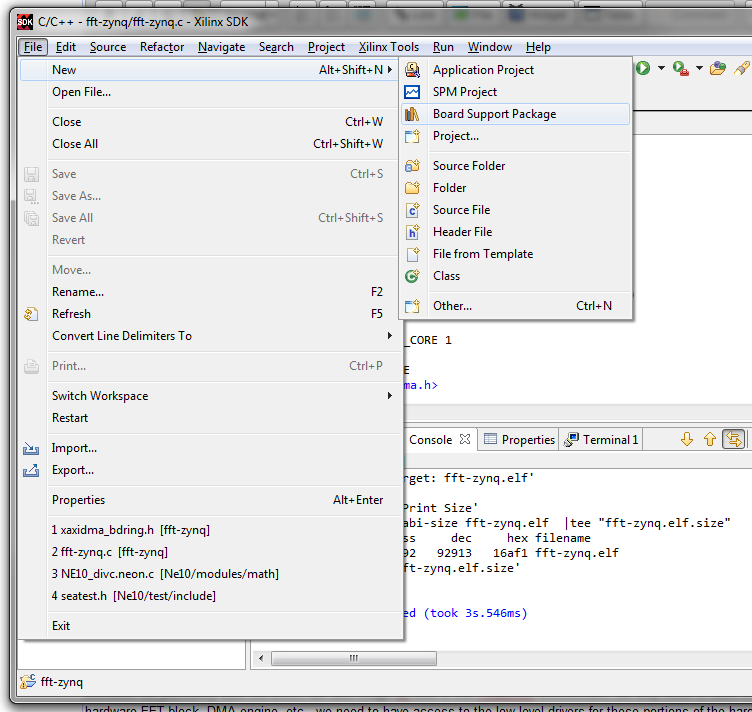
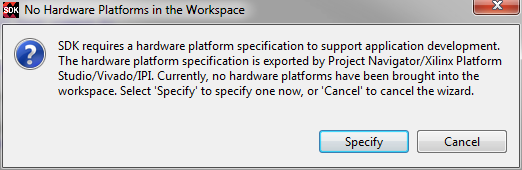
An information box will appear. Click Specify to go to the next step
The New Hardware Project dialogue box will appear. Type in a Project name - we will use ZC702fft. Then click the Browse button adjacent to the box for the path to the hardware specification file.
Browse to where the file was saved in Vivado. In our case this is G:\FFT\project\zynq_base_trd_2014.3.sdk. Then click on system_top_wrapper.hdf and click Open.
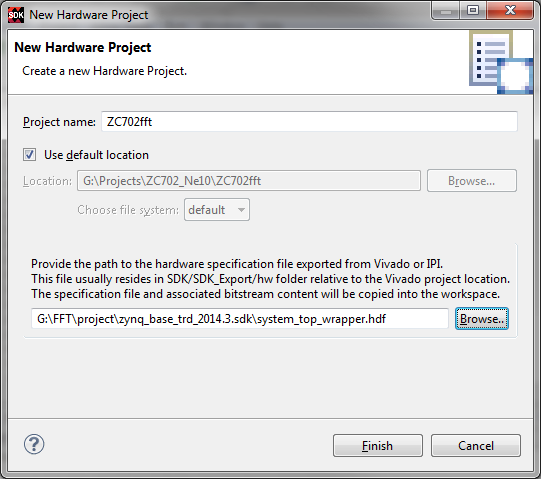
Click Finish to import the hardware definition.
SDK will import the hardware information from the hdf file and then prompt you to create the supporting files (BSP) for the hardware.
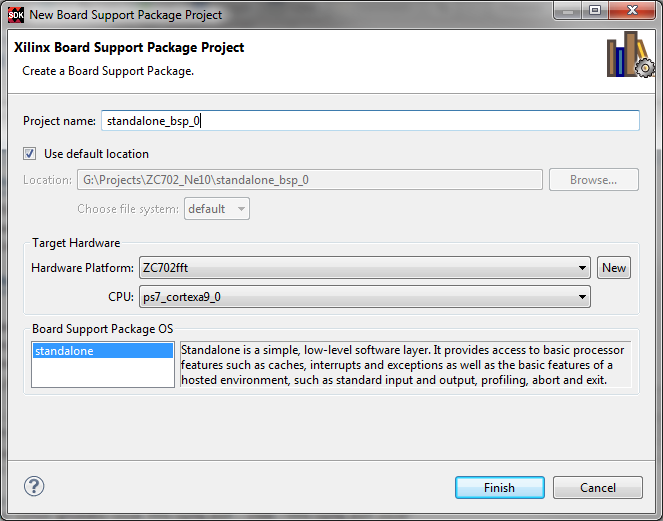
Click Finish to complete the setup of the BSP. An information screen will be shown. Click OK to return to SDK.
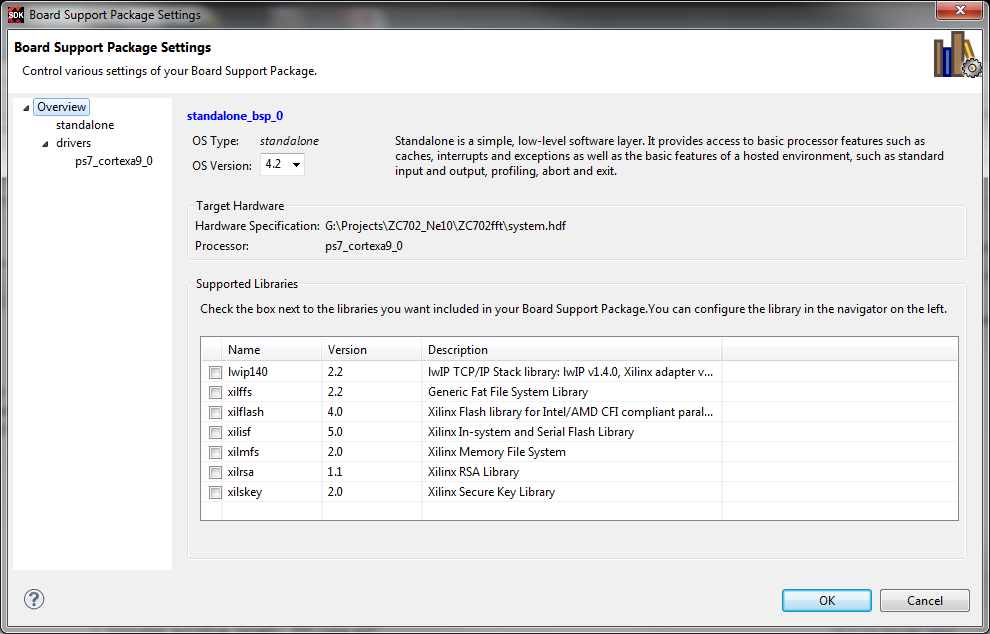
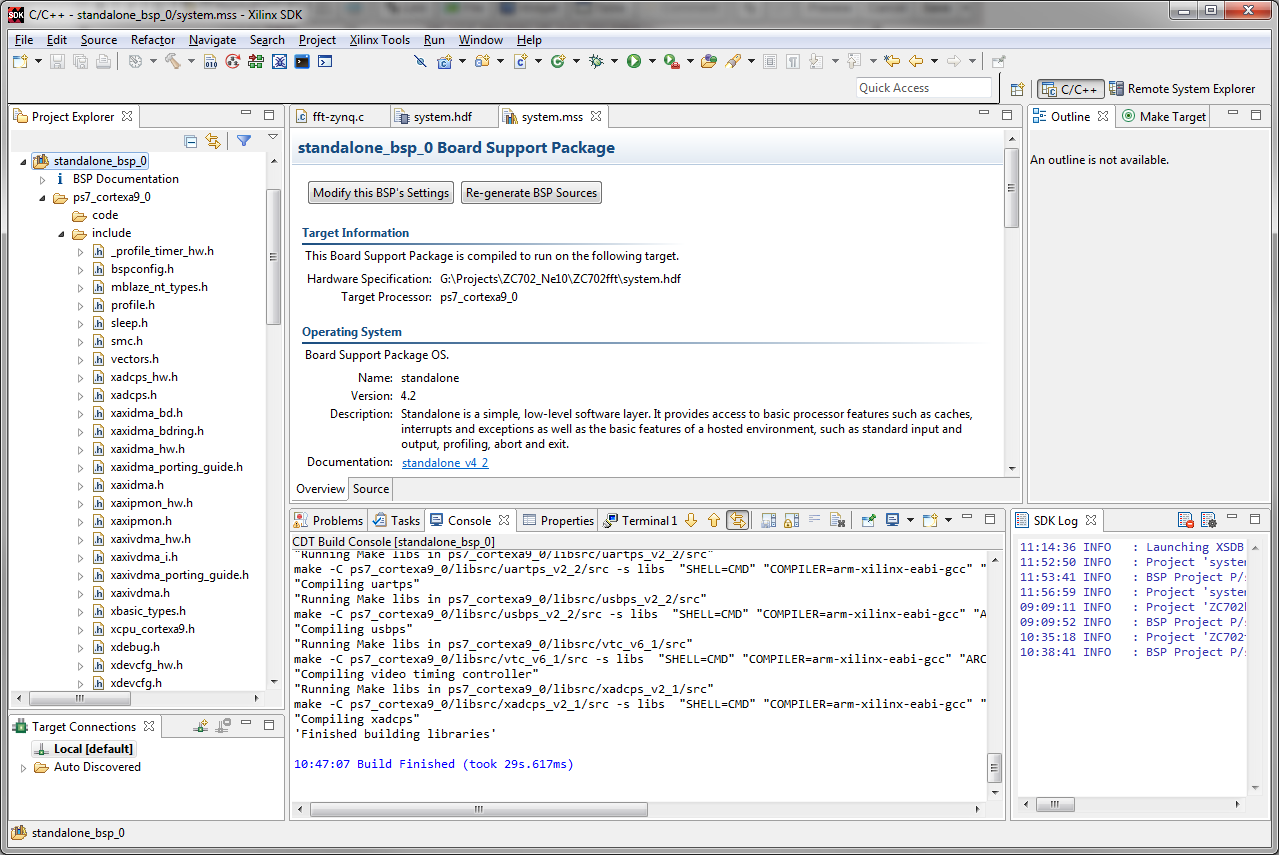
We can now see that the hardware (ZC702fft) and the BSP (standalone_bsp_0) are both in place.

Before proceeding with building the application, we need to build the BSP itself.
Click on standalone_bsp_0 in the Project Explorer pane, then right click and select Build Project.
Once the build has completed, we can expand the the ps7_cortexa9_0 line within the BSP and expand the include folder. There should be along list of header files that correspond to the various hardware components in our completed Vivado hardware project. Some of these will be needed to build the fft-zynq application.
Building the fft Application
Now we can import the source files for the fft-zynq application and build it. Since we started with the workspace where we built the software for the "Zynq-7000 AP SoC Spectrum Analyzer part 4 - Building and Running an FFT Tech Tip 2014.3", we already have a fft-zynq project defined. We will simply replace the key files in that project to add the hardware FFT capability.
Select the fft-zynq project in the Project Explorer window and Right Click on it. From the pop up menu, select Import. In the Import select dialogue box, expand the General category and select File System.
Click Next
Adjacent to the From directory: entry box, click Browse
Navigate to where you saved the application source files; in our case G:\Projects\fft-zynq
The set of files that are required will be listed. Click the box next to the individual files in the right pane and select all of them.
CAUTION:
Clicking on the folder icon in the left pane will also select all of the files but if the folder left in the checked state, an additional level of hierarchy in the project will be created. This can cause problems later in the build process.
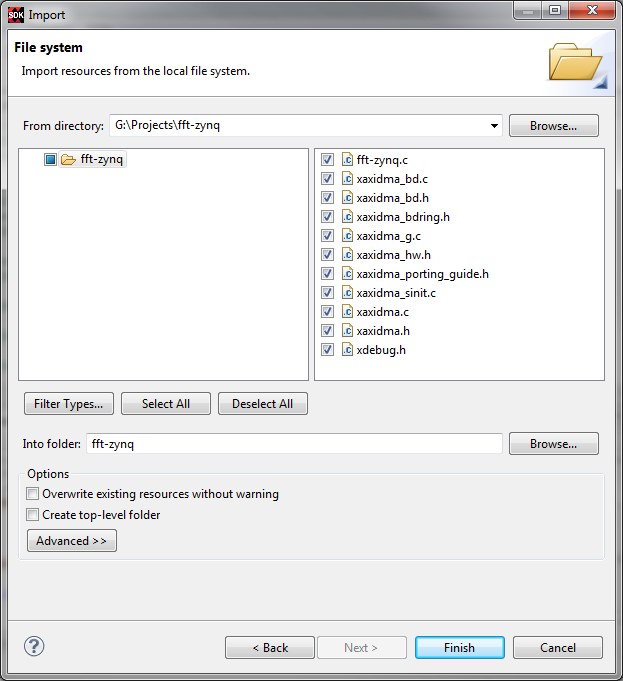
Be certain that the Into folder: is set to fft-zynq.
Click Finish to import the files
There may be a warning about overwriting files. Click the "Yes To All" button to proceed.
SDK may flag some errors or warnings as it imports these files. These can be ignored for now as they will be resolved by changing the include paths for the application build process.
Right click on the fft-zynq project in the Project Explorer pane. From the pop up menu, select C/C++ Build Settings
Expand the C/C++ General category and then select Paths and Symbols.
Some paths will already be set from the prior Tech Tip work. We need to add two paths to the existing set to enable our new application software to build properly.
Click the drop down arrow for the Configurations line and select All Configurations
Click the Add button on the right side of the dialogue box
In the Add directory path dialogue box, click both of the options then click the Workspace button and select fft-zynq and click OK
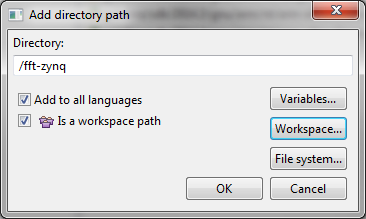
Click OK to add this path.
Use this same set of steps to add the workspace path
/standalone_bsp_0/ps7_cortexa9_0/include
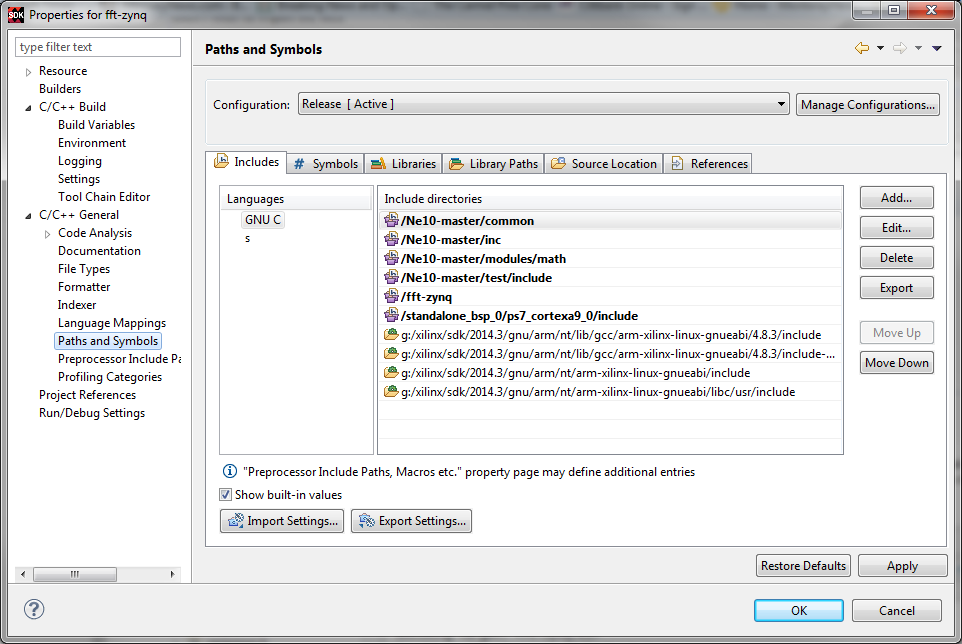
Click Apply and then click OK. Accept the warning that may appear.
Before we build the fft application, we need to verify or make a small change to the main source file fft-zynq.c. In the previous Tech Tip, we disabled the use of the hardware fft block control code with #define statement. At this point we need to be sure that the hardware fft code is enabled before proceeding.
Expand the fft-zynq project and then expand the fft-zynq folder under it to reveal the source files. Double click on fft-zynq.c to open it in the text editor in SDK.
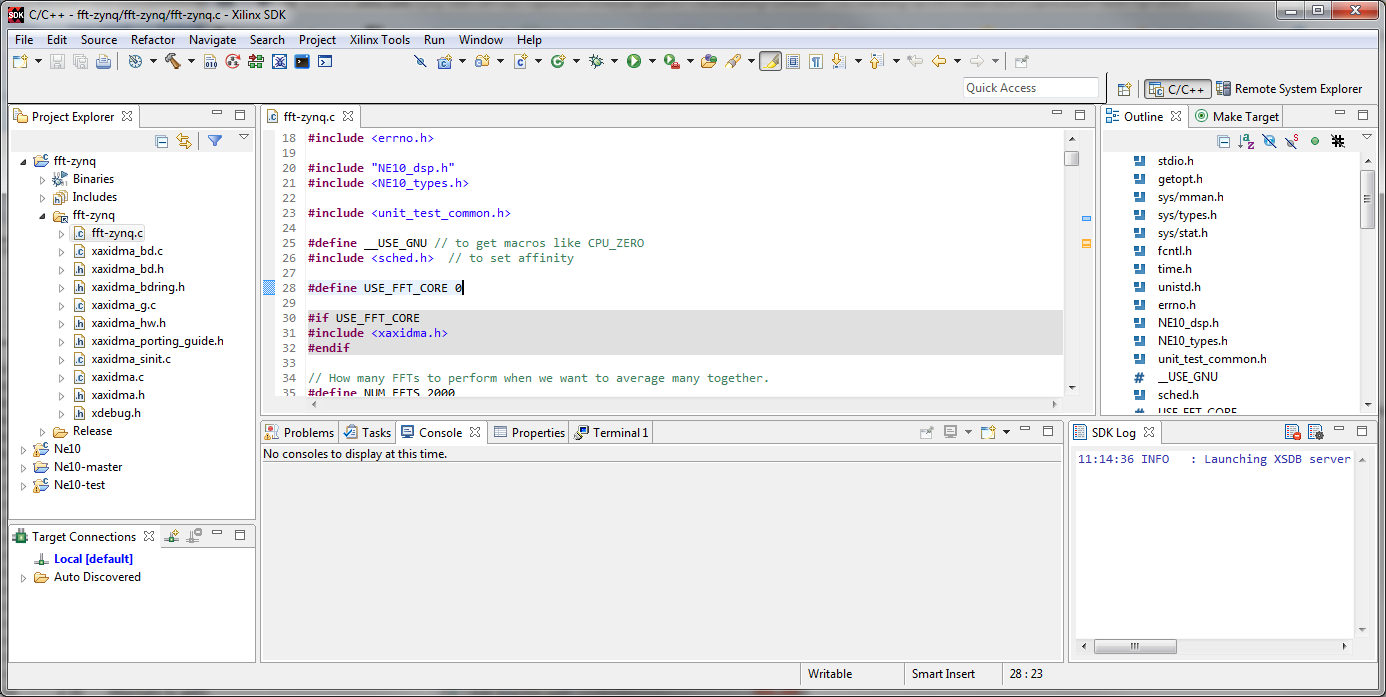
In line 28, simply change the 0 to 1 so the line then reads:
#define USE_FFT_CORE 1
This will enable use of the code that manages the hardware fft block.
Save the change by selecting File -> Save from the main menu bar.
To achieve the best execution speed we need to set the default build options to Release.
Right click on the fft-zynq project in the Project Explorer pane.
Select Build Configurations > Set Active > Release
We can now build the application software.
Right click on fft-zynq and select Clean Project from the pop up menu. When that completes, right click on fft-zynq and select Build Project from the pop up menu. SDK will then build the new application software.
Testing the Application
Using the new BOOT.bin, image.ub and fft-zynq application, we can test the system to determine the relative performance of the 3 methods of processing the fft.
The BOOT.bin and image.ub files produced in the Building the Boot Files section above replace those that are supplied with the Base TRD 2014.2 shown below.

With the power OFF to the ZC702, remove the SD card that contains the TRD 2014.2 files and insert it in a SD card reader or media slot on your computer.
Copy the new BOOT.bin and image.ub files to the SD card. If there is any question about the validity of the new files, or some problem in running the TRD with the new files is found, use the files in the supplied in the boot.zip file supplied with this Tech TIp. For those files, simply download the boot.zip file, unzip it in a convenient location and copy them to the SD card, replacing the current BOOT.bin and image.ub files.
Remove the SD card from your computer and insert it into the ZC702. Power on the ZC702 and verify that the TRD design still operates properly. It should behave as described in the TRD instructions even though it now contains the hardware FFT block and associated controls.
With the ZC702 running normally, we can use Remote System Explorer (RSE) in SDK to test the fft-zynq application. As an alternate, we could copy the fft-zynq.elf application file to the SD card at the same time as we replaced the BOOT.bin and image.ub files and then run it from the command line.
For RSE operation, we use the same steps as used in the previous Tech Tips. They are summarized here for simplicity.
CAUTION!!
The default IP address of the ZC702 is different for PetaLinux than for the OSL Linux used in prior versions of this series of Tech Tips. The default IP address is now 192.168.0.10 so be sure your computer can reach that sub-net.
Connect your ZC702 to your computer or network with an Ethernet cable.
If you are unable to directly reach the .0 subnet from your computer, it is possible to change the IP address of the ZC702 after PetaLinux has booted. To make this change, do the following:
- Connect the console serial over USB port to your PC with the supplied mini-usb adapter and appropriate cable
- Start TeraTerm or similar terminal emulator
- Boot the ZC702 as described below
- Once PetaLinux has booted, log in using the username root and password root
- Use the ifconfig command to change the IP address using - "ifconfig eth0 192.168.1.65" where the IP address is one that you can reach from your PC - in this case we are using 192.168.1.65 for the balance of this Tech Tip.
Right click on fft-zynq and select Run As from the pop up menu, then select Remote ARM Linux Application. Because we have used SDK and RSE in the prior Tech Tips, all of the entries will be filled in and you can simply select Run. If prompted for the password, recall that it is root.
In the Run Configurations screen we can change the Program Arguments to exercise various aspects of the fft processing. Most notably, the -a2 option will enable the use of the hardware FFT block. Running with the --help argument will cause the fft-zynq application to display the various command line arguments that are possible.
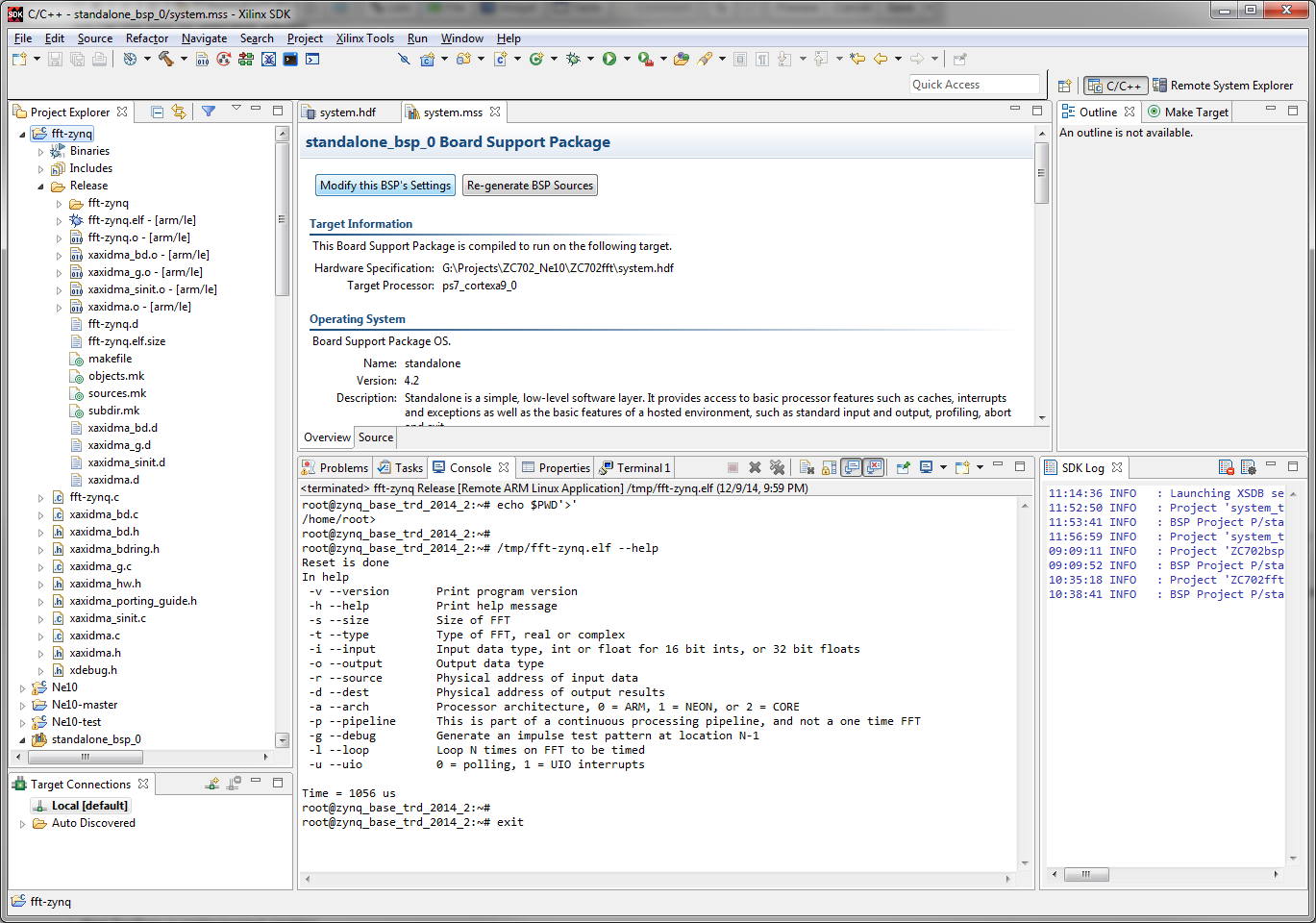
To gather some comparison data, we can switch to a RSE perspective and run the application directly from SDK using Linux commands.
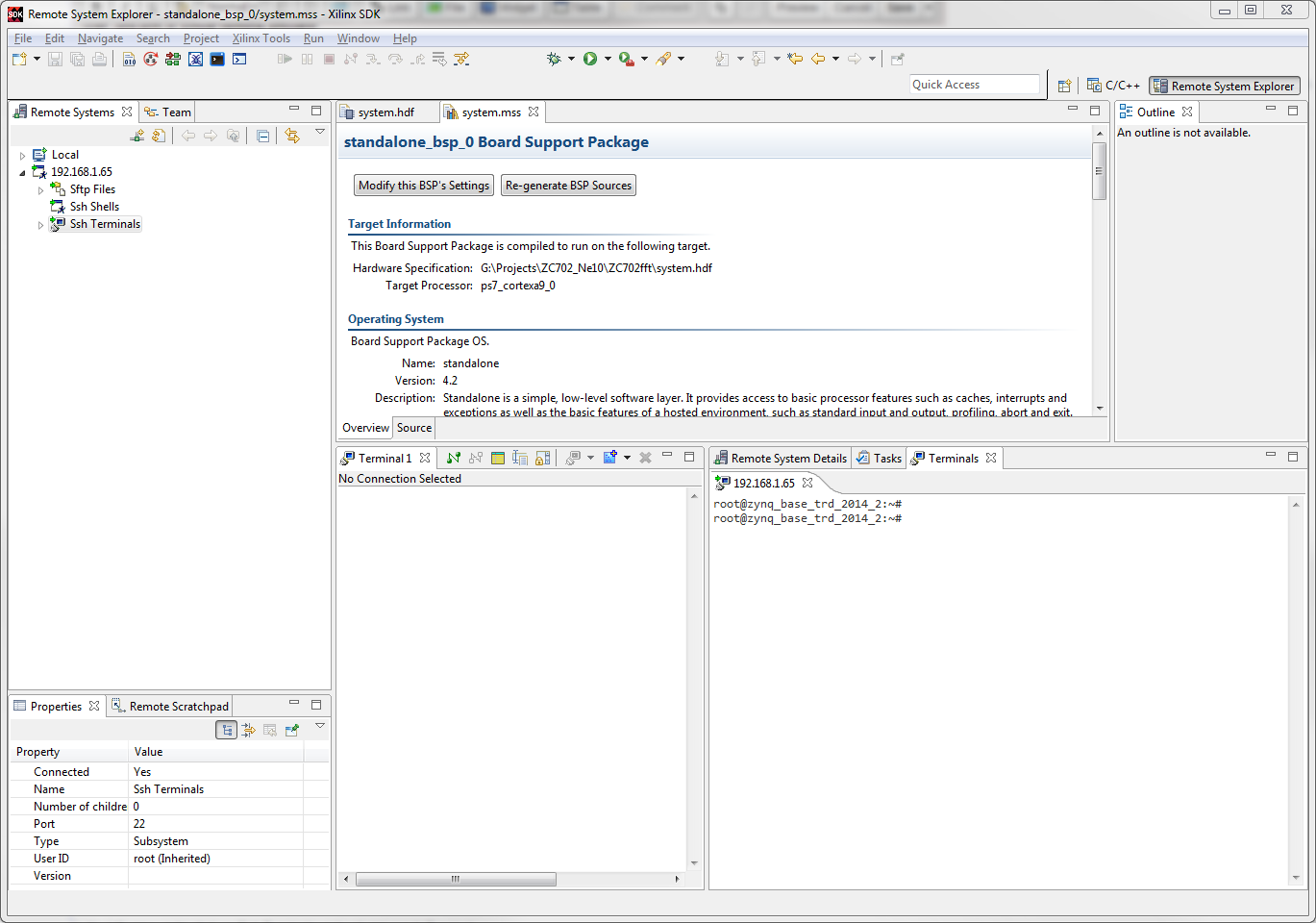
Depending on how the options are set for your SDK installation, you may have a Remote System Explorer icon in the upper right corner of the SDK window. Click on that to get a RSE perspective. Otherwise, from the main menu bar select Window > Open Perspective > Other.
In the selection box, click Remote System Explorer and click OK
In the left pane, right click on Ssh Terminals and select Launch Terminal
A terminal for the ZC702 will be opened
Conclusions
If we run the fft-zynq application from RSE, we can see the execution time of the three different methods of running the FFT. These are the times for execution using the debug option (-g) set to 5 and the architecture option (-a) set to 0 for the ARM alone, 1 for the NEON SIMD engine and 2 for the hardware FFT. Since the hardware FFT is built only for 4096 point FFT, we use that as a comparison in all cases. Several runs were averaged to achieve the following times:
ARM alone - 1325 usec
NEON SIMD engine - 885 usec
Hardware FFT - 221 usec
If a specific run is repeated several times, there is some variability in the reported execution times. For the ARM processor alone, the variability is the highest, likely because of the greater impact of Linux and the potential for cache misses. Because the NEON SIMD engine runs considerably quicker, the potential for Linux overhead is less, decreasing the variability. Because the hardware FFT is in hardware, there should be very little difference in the reported execution times over different runs. These average processing times provide a speed up of 6X over the ARM processor alone and 4X over the NEON SIMD engine.
These average times were using interrupts for the signaling between the hardware FFT block and the PS (-u1 option). By changing the -u option to -u0 we can see that polling reports faster fft processing times for the hardware FFT block. For the -u0 option, the average processing time is 137 usec. This provides a speed up of 9.7X over the ARM processor alone and 6.5X over the NEON SIMD engine.
These execution time improvements clearly demonstrate the power of the combination of processing and programmable logic in the Zynq-7000 AP SoC family of devices.
The addition of hardware to perform the FFT is simplified by the use of IP Integrator. This enables rapid addition of functionality to the overall Zynq-7000 AP AoC platform to enhance performance of critical portions of an application. With the addition of some simple address mapping and control passing, communications between software running on the PS and hardware in the PL can be easily achieved.
Expected Results
The comparison numbers above are for the 4096 FFT. For smaller FFTs, the time for either the ARM processor or the NEON SIMD engine will be proportionally less, and will approach that of the hardware FFT. However, if the hardware FFT were also reduced in size to those same parameters, the execution would also decrease. In a real application, the use of partial reconfiguration could be readily used to change the hardware FFT size to fit the requirements at hand.
Saving the workspace
For ease of completing subsequent Tech Tips that use the results of this Tech Tip, it is wise to save the workspace so it can be restored later as a known starting point. Because only the sw portion of the base TRD was modified, only that portion needs to be saved. If you choose to do this,
Select File -> Export or right click on the white space in the Project Explorer pane and select Export.
In the Export dialogue box expand General and select Archive File.
Click Next
The Export Archive File dialogue will appear
Click the Select All button to select the full workspace - the RemoteSystemsTempFiles do not need to be archived.
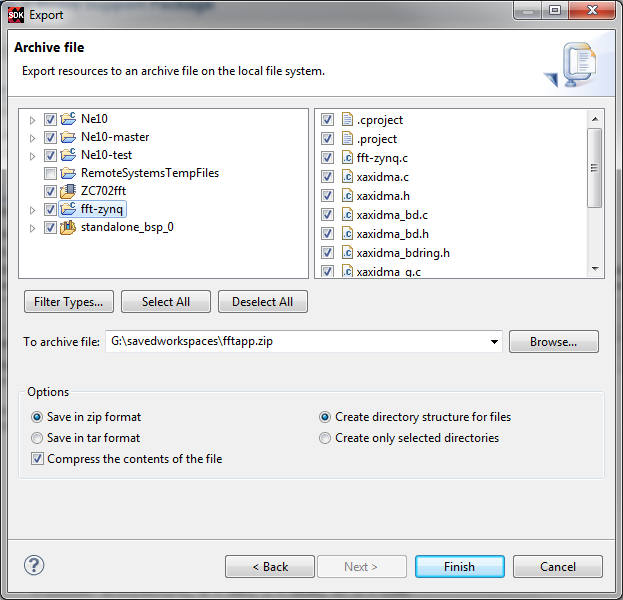
Click the Browse button and navigate to where you want to save the workspace and then create an appropriate file in which to save the workspace. In our case, we are saving this to HWfft_workspace.zip
Be sure the save in zip format is selected unless you are on a Linux system in which case you might select the tar format.
Then click Finish
The workspace will be saved in the specified archive file for later use.
© Copyright 2019 - 2022 Xilinx Inc. Privacy Policy