Zynq Base TRD 2013.2
Zynq Base TRD 2013.2
Table of Contents
ISE DS 14.5 Targeted Base Reference Design
ISE DS 14.4 Targeted Base Reference Design
ISE DS 14.3 Targeted Base Reference Design
ISE DS 14.2 Targeted Base Reference Design
ISE DS 14.1 Targeted Base Reference Design
1 Introduction
This page provides instructions on how to build various components of the Zynq Base Targeted Reference Design (TRD) and how to setup the hardware platform and run the design on the ZC702 Evaluation Kit. The ZC702 Evaluation kit is based on a XC7Z020 CLG484-1 Zynq-7000 SoC device. For additional information, refer to Zynq-7000 SoC: ZC702 Evaluation Kit and Video and Imaging Kit Getting Started Guide.
1.1 About the Base TRD
The Base TRD is an embedded video processing application designed to showcase various features and capabilities of the Zynq Z-7020 SoC device for the embedded domain. The Base TRD consists of two elements: The Zynq-7000 SoC Processing System (PS) and a video processing pipeline implemented in Programmable Logic (PL). The SoC allows the user to implement a video processing algorithm that performs edge detection on an image (Sobel filter) either as a software program running on the Zynq-7000 SoC based PS or as a hardware accelerator inside the SoC based PL. The Base TRD demonstrates how the user can seamlessly switch between a software or a hardware implementation and evaluate the cost and benefit of each implementation. The TRD also demonstrates the value of offloading computation-intensive tasks onto PL, thereby freeing the CPU resources to be available for user-specific applications. For additional information, please refer to UG925: Zynq-7000 SoC: ZC702 Base Targeted Reference Design User Guide.1.2 Download the TRD
An archive with the TRD files can be downloaded here (requires to sign up).1.3 Base TRD Package Contents
The Zynq Base TRD package is released with the source code, Xilinx Vivado and SDK projects, and an SD card image that enables the user to run the video demonstration and software application. It also includes the binaries necessary to configure and boot the Zynq-7000 SoC board. This wiki page assumes the user has already downloaded the Base TRD package and extracted its contents to the Base TRD home directory referred to as ZYNQ_TRD_HOME in this wiki.
2 Prerequisites
- The ZC702 Evaluation Kit ships with the Xilinx Vivado™ Design Suite version 2013.2 Device-locked to the Zynq-7000 XC7Z020 CLG484-1 device and all required licenses to build the TRD. For additional information, refer to UG798 ISE Design Suite 14: Installation and Licensing Guide. A 30-day evaluation license can be generated after registering a Xilinx account.
- Xilinx IP evaluation licenses for the Video Timing Controller and Chroma Resampler IP cores can be ordered online.
- Xylon logiCVC-ML is shipped as evaluation IP core that does not require a license. License options are listed on the Xylon logiCVC-ML product site.
- A Linux development PC with the ARM GNU tools installed. The ARM GNU tools are included with the Xilinx ISE Design Suite Embedded Edition or can be downloaded separately.
- A Linux development PC with the distributed version control system Git installed. For more information, refer to the Xilinx Git wiki and to UG821: Xilinx Zynq-7000 SoC Software Developers Guide.
- A Linux development PC with Petalinux SDK installed . For more information , refer to Xilinx Petalinux user manuals .
- A Linux development PC with QT and QWT libraries cross-compiled for Zynq platform. Set ZYNQ_QT_INSTALL environment variable by referring to Xilinx Zynq Qt/Qwt Libraries - Build Instructions
3 Building the FPGA Hardware Bitstream
This section explains how to generate the FPGA hardware bitstream using the Xilinx Vivado tool and how to export the hardware platform to Xilinx Software Development Kit (SDK) for software application development.
3.1 Building the Bitstream
Steps for building the FPGA hardware bitstream
Launch Vivado :
- On Windows 7, select Start > All Programs > Xilinx Design Tools > Vivado 2013.2 > Vivado 2013.2.
- On Linux, enter vivado at the command prompt.
From the Vivado welcome screen, in TCL console, run following commands
1. cd $ZYNQ_TRD_HOME/hardware/vivado
2. source ./scripts/project.tcl

The above step creates a project 'zynq_base_trd_2013.2'.
In the Flow Navigator pane on the left-hand side under Program and Debug, click Generate Bitstream. The bitstream will be generated at $ZYNQ_TRD_HOME/hardware/vivado/project/zynq_base_trd_2013.2.runs/impl_1/system_top_wrapper.bit

Exporting the Hardware Platform to SDK
A pre-generated hardware platform project can be found at $ZYNQ_TRD_HOME/software/workspace/hw_platform/.
3.2 Steps for exporting the hardware platform to SDK
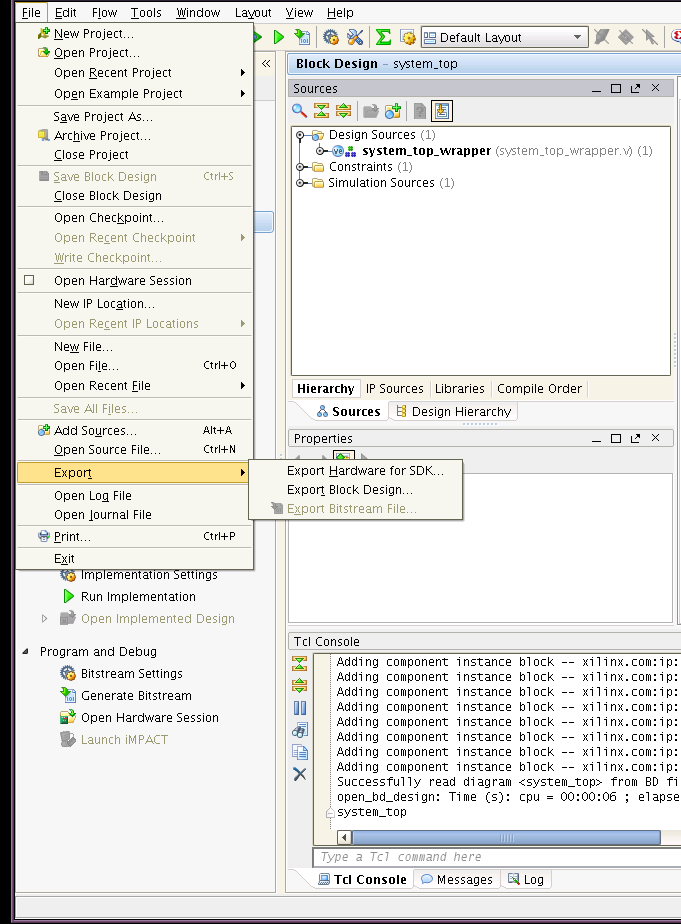
From the Vivado menu bar, select File > Export > Export Hardware for SDK
In the Export Hardware window press OK. The SDK hardware platform will be exported to $ZYNQ_TRD_HOME/hardware/vivado/project/zynq_base_trd_2013.2.sdk/SDK/SDK_Export.

Note: If the Launch SDK option is checked in the Export Hardware window, SDK will be launched immediately after SDK export has completed. This is not recommended at this point.
4 Building the First Stage Boot Loader (FSBL)
This section explains how to import and build the First Stage Boot Loader (FSBL) and the standalone OS based Board Support Package(BSP) from the provided SDK projects.
Note: The provided FSBL project is a customized version of the FSBL SDK project template. The following features have been added to the Base TRD version:
- I2C mux reset.
- FMC detection sequence.
- I2C initialization sequence for HDMI receiver (ADV7611) on Avnet IMAGEON FMC.
All the above customizations are added to FsblHookBeforeHandoff routine part of
$ZYNQ_TRD_HOME/software/workspace/zynq_fsbl/src/fsbl_hooks.c.
Steps for building the FSBL
Launch Xilinx SDK:
- On Windows 7, select Start > All Programs > Xilinx Design Tools > SDK 2013.2 > Xilinx SDK 2013.2.
- On Linux, enter xsdk at the command prompt.
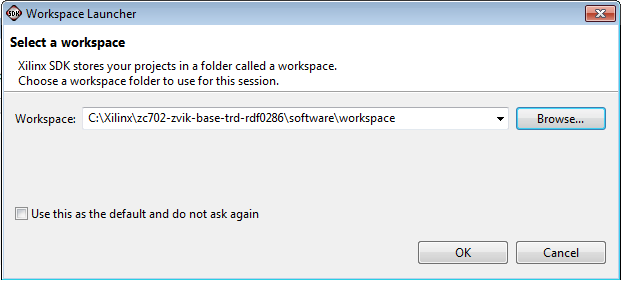
In the Workspace Launcher window, click Browse and navigate to $ZYNQ_TRD_HOME/software/workspace, then click OK. Close the welcome screen.
To import the hardware platform (hw_platform) , FSBL (zynq_fsbl) and FSBL BSP (zynq_fsbl_bsp) into the SDK workspace,
Select File > Import.

Note: The zynq_fsbl project requires a hardware platform SDK project generated by SDK export. Instead of the provided hw_platform project, the one generated in Section 3.2 can be used.
This requires the user to update the project reference of the zynq_fsbl project.
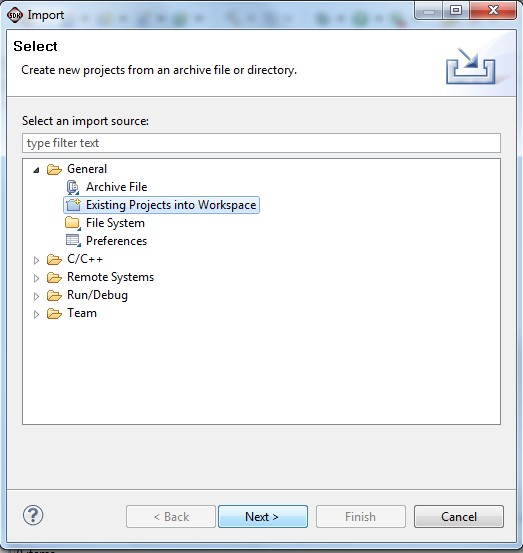
In the Import wizard, expand the General folder, select Existing Projects into Workspace, and click Next.
All projects are located at the top-level inside your SDK workspace. Click Browse and navigate to $ZYNQ_TRD_HOME/software/workspace. Press OK.
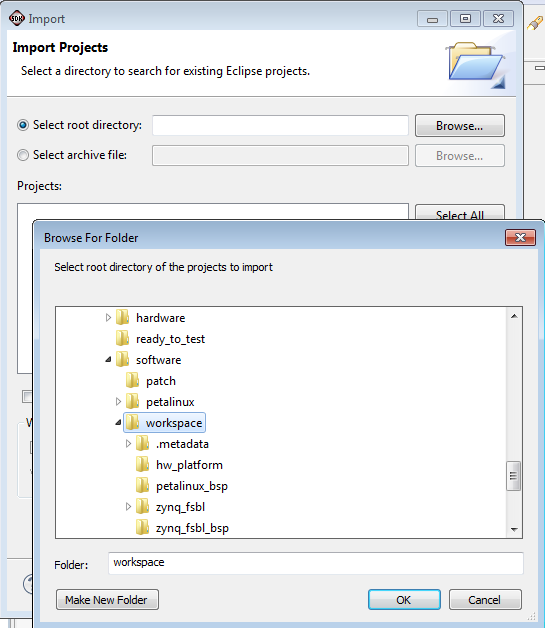
Make sure the hw_platform, zynq_fsbl and zynq_fsbl_bsp projects are checked . Press Finish.

The build process will start automatically and builds the BSP first and then the FSBL. The generated Zynq FSBL executable can be found at $ZYNQ_TRD_HOME/software/workspace/zynq_fsbl/Debug/zynq_fsbl.elf.
This option can be changed by unchecking Project > Build Automatically from the menu bar.
To manually build the project, right click zynq_fsbl in the Project Explorer and select Build Project; to clean the project, select Clean Project.

5 Installation of Petalinux SDK
5.1 Prerequisites
- Minimum workstation requirements:
- 2GB RAM (recommended minimum for Xilinx tools)
- Pentium 4 2GHz CPU clock or equivalent
- 5 GB free HDD space
- Recommended OS: CentOS RHEL 5 (32-bit), or Ubuntu 10.04 (32-bit or 64-bit)
- You have obtained the PetaLinux release package.
- You have obtained a license for PetaLinux.
- A number of common system packages and libraries are required to be installed on your workstation and the installation process will check for these.See the section "Required Tools and Libraries" for more details.
Download Petalinux SDK software from Xilinx download , ISE design tools> Version 14.6 > Petalinux SDK- 14.6 Utilities > PetaLinux 13.04 Installation archive for Zynq and MicroBlaze
5.2 Extract the PetaLinux Package
Assuming all the prerequisites described in the last subsection are satisfied, PetaLinux installation is very straight forward. Extract the compressed PetaLinux package by running the following command on your workstation:bash> tar vzxf petalinux-v2013.04-final-full.tar.gz
So, if you extract the package from your home directory /home/user, PetaLinux will be installed in /home/user/petalinux-v2013.04-final-full.
You may move the resulting petalinux-v2013.04-final-full directory to a preferred location before continuing.
5.3 Install License
PetaLinux licenses are managed using the same system as all other Xilinx Design Tools. For more details on licensing and setup of license please refer to the
"Xilinx Design Tools: Installation and Licensing Guide (UG798)" section "Obtaining and Managing a License".
5.4 Setup PetaLinux Working Environment
After extracting the package, the remainder of the setup is completed automatically.1. Go to the PetaLinux root directory by running this command on the command console:
cd <path-to-installed-PetaLinux>
e.g.:
bash> cd /home/user/petalinux-v2013.04-final-full
For Bash:
bash> source settings.sh
The first time the setup script is sourced, it will perform some post installation tasks to check system dependencies and initialise the Linux kernel source tree.
Below is an example of the output from sourcing the setup script for the first time:
PetaLinux environment set to ’/home/user/petalinux-v2013.04-final-full’
INFO: Finalising PetaLinux installation
INFO: Checking free disk space
INFO: Checking installed tools
INFO: Checking installed development libraries
INFO: Checking network and other services
INFO: Checking for sudo permissions - you may be prompted to enter
your password
Password: *
INFO: Initialising kernel tree. Please be patient.
INFO: PetaLinux post-installation completed successfully
The post-install step only occurs once. Subsequent runs of the settings script should be much quicker, and simply output a confirmation message such as that shown below:
PetaLinux environment set to ’/home/user/petalinux-v2013.04-final-full’
5.4 Verify Petalinux Installation
Verify that the PetaLinux working environment has been set:bash> echo $PETALINUX
Environment variable "$PETALINUX" should point to the path to the installed PetaLinux. Your echo output may be different from this example, depending upon where you installed PetaLinux.
6 Zynq Base TRD BSP Installation Procedure
PetaLinux includes reference designs for you to start working with and customise for your own projects. These are provided in the form of installable BSP (Board Support Package) files, and includeall necessary design and configuration files, including pre-built and tested hardware and software images, ready for download to your board or for booting in the QEMU system simulation environment.
Run petalinux-install-bsp command on the command console:
petalinux-install-bsp <Path-to-TRD BSP>
Example:
bash> petalinux-install-bsp $ZYNQ_TRD_HOME/software/petalinux/bsp/Xilinx-zc702-trd-v2013_2.bsp
<snip>
INFO: Default BSP settings restored
INFO: BSP successfully installed
7 Upgrading petalinux kernel version to 3.9
Upgrade the existing petalinux linux repo. Since petalinux linux repo is maintained as a git repo we can easily fast-forward it to latest OSL kernel version i.e 3.9.
Steps for building the Linux kernel.
bash> cd $PETALINUX/software/linux-2.6.x
bash> git fetch root
OR
bash> git fetch root_http
bash> git checkout -b zynq_base_trd_v2013.2 xilinx-v14.6.02
- Mouse sensitivity patch (As default mouse sensitivity on embedded QT GUI is quite fast)
bash> cp $ZYNQ_TRD_HOME/software/patch/zynq_base_trd_v2013_2.patch . // copy the 2013.2 TRD patch to petalinux kernel directory
bash> git apply --stat zynq_base_trd_v2013_2.patch // display contents of patch
bash> git apply --check zynq_base_trd_v2013_2.patch // check if patch can be applied
bash> git am zynq_base_trd_v2013_2.patch // apply the patch
bash> make ARCH=arm xilinx_zynq_base_trd_defconfig
8 Select Zynq Base TRD Platform
Select Zynq Base TRD platform configuration and apply it to current petalinux build session.
bash> cd $PETALINUX/software/petalinux-dist
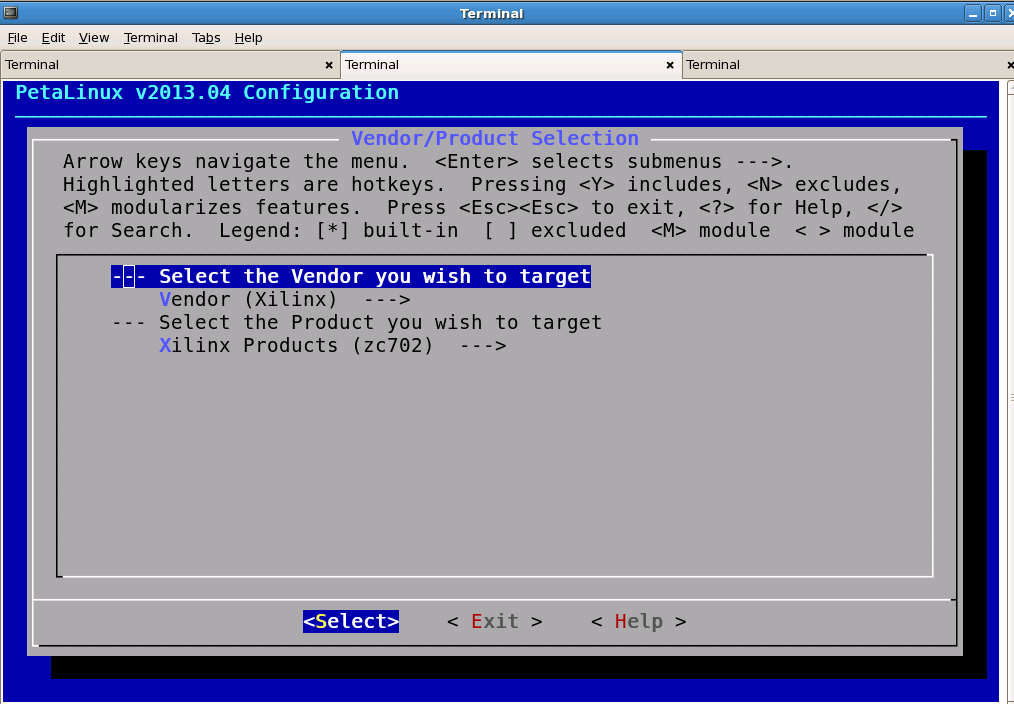
bash> make menuconfig
Select the Vendor you wish to target : Vendor(Xilinx)
Select the Product you wish to target: Xilinx Products (zc702)
9 Import TRD user applications and libraries to Petalinux SDK.
9.1 Import user applications
It can be added to Petalinux SDK by copying application sources to petalinux user-apps directory.bash> cd $PETALINUX/software/user-apps bash> cp -rf $ZYNQ_TRD_HOME/software/petalinux/user-apps/* .
9.2 Select user applications in Petalinux build
Select user applications to be included in the PetaLinux build process. This is not enabled by default.Run ’make appconfig’ in your "$PETALINUX/software/petalinux-dist" directory
bash> cd $PETALINUX/software/petalinux-dist
bash> make appconfig
Press the down arrow key to scroll down the menu to "User Applications". Press "Enter" to go into the "User Applications" sub-menu:
You will see your mentioned TRD applications listed in the menu. "init_scripts",”sobel_cmd_wrapper”,”sobel_qt_wrapper”.
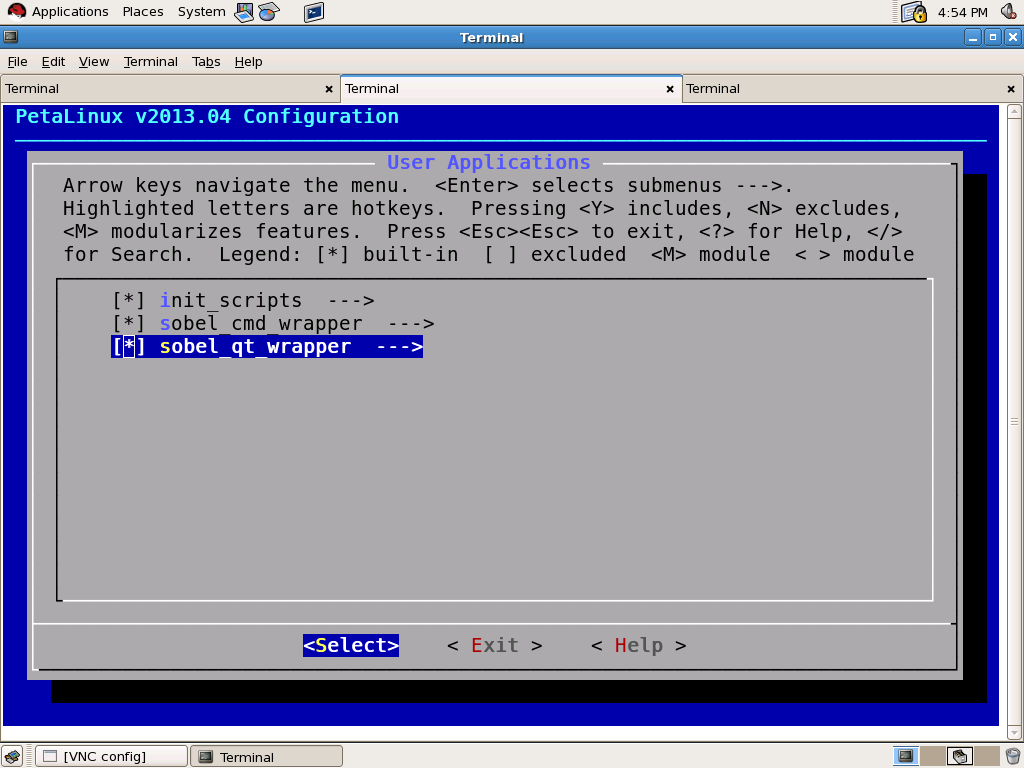
Select applications and press exit twice to come out of petalinux configuration menu.
Select "<Yes>" to question "Do you wish to save your new kernel configuration?"save changes.
9.3 Import user libraries
User libraries can be added to Petalinux SDK by copying sources to petalinux user-libs directory.bash> cd $PETALINUX/software/user-libs bash> cp -rf $ZYNQ_TRD_HOME/software/petalinux/user-libs/* .
9.4 Select user libraries in Petalinux build
Select user libararies to be included in the PetaLinux build process. It is not enabled by default.Run ’make appconfig’ in your "$PETALINUX/software/petalinux-dist" directory
bash> cd $PETALINUX/software/petalinux-dist
bash> make appconfig
Press the down arrow key to scroll down the menu to "User libraries". Press "Enter" to go into the "User libraries" sub-menu:
You will see your mentioned user libraries listed in the menu."qt_lib”, “sobel_lib_wrapper”.

Select libraries and press exit twice to come out of petalinux configuration menu.
Select "<Yes>" to question "Do you wish to save your new kernel configuration?"save changes.
10 Build Petalinux.
Finally, it’s time to build your petalinux image.Run ’make’ in the petalinux-dist directory to build the PetaLinux system image:
bash> cd $PETALINUX/software/petalinux-dist
bash> make
The console shows the compilation progress. e.g.:
[INFO ] Building ucfront tool
[INFO ] Building kernel
[00:00]
And the compilation log stores in build.log file in the petalinux-dist/ directory.
11 Generate BOOT image for Zynq
Follow the steps below to generate the boot image (BOOT.bin) .
petalinux-gen-zynq-boot -b <Path to FSBL image> -f <Path to FPGA bitstream> -u <Path to uboot image> -o <output file>
The parameters are as follows:
-b <FSBL image> - Path to FSBL image location
-f <FPGA image> - Path to FPGA bitstream location
-u <uboot image> - Path to uboot image (default is images/u-boot.elf)
-o <output file> - Output image name (default is images/BOOT.BIN)
petalinux-gen-zynq-boot command requires bootgen binary in its path.Petalinux SDK version also checks whether XILINX_EDK environment var is set.
So to fake the check we need to set XILINX_EDK.
bash> export XILINX_EDK=$XILINX_SDK
bash>  petalinux-gen-zynq-boot -b $ZYNQ_TRD_HOME/software/workspace/zynq_fsbl/Debug/zynq_fsbl.elf
       -f $ZYNQ_TRD_HOME/hardware/vivado/project/zynq_base_trd_2013.2.runs/impl_1/system_top_wrapper.bit
Move to petalinux images directory.
cd $PETALINUX/software/petalinux-dist/images
SD BOOT mode Petalinux Deployment Binaries:
a) BOOT.bin
b) image.ub
12 Running Video Demo Applications
This section explains through step by step instructions how to bring up the ZC702 board for video demonstration part of the TRD and running different video demonstrations out of the box.
The ZC702 Evaluation Kit comes with an SD-MMC card pre-loaded with binaries that enable the user to run the video demonstration and software applications. It also includes the binaries necessary to
configure and boot the Zynq-7000 SoC based ZC-702 board.
Note:
a) If the evaluation kit design files were downloaded online, copy the entire folder ZYNQ_TRD_HOME/ready_to_test from the package onto the primary partition of the SD-MMC card
which is formatted as FAT32 using a SD-MMC card reader.
b) Petalinux console login details:-
User : root
Password : root
12.1 Hardware Setup Requirements
The ZC702 board setup to run & test the video demonstration applications require the following items:
Requirements for TRD Linux application demo setup
- The ZC702 evaluation board with the XC7Z020 CLG484-1 part
- AC power adapter (12 VDC)
- An USB Type-A to USB Mini-B cable (for UART communications) and a Tera Term Pro (or similar) UART terminal program.
- USB-UART drivers from Silicon Labs
- A HDMI cable.
- Optional: FMC (FPGA Mezzanine Card).
- Optional: External Video Source e.g. Roku HD Streaming player.
- A SD-MMC flash card containing TRD binaries formatted with FAT32. The SD-MMC is pre-loaded with required binaries in its first partition. The pre-loaded binaries include :
- BOOT.bin
- image.ub
- An USB Micro-B to female Adaptor with USB hub is needed for connecting a keyboard and a mouse.
- An USB mouse and keyboard.
- A display monitor that supports HD resolutions: 1920 x 1080p @ 60 Hz, and 1280 x 720 @ 60 Hz(if the user also want to validate TRD with 720p video output)
Note:The example mentioned in this package has been tested with a Asus VS228 display monitor. However, the examples should work well with any HDMI-compatible output device provided
it supports 720/1080p resolution in EDID information.
.
12.2 Board Setup
This section explains how to setup the ZC702 board to run and test video demonstration applications.
Steps for setting the board
Connect the cables as shown in Figure below to prepare the ZC702 board to run the TRD video demo applications.
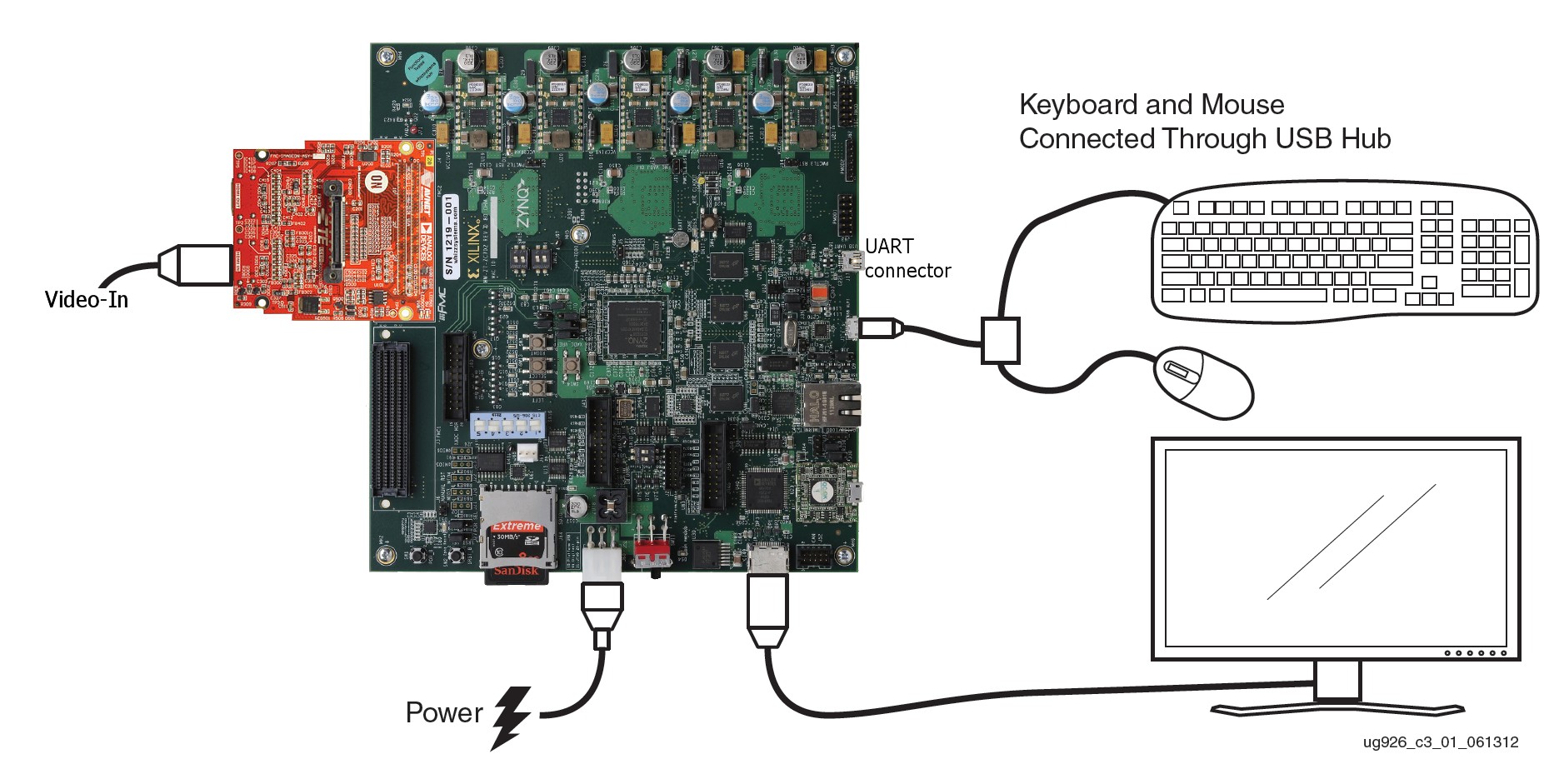
- Connect a display monitor to the HDMI out port of the ZC702 board using a HDMI cable.
- Connect a keyboard and mouse to an USB hub, which is connected to the ZC702 board Micro-B USB connector.
- Connect an USB Mini-B cable into the Mini USB port J17 labeled USB UART on the ZC702 board and the USB Type-A cable end into an open USB port on the host PC for UART communications.
- Connect the power supply to the ZC702 board. Do not switch the power on.
Insert a SD-MMC memory card, which contains the TRD binaries, into the SD slot on the ZC702 board.
Make sure the switches are set as shown in figure below, which allows the ZC702 board to boot from the SD-MMC card.

The older ZC702 rev.x version boards does not have switches and contains jumpers. Use the following jumper settings: J21: 2-3, J20: 2-3, J22: 1-2, J25: 1-2, J26: 2-3
Make sure the monitor is set for HDMI or DVI 1920x1080 resolution.
12.3 Run Qt GUI Application in 1080p mode.
A Linux application with Qt-based GUI is provided with the package. This application provides options to user for using GUI with the help of a mouse & keyboard to exercise different modes of the video demonstration.
Note: The default Linux device tree binary file configures the video output resolution to 1080p @60Hz.
After setting the board as explained in Section 12.2, running the Qt-Based GUI application is explained in this section.
Steps for running the Qt-based GUI application demo
Set monitor resolution to 1080p if its supported in monitor EDID specs.1920 x 1080p @ 60Hz
Power on the ZC702 board.
Wait for the ZC702 board to be configured and booted with Linux. After approximately 2 minutes, a XILINX ZYNQ banner displays on the monitor, as shown in the figure.

The Qt-based video demonstration application starts. The GUI application shows up at the bottom of the display monitor.

The Qt-based application allows the user to experience the different use-cases build into the video demonstration and is controlled through the mouse.
The Qt application can be used in minimize / maximize mode. Transparency slider is provided to control the GUI transparency.
End user can configure sobel controls i.e. Set sobel in invert/non-invert mode and control sobel sensitivity using sensitivity slider on QT GUI.
The user can click Help for short messages and information about the control window of the QT application.
Click Enable Video to start the internal test pattern generator which displays on the display monitor.
Exercise different options by pressing the buttons available in the GUI to evaluate the different use cases mentioned in following Table.
| Use Case |
TPG Control |
Sobel Filter Control |
|---|---|---|
| 1 |
TPG Pattern |
Sobel OFF |
| 2 |
TPG Pattern |
Sobel - SW |
| 3 |
TPG Pattern |
Sobel - HW |
| Additional Options with External Video source |
||
| 4 |
External video |
Sobel OFF |
| 5 |
External video |
Sobel - SW |
| 3 |
External video |
Sobel - HW |
- TPG interference
- The input video is generated by the TPG IP implemented in the PL.
- External video (available with the optional ZVIK FMC module)
- The input video is supplied by an external video source and is connected through an Avnet FMC-IMAGEON card.
Sobel Filter modes are explained as follows:
- Sobel OFF
- No processing done. Sobel filter is bypassed.
- Sobel – SW
- Video processing (edge-detection filter) done by software code running on the PS.
- Observe CPU utilization going up to 100% for one of the two CPUs (this can be seen in the CPU usage graph). In this mode, the frame rate of the video also drops to about 10 fps.
- Sobel – HW
- Video processing (edge-detection filtering) done by PL.
- Observe CPU utilization going down (to approximately 0) and the frame rate jumping to 60 fps.
The video frame generated by the TPG, i.e. case 1 vs. case 2 or 3 of Table, the video frame after its object edges are found using Sobel filter algorithm is:

While exercising the modes described above, one can observe AXI bus bandwidth utilization and CPU utilization on the graphs in the Qt GUI application.
Click Exit button on the GUI using the mouse to quit the application and return the user to Linux console.
The application can be restarted by typing the following at the Linux command prompt:
zynq> sobel_qt -res 1920x1080
12.4 Run Qt GUI Application in 720p mode.
Prerequisite:
Monitor supporting 720p mode , as current design has a strict check for supported resolution.
For more information refer to Appendix 14.2 EDID section.
Command line resolution switch utility is added to dynamically change the resolution .
To use this feature application has to be started using -res option followed by input resolution.
Steps for Running QT based GUI in 720p mode.
a) Follow similar steps as mentioned in 12.3 subsection.
b) Exit QT application by clicking on Exit button.
c) Type these commands at the Linux command prompt into the host PC based terminal
zynq> sobel_qt -res 1280x720
12.5 Run UART Menu Application in 1080p mode.
A Linux application with command line menu is also provided with the package. This application provides options to the user to exercise different modes of the video demonstration over UART communications.
Note: The default Linux device tree binary file configures the video output resolution to 1080p @60Hz.
After setting the board as explained in Section 12.2, running the UART menu based application is explained in this section.
Steps for running the UART Menu-Based application demo
Power on the ZC702 board.
Configure the display monitor resolution to either 1080p resolution: 1920 x 1080p @ 60Hz or 720p60 resolution: 1280 x 720p @60 Hz.
Start the installed UART terminal program on your host PC (e.g., Tera Term on a Windows PC, GtkTerm on a Linux PC).
Use the following UART configuration: Baud rate = 115200, bits = 8, parity = none, and stop bits = 1.
Note: This step is required to view debug information or to run the UART Menu-Based Demonstration application.
Wait for the ZC702 board to be configured and booted with Linux. After approximately 2 minutes, a XILINX ZYNQ banner displays on the monitor, as shown in the figure.
The Qt-based video demonstration application starts. The GUI application shows up at the bottom of the display monitor.
Click Exit button on the GUI using the mouse to quit the application and return the user to Linux console.
Go to the UART terminal started on the host PC.
Type these commands at the Linux command prompt into the host PC based UART terminal:
zynq> sobel_cmd -res 1920x1080
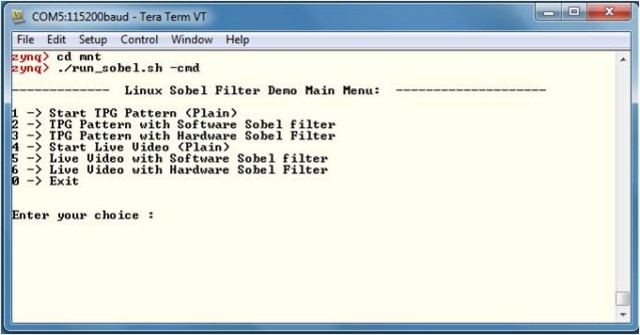
Exercise different options by entering the use case number displayed in the below Table against Enter your choice : on the terminal.
| Choice |
TPG Control |
Sobel Filter Control |
|---|---|---|
| 1 |
TPG Pattern |
Sobel OFF |
| 2 |
TPG Pattern |
Sobel - SW |
| 3 |
TPG Pattern |
Sobel - HW |
| Additional Options with External Video source |
||
| 4 |
External video |
Sobel OFF |
| 5 |
External video |
Sobel - SW |
| 3 |
External video |
Sobel - HW |
- TPG interference
- The input video is generated by the TPG IP implemented in the PL.
- External video (available with the optional ZVIK FMC module)
- The input video is supplied by an external video source and is connected through an Avnet FMC-IMAGEON card.
Sobel Filter Modes are explained below:
- Sobel OFF
- No processing done. Sobel filter is bypassed.
- Sobel – SW
- Video processing (edge-detection filter) done by software code running on PS
- Sobel – HW
- Video processing (edge-detection filter) done by PL
The video frame generated by the TPG, i.e. case 1 vs. case 2 or 3 of Table, the video frame after its object edges are found using Sobel filter algorithm is:
Enter 0 to exit the application and return to the command prompt.
12.6 Run UART Menu Application in 720p mode
Prerequisite: Monitor supporting 720p mode as current design has a strict check for supported resolution.
For more information refer to Appendix 14.2 EDID section.
Command line resolution switch utility is added to dynamically change the resolution .
To use this feature application has to be started using -res option followed by input resolution.
Steps for Running UART Menu based Demonstration Application in 720p mode.
a) Follow similar steps as mentioned in 12.5 subsection.
b) Exit UART application [enter 0 to exit ].
c)Type these commands at the Linux command prompt into the host PC based terminal:
zynq> sobel_cmd -res 1280x720
13 References
- Documentation for Zynq-7000 SoC
- Documentation for ZC702 Evaluation Kit
- Main Xilinx wiki
- Documentation for Petalinux SDK.
14 Appendix
14.1 Vivado HLS Flow for generating Sobel filter Vivado IP
Vivado HLS provides a tool and methodology for migrating algorithms coded in C, C++ or System-C from the Zynq PS onto the PL by generating RTL code. The Sobel filter IP core used in the Zynq Base TRD was generated using this approach.Note: Pre-generated Sobel IP core is available at $ZYNQ_TRD_HOME/hardware/vivado/srcs/ip/sobel_filter_v1_0
Synthesizing the HLS Design
1. Launch Vivado HLS .
- On Windows 7 ,select Start > All Programs > Xilinx Design Tools > Vivado 2013.2 > Vivado HLS > Vivado HLS 2013.2
- On Linux ,enter vivado_hls at the command prompt.
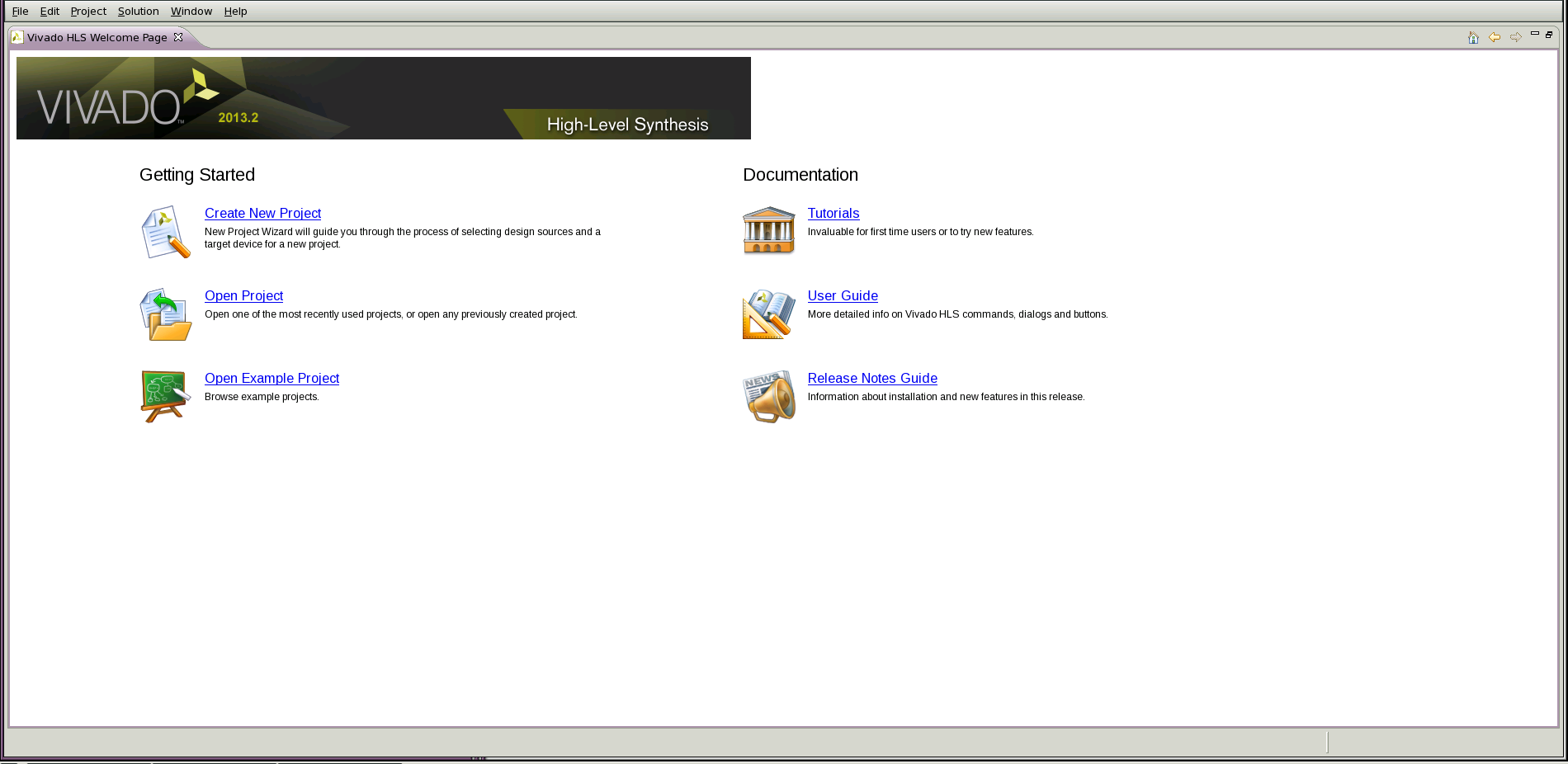
On the Vivado HLS welcome screen, click Open Project under the Getting Started group.
3. In the Open Project dialog, browse to the $ZYNQ_TRD_HOME/hardwarew/vivado_hls/sobel directory and click OK.

4. From the icon bar, click the Synthesis button to generate the RTL for the algorithm.

Exporting the RTL as Vivado IP
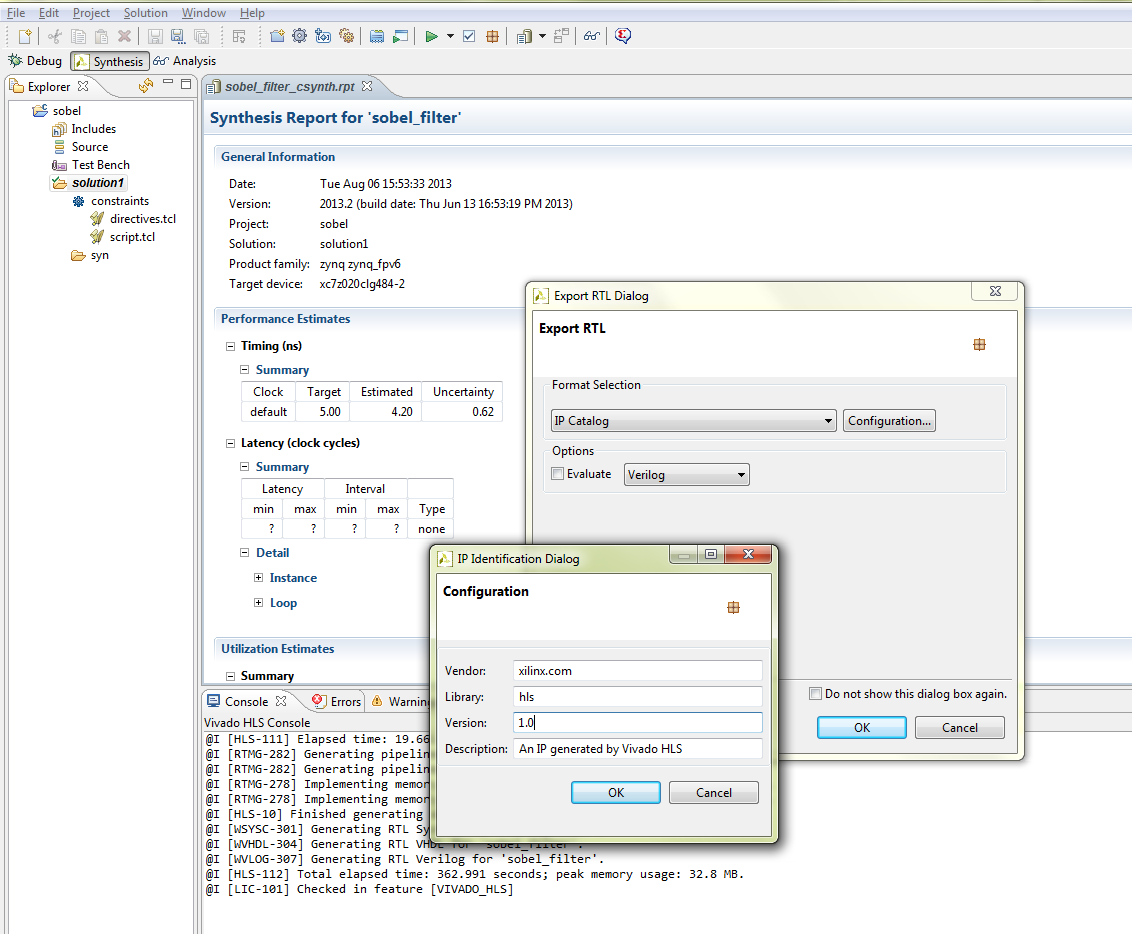
1. Click the Export RTL button to package the RTL as Vivado IP.

2. In the dialog box, Format Selection, select IP Catalog.
3. Click the Configuration... button.
Enter 1.0 for the Version and confirm with OK twice.
The IP is located in the directory $ZYNQ_TRD_HOME/hardware/vivado_hls/sobel/solution1/impl/ip/xilinx_com_hls_sobel_filter_1_0.zip
To use this IP and generate bitstream, replace the content of $ZYNQ_TRD_HOME/hardware/vivado/src/ip/sobel_filter_v1_0/ by content of the zip file generated by HLS tool.
And follow the steps in section 3 'Generating the bitstream'
14.2 EDID Extended display identification data .
The Extended Display Identification Data (EDID) is a data structure, with optional variants, to allow the display to inform the host about its identity and capabilities. The EDID data structure is
independent of the communication protocol used between the monitor and host.
EDID 2.0 Version 2 Revision 0 data structure defined a completely new EDID data structure based on 256-byte records.
To check if a display source supports a particular resolution its EDID information can be queried. There are lot of available software tools for managing EDID information.
Example: Extron EDID Manager® is a software tool that can be a useful aid in troubleshooting potential EDID compatibility issues between a display and the source connected to it.
The software allows you to read the display's EDID and generate a report, providing detailed information about the display device.
http://www.extron.com/product/software.aspx?id=edidmanager&s=5
Current Linux framebuffer has in default EDID check enabled , so on switching resolution it will check if connected monitor supports that resolution .
If monitor supports the specified resolution it switches successfully or else return an error.
root@zc702:~# sobel_cmd -res 1280x720
detected fb_set_par error, error code: -22
Error writing fb_var info.
TRD :: Check if monitor supports input resolution .
Note: EDID check can also be disabled by configuring preffered video mode parameter in device tree [ Not recommended ]
Steps for changing the device tree source .
a) Switch to kernel source directory and open device tree source .
vi $PETALINUX/software/linux-2.6.x/arch/arm/boot/dts/Xilinx-zc702.dts
edid {
preffered-videomode = <0>;
display-data = <0>;
};
14.3 Add Custom resolution to sobel application
Note: Applicable only to sobel command line application.
Example demonstrate adding 800x600 resolution support.
a) Modify sobel library to add new resolution.
bash> cd $PETALINUX/software/user-libs/sobel_lib_wrapper/sobel_lib
bash> vi common.h
b) Append entry for new resolution.
enum Resolutions{
E_Resolution_1080P,  //1920 x 1080 @ 60Hz (60fps)
E_Resolution_720P,  // 1280 x 720 @ 60Hz (60fps)
E_Resolution_VGA,   // 640 x 480 @ 60Hz (60fps)
E_Resolution_800x600,//800 x 600 @ 60Hz (60fps)
E_Resolution_MAX
};
c) Append video timing information i.e Pixel clock,Horizontal/Vertical SyncLen,BackPorch,FrontPorch,video active parameters to video parameter structure.
//Global Lookup table for the video parameters and timing//
//static const unsigned int gVideoParam[E_Resolution_MAX][E_VParam_MAX] = {// Add entry to this struct };

//E_Clk, E_HTotal, E_HSyncLen, E_HBP, E_HActive, E_HFP, E_VTotal, E_VActive, E_VFP, E_VSyncLen, E_VBP
{ 40000, 1056, 128, 88, 800, 40, 628, 600, 1, 4, 23 }
d) Save the changes and build the petalinux image .
14.4 Known Issues
a) Disconnecting/reconnecting monitor hdmi cable while QT GUI is running, causes GUI Layer to appear on the top.
Workaround is to click on min followed by max button to resume normal operation.
Explanation- On reconnecting the monitor ,parameters like fb_var_screeninfo are set to default values as queried during EDID exchange.
In current design QT application is not querying monitor disconnect status , which will be added in coming release.
b) Running sobel QT/cmd application as a background processes in virtual console results in an undefined behaviour. So it is recommended to use serial console to start applications.
c) Petalinux binary built on certain development environment <=2.6.18-238.el5 ,throws below error during u-boot boot process.
‘Can't get hash value property for 'hash@1' hash node in 'kernel@1' image node
Bad hash in FIT image!’
Hack is to run dtc conversion from source to binary and vice-versa.
cd $PETALINUX/software/petalinux-dist/images
dtc -I dtb -O dts image.ub -o temp
dtc -I dts -O dtb temp -o image.ub
rm temp
© Copyright 2019 - 2022 Xilinx Inc. Privacy Policy