Zynq Base TRD 14.3
Zynq Base TRD 14.3
Table of Contents
ISE DS 14.2 Targeted Base Reference Design
ISE DS 14.1 Targeted Base Reference Design
1 Introduction
This page provides instructions on how to build various components of the Zynq Base Targeted Reference Design (TRD) and how to setup the hardware platform and run the design on the ZC702 Evaluation Kit. The ZC702 Evaluation kit is based on a XC7Z020 CLG484-1 Zynq-7000 SoC device. For additional information, refer to UG926:Zynq-7000 SoC: ZC702 Evaluation Kit and Video and Imaging Kit Getting Started Guide.
1.1 About the Base TRD
The Base TRD is an embedded video processing application designed to showcase various features and capabilities of the Zynq Z-7020 SoC device for the embedded domain. The Base TRD consists of two elements: The Zynq-7000 SoC Processing System (PS) and a video processing pipeline implemented in Programmable Logic (PL). The SoC allows the user to implement a video processing algorithm that performs edge detection on an image (Sobel filter) either as a software program running on the Zynq-7000 SoC based PS or as a hardware accelerator inside the SoC based PL. The Base TRD demonstrates how the user can seamlessly switch between a software or a hardware implementation and evaluate the cost and benefit of each implementation. The TRD also demonstrates the value of offloading computation-intensive tasks onto PL, thereby freeing the CPU resources to be available for user-specific applications. For additional information, please refer to UG925: Zynq-7000 SoC: ZC702 Base Targeted Reference Design User Guide.
1.2 Base TRD Package Contents
The Zynq Base TRD package is released with the source code, Xilinx PlanAhead and SDK projects, and an SD card image that enables the user to run the video demonstration and software application. It also includes the binaries necessary to configure and boot the Zynq-7000 SoC board. This wiki page assumes the user has already downloaded the Base TRD package and extracted its contents to the Base TRD home directory referred to as ZYNQ_TRD_HOME in this wiki.

2 Prerequisites
- The ZC702 Evaluation Kit ships with the Xilinx ISE Design Suite Embedded Edition version 14.x Device-locked to the Zynq-7000 XC7Z020 CLG484-1 device and all required licenses to build the TRD. For additional information, refer to UG798 ISE Design Suite 14: Installation and Licensing Guide. A 30-day evaluation license can be generated after registering a Xilinx account.
- Xilinx IP evaluation licenses for the Video Timing Controller and Chroma Resampler IP cores can be ordered online.
- Xylon logiCVC-ML is shipped as evaluation IP core that does not require a license. License options are listed on the Xylon logiCVC-ML product site.
- A Linux development PC with the ARM GNU tools installed. The ARM GNU tools are included with the Xilinx ISE Design Suite Embedded Edition or can be downloaded separately.
- A Linux development PC with the distributed version control system Git installed. For more information, refer to the Xilinx Git wiki and to UG821: Xilinx Zynq-7000 SoC Software Developers Guide.
3 Building the FPGA Hardware Bitstream
This section explains how to generate the FPGA hardware bitsream using the Xilinx PlanAhead tool and how to export the hardware platform to Xilinx Software Development Kit (SDK) for software application development. Inside the PlanAhead project, a Xilinx Platform Studio (XPS) project is referenced that contains the actual hardware design.
3.1 Building the Bitstream
A pre-compiled bitstream can be found at $ZYNQ_TRD_HOME/boot_image/system.bit.
Steps for building the FPGA hardware bitstream
Launch PlanAhead:
- On Windows 7, select Start > All Programs > Xilinx Design Tools 14.x > ISE Design Suite 14.x > PlanAhead >PlanAhead.
- On Linux, enter planAhead at the command prompt.

From the PlanAhead welcome screen, click Open Project from the Getting Started group.
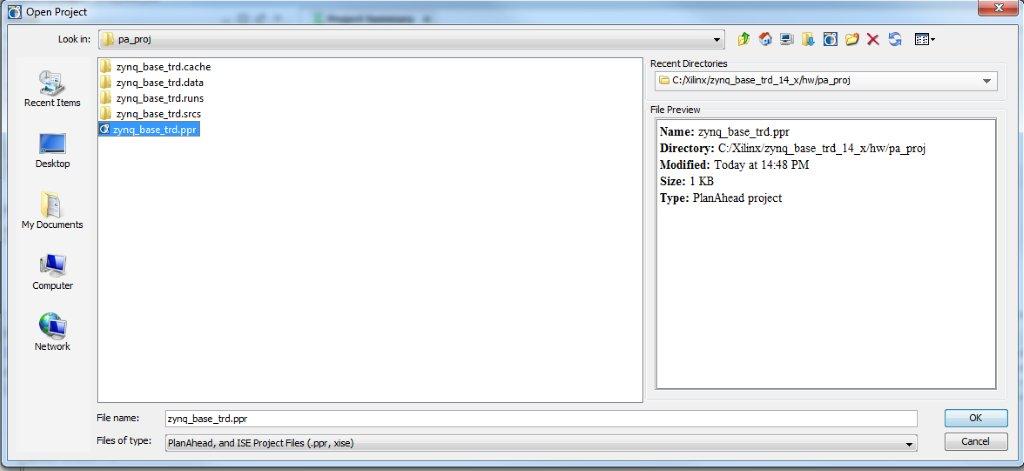
Open the PlanAhead project provided in the package. Click Browse and navigate to the $ZYNQ_TRD_HOME/hw/pa_proj project folder, select zynq_base_trd.ppr in the Open Project window, and press OK.
In the Flow Navigator pane on the left-hand side under Program and Debug, click Generate Bitstream. The bitstream will be generated at $ZYNQ_TRD_HOME/hw/pa_proj/zynq_base_trd.runs/impl_1/system_stub.bit.

Note: A message window will pop up, saying there are 7 critical warning messages. Ignore these warnings and press OK to continue with the bitstream generation.
3.2 Exporting the Hardware Platform to SDK
A pre-generated hardware platform project can be found at $ZYNQ_TRD_HOME/sw/hw_platform.
Steps for exporting the hardware platform to SDK
From the PlanAhead menu bar, select File > Export > Export Hardware.
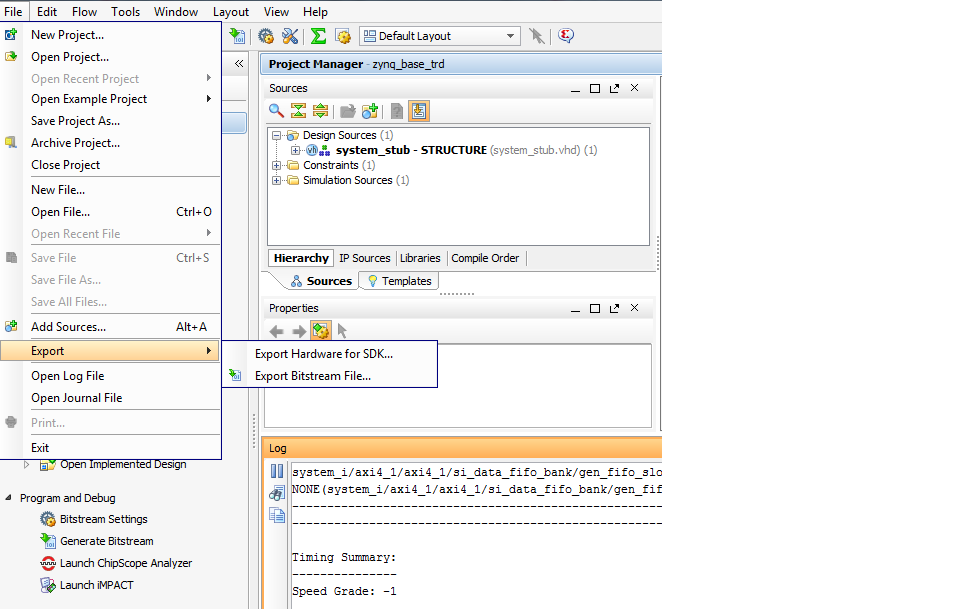
In the Export Hardware window press OK. The SDK hardware platform will be exported to $ZYNQ_TRD_HOME/hw/pa_proj/zynq_base_trd.sdk/SDK/SDK_Export.

Note: If the Launch SDK option is checked in the Export Hardware window, SDK will be launched immediately after SDK export has completed. This is not recommended at this point.
4 Building the First Stage Boot Loader (FSBL)
This section explains how to import and build the First Stage Boot Loader (FSBL) and the standalone OS based Board Support Package(BSP) from the provided SDK projects. A pre-compiled FSBL executable can be found at $ZYNQ_TRD_HOME/boot_image/zynq_fsbl.elf.
Note: The provided FSBL project is a customized version of the FSBL SDK project template. The following features have been added to the Base TRD version:
- added I2C initialization sequence for HDMI transmitter (ADV7511) on ZC702 base board
- added I2C FMC detection sequence
- added I2C initialization sequence for HDMI receiver (ADV7611) on Avnet IMAGEON FMC
Steps for building the FSBL
Launch Xilinx SDK:
- On Windows 7, select Start > All Programs > Xilinx Design Tools 14.x > ISE Design Suite 14.x > EDK > Xilinx Software Development Kit.
- On Linux, enter xsdk at the command prompt.
In the Workspace Launcher window, click Browse and navigate to $ZYNQ_TRD_HOME/sw, then click OK. Close the welcome screen.

To import the hardware platform (hw_platform) and FSBL (zynq_fsbl) SDK projects into the SDK workspace, select File > Import.

Note: The zynq_fsbl project requires a hardware platform SDK project generated by SDK export. Instead of the provided hw_platform project, the one generated in Section 3.2 can be used. This requires the user to update the project reference of the zynq_fsbl project. This is not recommended at this point.
In the Import wizard, expand the General folder, select Existing Projects into Workspace, and click Next.
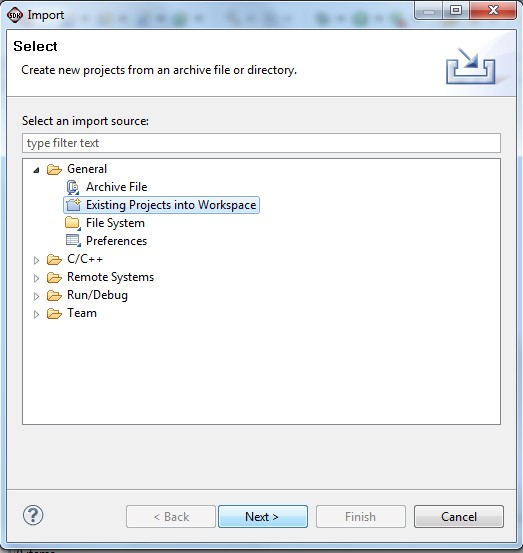
All projects are located at the top-level inside your SDK workspace. Click Browse and navigate to $ZYNQ_TRD_HOME/sw. Press OK.

Make sure the hw_platform, standalone_bsp and zynq_fsbl projects are checked and uncheck the sobel_cmd and sobel_qt projects for now. Press Finish.

The build process will start automatically and builds the BSP first and then the FSBL. The generated Zynq FSBL executable can be found at $ZYNQ_TRD_HOME/sw/zynq_fsbl/Debug/zynq_fsbl.elf. This option can be changed by unchecking Project > Build Automatically from the menu bar.

To manually build the project, right click zynq_fsbl in the Project Explorer and select Build Project; to clean the project, select Clean Project.

5 Building the U-boot Boot Loader
This section explains how to download the sources, configure, and build the U-boot boot loader for the Zynq Base TRD. A pre-compiled U-boot executable can be found at $ZYNQ_TRD_HOME/boot_image/u-boot.elf. For additional information, refer to the Xilinx Zynq U-boot wiki. This step requires a Linux development PC with the ARM GNU tools and Git installed (see Section 2).
Steps for building the U-boot boot loader
Set the CROSS_COMPILE environment variable and add it to your PATH.
bash> export CROSS_COMPILE=arm-xilinx-linux-gnueabi-
bash> export PATH=/path/to/cross/compiler/bin:$PATH
Clone the latest Zynq U-boot git repository from the Xilinx git server.
bash> cd $ZYNQ_TRD_HOME
bash> git clone git://github.com/Xilinx/u-boot-xlnx.git
Create a new branch named zynq_base_trd_14_3 based on the Xilinx-14.3-build2-trd tag. The Base TRD U-boot tag is built on top of the 14.3 release tag.
bash> cd $ZYNQ_TRD_HOME/u-boot-xlnx
bash> git checkout -b zynq_base_trd_14_3 xilinx-14.3-build2-trd
Configure U-boot for the Zynq ZC702 Base TRD.
bash> make zynq_zc70x_config
Build the U-boot boot loader. The generated U-boot executable can be found at $ZYNQ_TRD_HOME/u-boot-xlnx/u-boot.
bash> make
Rename this executable to u-boot.elf. This elf is used for generating BOOT image.
bash> mv u-boot u-boot.elf
Note: The make command above also builts other tools with u-boot in u-boot-xlnx/tools directory. Such tool (for e.g mkimage) can be used later (for e.g. building uramdisk / uImage).
6 Building the Boot Image
This section explains how to create a boot image BOOT.bin from pre-compiled binaries provided in this package. The pre-compiled binaries are located at $ZYNQ_TRD_HOME/boot_image and include zynq_fsbl.elf, system.bit, and u-boot.elf. Alternatively, the user can use the generated files from Sections 3.1, 4, and 5. A pre-generated boot image can be found at $ZYNQ_TRD_HOME/sd_image/BOOT.bin.
Steps for building the boot image
Launch Xilinx SDK:
- On Windows 7, select Start > All Programs > Xilinx Design Tools 14.x > ISE Design Suite 14.x > EDK > Xilinx Software Development Kit.
- On Linux, enter xsdk at the command prompt.
In the Workspace Launcher window, click Browse and navigate to $ZYNQ_TRD_HOME/sw, then click OK.
Select Xilinx Tools > Create Boot Image from the menu bar.

In the Create Zynq Boot Image dialog box, add the files zynq_fsbl.elf, system.bit (or system_stub.bit), and u-boot.elf from the $ZYNQ_TRD_HOME/boot_image directory and enter or browse to $ZYNQ_TRD_HOME/boot_image in the output folder field as shown in the figure. Press Create Image. This step will generate a file named under u-boot.bin, rename this to BOOT.bin at the specified location.

Notes:
- Occasionally, an internal error message pops up which can be safely ignored.
- The boot image has to be named BOOT.bin so the FSBL executable can find it.
- The order in which you add the files matters: it has to be FSBL first, then bitstream, then u-boot.
7 Building the Linux Kernel
This section explains how to download the sources, configure, patch, and build the Linux kernel for the Zynq Base TRD. It also explains how to compile a device tree. For additional information, refer to the Xilinx Zynq Linux wiki. This step requires a Linux development PC with the ARM GNU tools and Git installed (see Section 2).
7.1 Building the Linux Kernel Image
A pre-compiled Linux kernel can be found at $ZYNQ_TRD_HOME/sd_image/uImage.
Steps for building the Linux kernel
Set the CROSS_COMPILE environment variable and add it to your PATH.
bash> export CROSS_COMPILE=arm-xilinx-linux-gnueabi-
bash> export PATH=/path/to/cross/compiler/bin:$PATH
Linux kernel compilation internally use mkimage command for creating uImage (Linux Kernel Image). Hence path for mkimage command should also be added in PATH environment variable as shown below. One can use the mkimage command that is built during u-boot building process (Section 5).
bash> export PATH=$ZYNQ_TRD_HOME/u-boot-xlnx/tools:$PATH
Clone the latest Zynq Linux kernel git repository from the Xilinx git server.
bash> cd $ZYNQ_TRD_HOME
bash> git clone git://github.com/Xilinx/linux-xlnx.git
Create a new branch named zynq_base_trd_14_3 based on the xilinx-14.3-build2-trd tag. The Base TRD Linux kernel tag is built on top of the 14.3 release tag.
bash> cd $ZYNQ_TRD_HOME/linux-xlnx
bash> git checkout -b zynq_base_trd_14_3 xilinx-14.3-build2-trd
Apply the Base TRD specific patch on top of the Base TRD tag. The patch includes:
- Xilinx VDMA driver
- Zynq Base TRD config file (zynq_base_trd_defconfig)
- Zynq Base TRD device tree file (zynq_base_trd.dts)
- Mouse sensitivity patch
bash> cp $ZYNQ_TRD_HOME/patches/zynq_base_trd_14_3.patch . // copy the 14.3 TRD patch from package to dev PC
bash> git apply --stat zynq_base_trd_14_3.patch       // display contents of patch
bash> git apply --check zynq_base_trd_14_3.patch      // check if patch can be applied
bash> git am zynq_base_trd_14_3.patch                 // apply the patch
Configure the Linux kernel for the Zynq ZC702 Base TRD.
bash> make ARCH=arm zynq_base_trd_defconfig
Build the Linux kernel. The generated kernel image can be found at $ZYNQ_TRD_HOME/linux-xlnx/arch/arm/boot/uImage.
bash> make ARCH=arm uImage
7.2 Building the Linux Device Tree Blob
This step requires that the steps in Section 7.1 are completed first. A pre-compiled Device Tree Blob can be found at $ZYNQ_TRD_HOME/sd_image/devicetree.dtb.
Steps for building the Linux device tree blob
Compile the Base TRD device tree file. The output of this step is a device tree blob and can be found at $ZYNQ_TRD_HOME/linux-xlnx/devicetree.dtb.
bash> ./scripts/dtc/dtc -I dts -O dtb -o devicetree.dtb ./arch/arm/boot/dts/zynq_base_trd.dts
8 Building the Root File System
For instructions on how to build the Zynq Root File System, please refer to the Xilinx Zynq Root File System Creation wiki.
This TRD uses uramdisk as the root file system. mkimage command can be used for converting the ramdisk.img.gz file that is created using above link, to uramdisk.img.gz.
Note: mkimage command is created during building U-BOOT in u-boot-xlnx/tools directory (Section 5).
Use following command to convert ramdisk8M.img.gz file to uramdisk.image.gz image:
bash> export PATH=$ZYNQ_TRD_HOME/u-boot-xlnx/tools:$PATH
bash> mkimage -A arm -T ramdisk -C gzip -d ramdisk8M.img.gz uramdisk.image.gz
A pre-built ramdisk image is available at $ZYNQ_TRD_HOME/sd_image/uramdisk.image.gz.
Note: At the end of the etc/init.d/rcS script, a hook was added to execute a customized user script named init.sh. Our implementation of this script is located at $ZYNQ_TRD_HOME/sd_image/init.sh and takes care of the following Base TRD specific initialization:
- mount the cross-compiled Qt/Qwt libraries image file (located at $ZYNQ_TRD_HOME/sd_image/qt_lib.img)
- create Xilinx VDMA device node
- auto-start the Qt GUI based video application on boot-up
One can modify this init.sh to change the system behavior after boot up.
For example, to avoid automatic start of qt application:
- Remove (or comment out) the line "./run_sobel.sh -qt" from the file $ZYNQ_TRD_HOME/sd_image/init.sh
9 Building the Video Software Application(s)
The Base TRD consists of two Sobel imaging filter based video applications which differ in their user interface:
- sobel_qt has a graphical user interface (GUI) implemented using Qt libraries and the user navigates around the application with USB keyboard and mouse.
- sobel_cmd uses a command line based menu where the user navigates the menu by typing into the UART terminal.
The following two sections explain how to import and build each of the aforementioned video applications. The user should choose the design that is most suitable for his or her purposes.
9.1 Building the Linux Application with Command Line Interface
A pre-compiled sobel_cmd executable can be found at $ZYNQ_TRD_HOME/sd_image/sobel_cmd.elf.
Steps for building the command line based application
Launch Xilinx SDK:
- On Windows 7, select Start > All Programs > Xilinx Design Tools 14.x > ISE Design Suite 14.x > EDK > Xilinx Software Development Kit.
- On Linux, enter xsdk at the command prompt.
In the Workspace Launcher window, click Browse and navigate to $ZYNQ_TRD_HOME/sw, then click OK.
Note: In this tutorial, we are using the same SDK workspace as in Section 4. Hence the project explorer view will be pre-populated with the hw_platform and zynq_fsbl SDK projects. However, the current project does not require any of these two projects; it is completely self-contained.
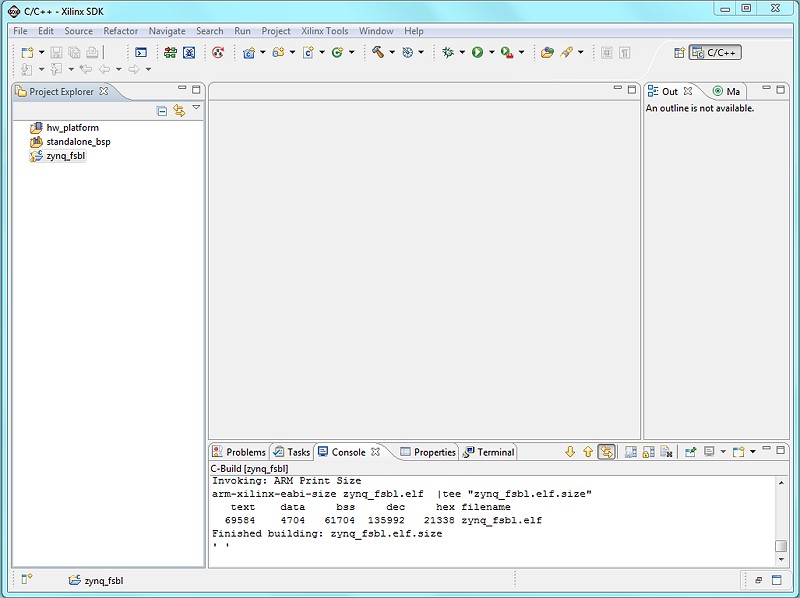
To import the command line based SDK project (sobel_cmd) into the SDK workspace, select File > Import.
In the Import wizard, expand the General folder, select Existing Projects into Workspace, and click Next.
All projects are located at the top-level inside your SDK workspace. Click Browse and navigate to $ZYNQ_TRD_HOME/sw. Press OK.

Make sure the sobel_cmd project is checked and uncheck the sobel_qt project for now. The hw_platform and zynq_fsbl projects will be grayed out since they have been added to your workspace already. Press Finish.

The build process will start automatically and the generated sobel_cmd executable can be found at $ZYNQ_TRD_HOME/sw/sobel_cmd/Debug/sobel_cmd.elf. This option can be changed by unchecking Project > Build Automatically from the menu bar.
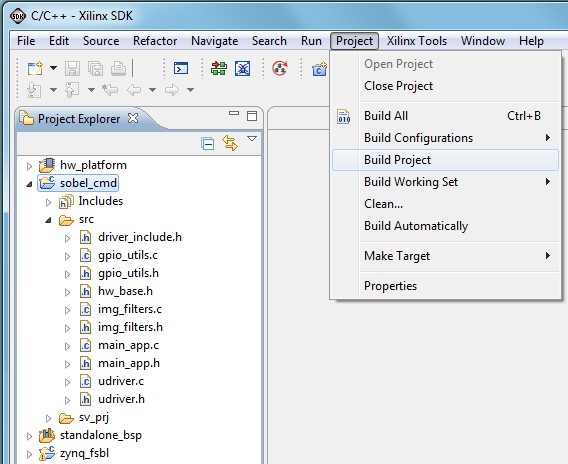
To manually build the project, right click sobel_cmd in the Project Explorer and select Build Project; to clean the project, select Clean Project.
9.2 Building the Linux Application with Qt GUI
A pre-compiled sobel_qt executable can be found at $ZYNQ_TRD_HOME/sd_image/sobel_qt. The executable looks for an image files to display the Zynq splash screen in images/ directory. It needs to be located in the same directory as the executable ($ZYNQ_TRD_HOME/sd_image/images/).
Steps for building the Qt GUI based application (show)
For building this project, the user is required to cross-compile the Qt and Qwt libraries for the Zynq platform. This step requires a Linux development PC with the ARM GNU tools installed (see Section 2). For detailed instructions on how to build these libraries, refer to the Xilinx Zynq Qt Qwt Libraries - Build Instructions wiki.
Note: Some of the generated Qt utilities required to build the application are specific to your host platform. Hence, you have to recompile if you intend to use a different host.
Launch Xilinx SDK:
- On Windows 7, select Start > All Programs > Xilinx Design Tools 14.x > ISE Design Suite 14.x > EDK > Xilinx Software Development Kit.
- On Linux, enter xsdk at the command prompt.
In the Workspace Launcher window, click Browse and navigate to $ZYNQ_TRD_HOME/sw, then click OK.
Note: In this tutorial, we are using the same SDK workspace as in Section 4. Hence the project explorer view will be pre-populated with the hw_platform, zynq_fsbl, and -- if you have completed Section 9.1 previously -- the sobel_cmd SDK projects. However, the current project does not require any of these projects; it only requires the Qt/Qwt libraries cross-compiled for the Zynq architecture on your host system and is completely self-contained otherwise.

To import the Qt GUI based SDK project (sobel_qt) into the SDK workspace, select File > Import.
In the Import wizard, expand the General folder, select Existing Projects into Workspace, and click Next.
All projects are located at the top-level inside your SDK workspace. Click Browse and navigate to $ZYNQ_TRD_HOME/sw. Press OK.
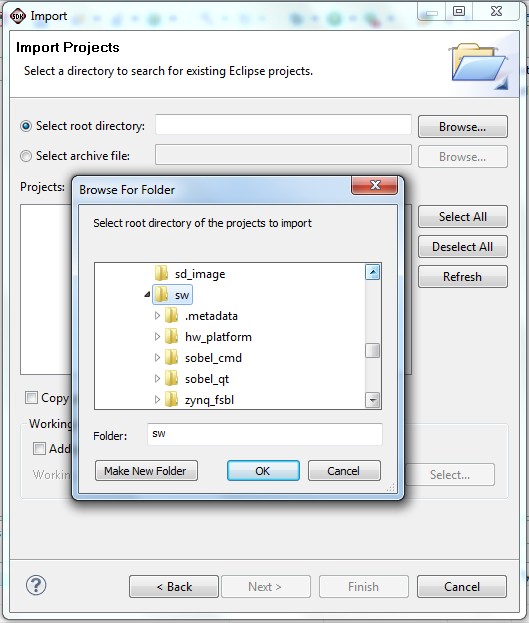
Make sure the sobel_qt project is checked. The hw_platform, zynq_fsbl, and -- if you have completed Section 9.1 previously -- the sobel_cmd projects will be grayed out since they have been added to your workspace already. Press Finish.
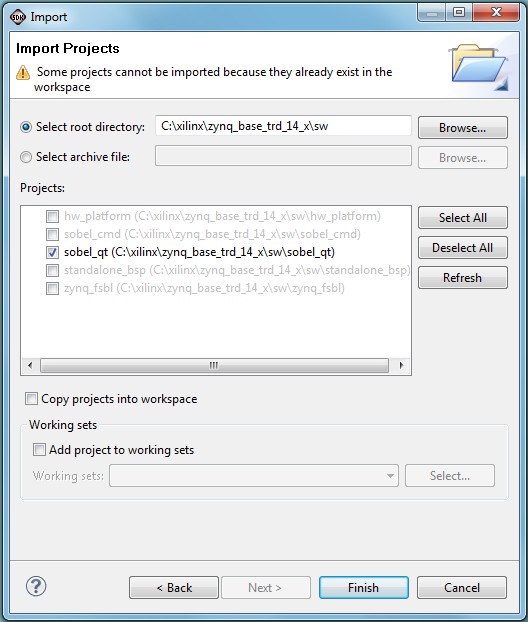
For this project, please uncheck the Project > Build Automatically option from the menu bar, otherwise you will receive an error message on the automatic build (see next step).
In the Project Explorer window, expand the sobel_qt project and double-click the Makefile to open it. Point the ZYNQ_QT_INSTALL variable in the Makefile to your Qt/Qwt libraries install area (refer to the Xilinx Zynq Qt Qwt Libraries - Build Instructions wiki for details).

To manually build the project, right click sobel_qt in the Project Explorer and select Build Project; to clean the project, select Clean Project. The generated sobel_qt executable can be found at $ZYNQ_TRD_HOME/sw/sobel_qt/sobel_qt.

10 Running Video Demo Applications
This section explains through step by step instructions how to bring up the ZC702 board for video demonstration part of the TRD and running different video demonstrations out of the box.
The ZC702 Evaluation Kit comes with an SD-MMC card pre-loaded with binaries that enable the user to run the video demonstration and software applications. It also includes the binaries necessary to configure and boot the Zynq-7000 SoC based ZC-702 board.
Note: If the evaluation kit design files were downloaded online, copy the entire folder ZYNQ_TRD_HOME/sd_image from the package onto the primary partition of the SD-MMC card (which is formatted as FAT32) using a SD-MMC card reader.
10.1 Hardware Setup Requirements
The ZC702 board setup to run & test the video demonstration applications require the following items:
Requirements for TRD Linux application demo setup
- The ZC702 evaluation board with the XC7Z020 CLG484-1 part
- AC power adapter (12 VDC)
- An USB Type-A to USB Mini-B cable (for UART communications) and a Tera Term Pro (or similar) UART terminal program.
- USB-UART drivers from Silicon Labs
- A HDMI cable.
- A SD-MMC flash card containing TRD binaries formatted with FAT32. The SD-MMC is pre-loaded with required binaries in its first partition. The pre-loaded binaries include :
- BOOT.bin
- devicetree.dtb
- devicetree1080p.dtb
- devicetree720p.dtb
- uImage
- uramdisk.image.gz
- qt_lib.img
- init.sh
- run_sobel.sh
- sobel_cmd
- sobel_qt
- images
- An USB Micro-B to female A adaptor with USB hub is needed for connecting a keyboard and a mouse.
- An USB mouse and keyboard.
- A display monitor that supports HD resolutions: 1920 x 1080p @ 60 Hz, and 1280 x 720 @ 60 Hz(if the user also want to validate TRD with 720p video output)
Note: The example mentioned in this package has been tested with a Dell model #P2412H display monitor. However, the example should work well with any HDMI-compatible output device.
10.2 Board Setup
This section explains how to setup the ZC702 board to run and test video demonstration applications.
Steps for setting the board
Connect the cables as shown in Figure below to prepare the ZC702 board to run the TRD video demo applications.
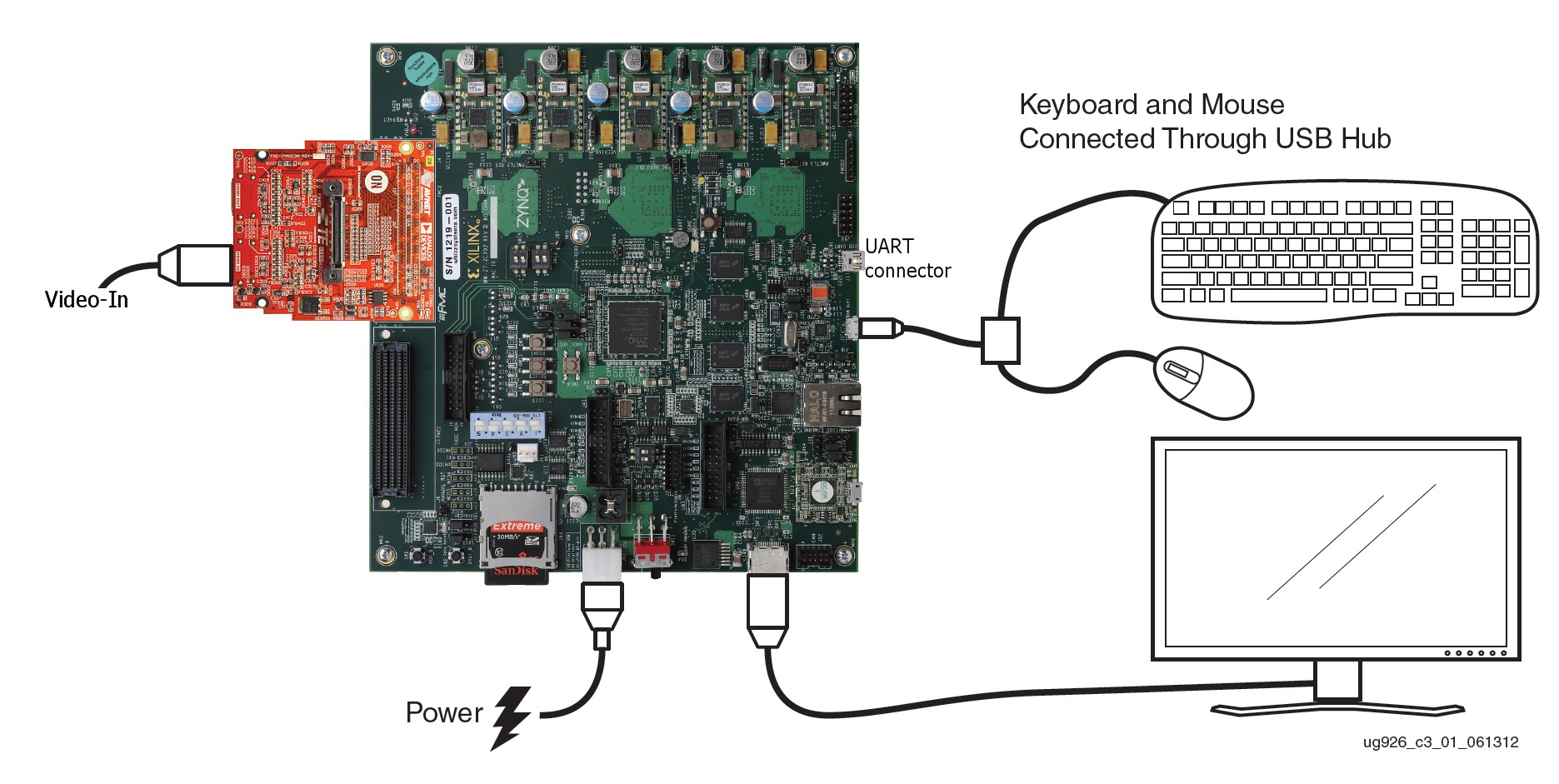
- Connect a display monitor to the HDMI out port of the ZC702 board using a HDMI cable.
- Connect a keyboard and mouse to an USB hub, which is connected to the ZC702 board Micro-B USB connector.
- Connect an USB Mini-B cable into the Mini USB port J17 labeled USB UART on the ZC702 board and the USB Type-A cable end into an open USB port on the host PC for UART communications.
- Connect the power supply to the ZC702 board. Do not switch the power on. _
Insert a SD-MMC memory card, which contains the TRD binaries, into the SD slot on the ZC702 board.
Make sure the switches are set as shown in figure below, which allows the ZC702 board to boot from the SD-MMC card.
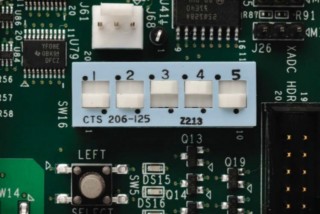
The ZC702 rev.C version boards does not have switches, which contains the jumpers. Use the following jumper settings: J21: 2-3, J20: 2-3, J22: 1-2, J25: 1-2, J26: 2-3
Make sure the monitor is set for HDMI or DVI 1920x1080 resolution.
10.3 Running the Qt-Based GUI Application Demonstration
A Linux application with Qt-based GUI is provided with the package. This application provides options to user for using GUI with the help of a mouse & keyboard to exercise different modes of the video demonstration.
Note: The default Linux device tree binary file devicetree.dtb configures the video output resolution to 1080p @60Hz. Additionally devicetree1080p.dtb and devicetree720p.dtb files are provided along with the package to configure the video output resolution to 1920 x 1080p @60Hz and 1280 x 720p @60Hz respectively. Replace the devicetree.dtb file appropriately, based on required video-resolution.
After setting the board as explained in Section 10.2, running the Qt-Based GUI application is explained in this section.
Steps for running the Qt-based GUI application demo
Configure the display monitor resolution to either 1080p resolution: 1920 x 1080p @ 60Hz or 720p60 resolution: 1280 x 720p @60 Hz.
Power on the ZC702 board.
Wait for the ZC702 board to be configured and booted with Linux. After approximately 2 minutes, a XILINX ZYNQ banner displays on the monitor, as shown in the figure.

The Qt-based video demonstration application starts. The GUI application shows up at the bottom of the display monitor.

The Qt-based application allows the user to experience the different use-cases build into the video demonstration and is controlled through the mouse.
Note: The Qt application can be used in minimize / maximize mode. Transparency slider is provided to control the GUI transperency. The user can click Help for short messages and information about the control window of the QT application. _
Click Enable Video to start the internal test pattern generator which displays on the display monitor. _
Exercise different options by pressing the buttons available in the GUI to evaluate the different use cases mentioned in following Table.
| Use Case |
TPG Control |
Sobel Filter Control |
|---|---|---|
| 1 |
TPG Pattern |
Sobel OFF |
| 2 |
TPG Pattern |
Sobel - SW |
| 3 |
TPG Pattern |
Sobel - HW |
| Additional Options with External Video source |
||
| 4 |
External video |
Sobel OFF |
| 5 |
External video |
Sobel - SW |
| 3 |
External video |
Sobel - HW |
- TPG interference
- The input video is generated by the TPG IP implemented in the PL.
- External video (available with the optional ZVIK FMC module)
- The input video is supplied by an external video source and is connected through an Avnet FMC-IMAGEON card.
Sobel Filter modes are explained as follows:
- Sobel OFF
- No processing done. Sobel filter is bypassed.
- Sobel – SW
- Video processing (edge-detection filter) done by software code running on the PS.
- Observe CPU utilization going up to 100% for one of the two CPUs (this can be seen in the CPU usage graph). In this mode, the frame rate of the video also drops to about 10 fps.
- Sobel – HW
- Video processing (edge-detection filtering) done by PL.
- Observe CPU utilization going down (to approximately 0) and the frame rate jumping to 60 fps.
The video frame generated by the TPG, i.e: case 1 vs. case 2 or 3 of Table, the video frame after its object edges are found using Sobel filter algorithm is:
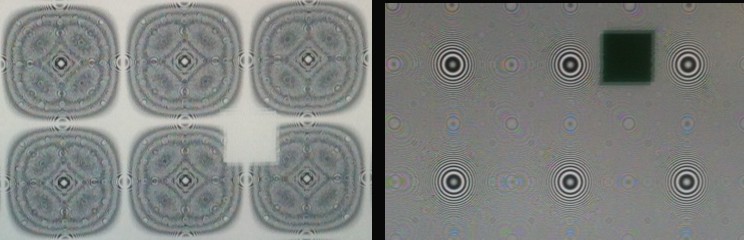
While exercising the modes described above, one can observe AXI bus bandwidth utilization and CPU utilization on the graphs in the Qt GUI application.
Click Exit button on the GUI using the mouse to quit the application and return the user to Linux console. _
The application can be restarted by typing the following at the Linux command prompt: _
zynq> cd /mnt
zynq> ./run_sobel.sh -qt
10.4 Running the UART Menu-Based Demonstration Application
A Linux application with command line menu is also provided with the package. This application provides options to the user to exercise different modes of the video demonstration over UART communications.
Note: The default Linux device tree binary file devicetree.dtb configures the video output resolution to 1080p @60Hz. Additionally devicetree1080p.dtb and devicetree720p.dtb files are provided along with the package to configure the video output resolution to 1920 x 1080p @60Hz and 1280 x 720p @60Hz respectively. Replace the devicetree.dtb file appropriately, based on required video-resolution.
After setting the board as explained in Section 10.2, running the UART menu based application is explained in this section.
Steps for running the UART Menu-Based application demo
Power on the ZC702 board.
Configure the display monitor resolution to either 1080p resolution: 1920 x 1080p @ 60Hz or 720p60 resolution: 1280 x 720p @60 Hz.
Start the installed UART terminal program on your host PC (e.g., Tera Term on a Windows PC, GtkTerm on a Linux PC).
Use the following UART configuration: Baud rate = 115200, bits = 8, parity = none, and stop bits = 1.
Note: This step is required to view debug information or to run the UART Menu-Based Demonstration application.
Wait for the ZC702 board to be configured and booted with Linux. After approximately 2 minutes, a XILINX ZYNQ banner displays on the monitor, as shown in the figure.
The Qt-based video demonstration application starts. The GUI application shows up at the bottom of the display monitor.
Click Exit button on the GUI using the mouse to quit the application and return the user to Linux console.
Go to the UART terminal started on the host PC.
Type these commands at the Linux command prompt into the host PC based UART terminal:
zynq> cd /mnt
zynq> ./run_sobel.sh -cmd
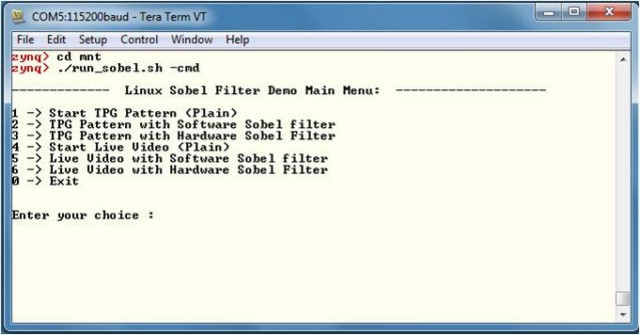
Exercise different options by entering the use case number displayed in the below Table against Enter your choice : on the terminal.
| Choice |
TPG Control |
Sobel Filter Control |
|---|---|---|
| 1 |
TPG Pattern |
Sobel OFF |
| 2 |
TPG Pattern |
Sobel - SW |
| 3 |
TPG Pattern |
Sobel - HW |
| Additional Options with External Video source |
||
| 4 |
External video |
Sobel OFF |
| 5 |
External video |
Sobel - SW |
| 3 |
External video |
Sobel - HW |
- TPG interference
- The input video is generated by the TPG IP implemented in the PL.
- External video (available with the optional ZVIK FMC module)
- The input video is supplied by an external video source and is connected through an Avnet FMC-IMAGEON card.
Sobel Filter Modes are explained below:
- Sobel OFF
- No processing done. Sobel filter is bypassed.
- Sobel – SW
- Video processing (edge-detection filter) done by software code running on PS
- Sobel – HW
- Video processing (edge-detection filter) done by PL
The video frame generated by the TPG, i.e: case 1 vs. case 2 or 3 of Table, the video frame after its object edges are found using Sobel filter algorithm is:
Enter 0 to exit the application and return to the command prompt.
11 References
- Documentation for Zynq-7000 SoC
- Documentation for ZC702 Evaluation Kit
- Main Xilinx wiki
© Copyright 2019 - 2022 Xilinx Inc. Privacy Policy