Zynq UltraScale MPSoC Base TRD 2016.3 - Design Module 3
Zynq UltraScale MPSoC Base TRD 2016.3 - Design Module 3
Design Overview
This module demonstrates:
- Boot RPU1 only
- RPU1 OS: Bare-metal
- Bare-metal performance monitor application
- Read PS APM counters to measure DDR throughput and prints to UART1

Design Components
This module requires the following components:
- pmu_fw
- petalinux_bsp
- zynqmp_fsbl
- perfapm-ctl + perfapm
Build Flow Tutorials
PMU Firmware
Please refer to design module 1 - PMU firmware for instructions or skip this step if you have built the PMU firmware in a previous module.
Perfapm-ctl Application
Create a new XSDK workspace.
% cd $TRD_HOME/rpu1/perfapm-server
% xsdk -workspace . &&
- Click 'Import Project' from the welcome screen, browse to the current working directory and make sure the perfapm, perfapm_bsp, perfapm-ctl and zcua02_base_trd_wrapper_hw_platform_0 projects are selected. Click Finish.
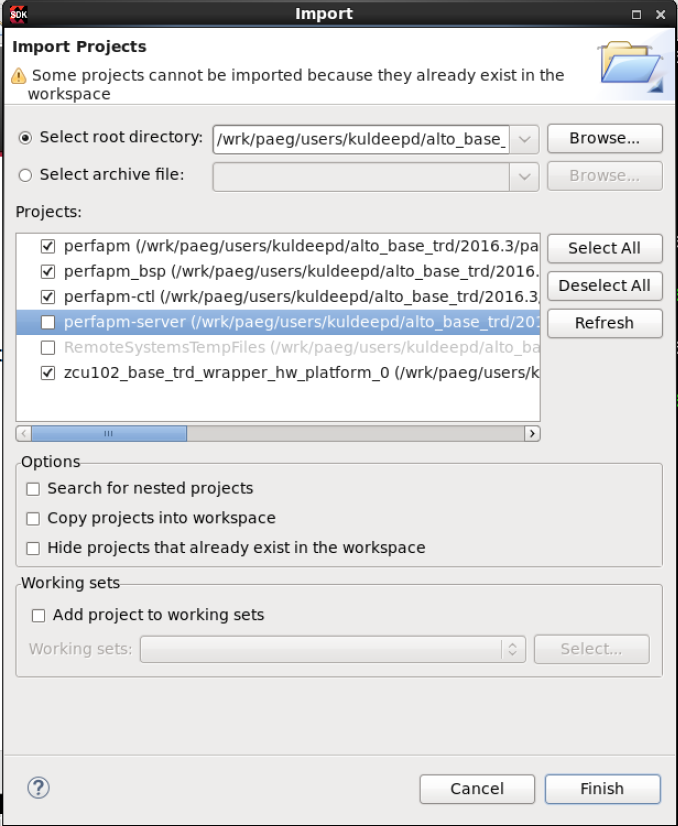
- Right-click on the perfapm-ctl project and select 'Build Project'.
Copy the generated perfapm-ctl executable into the PetaLinux BSP.
% cp perfapm-ctl/Debug/perfapm-ctl.elf $TRD_HOME/apu/petalinux_bsp/images/linux
PetaLinux BSP
This tutorial shows how to build the first stage bootloader (FSBL) and boot image using the PetaLinux build tool.
The petalinux-config step can be skipped if this was already done in a previous module.
% cd $TRD_HOME/apu/petalinux_bsp
% petalinux-config --get-hw-description=./hw-description --oldconfig
Build the FSBL. This step can be skipped if this was already done in a previous module.
petalinux-build -c bootloader
Create a boot image
% cd images/linux
% petalinux-package --boot --bif=dm3.bif --force
Copy the generated boot image to the dm3 SD card directory
% mkdir -p $TRD_HOME/images/dm3
% cp BOOT.BIN $TRD_HOME/images/dm3
Run Flow Tutorial
- See here for board setup instructions.
- Copy all the files from the $TRD_HOME/images/dm3 SD card directory to a FAT formatted SD card.
- Power on the board to boot the images; make sure all power rail LEDs are lit green.
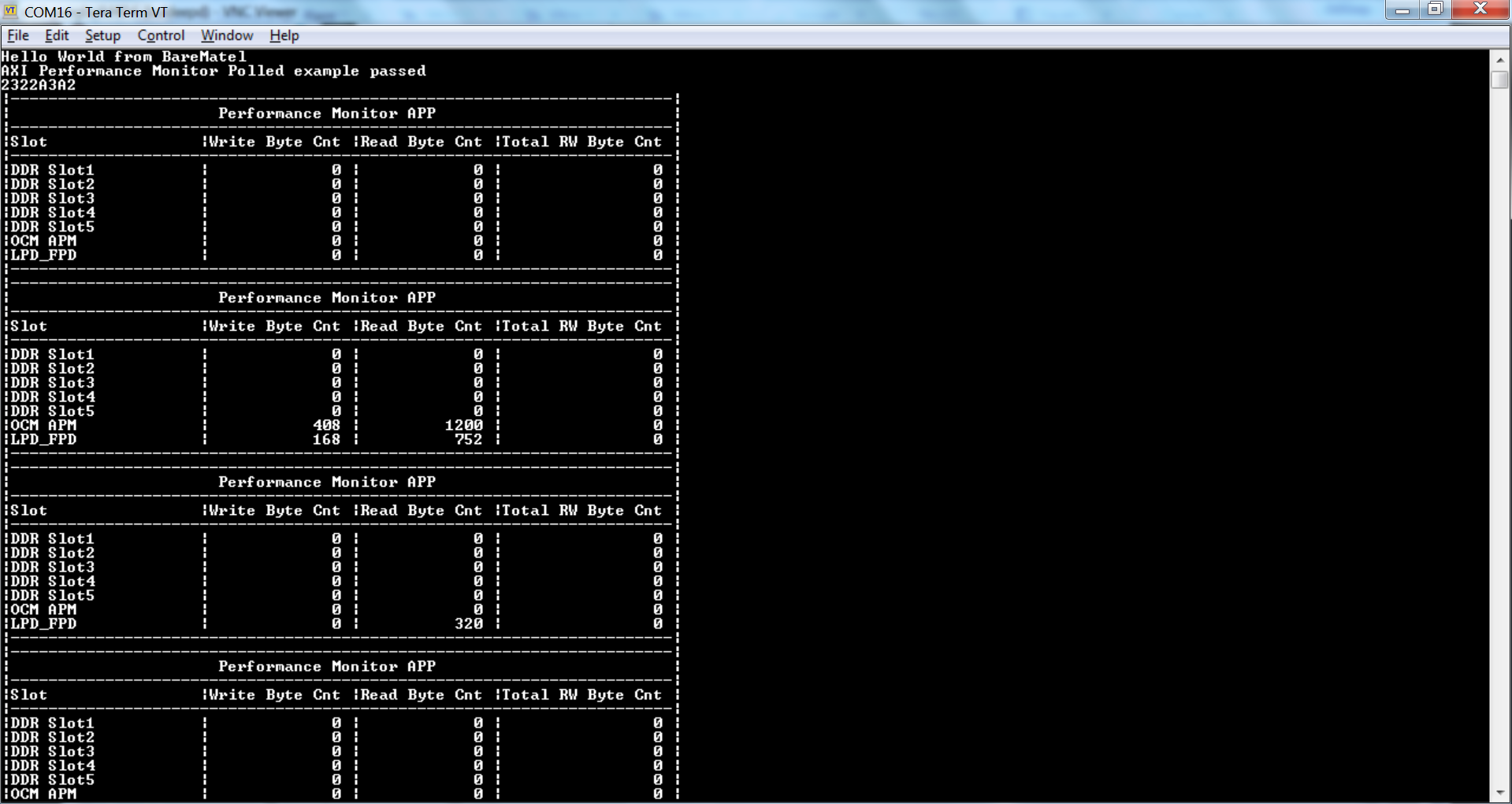
- The user can now see FSBL and PMU-firmware prints on UART-0 and prints from baremetal Perfapm-ctl application can be viewed on UART-1 which is shown in the following picture:
© Copyright 2019 - 2022 Xilinx Inc. Privacy Policy