reVISION Getting Started Guide 2017.4
Table of Contents
1 Revision History
This Getting Started Guide complements the 2017.4 version of the ZCU102 reVISION platform. For other versions, refer to the reVISION Getting Started Guide overview page.
Change Log:
- Update to 2017.4 SDSoC tools version
- Update to 2017.4 xfOpenCV libraries version
- Update to 2017.4 IP version
- Cascade platform interrupts to PS GIC using AXI interrupt controller
- Enable HP2 port in platform
- Use Sony IMX274 v4l2 subdevice driver
- Add filter2d live IO sample
- Minor fixes and improvements
2 Introduction
The Xilinx reVISION stack includes a broad range of development resources for platform, algorithm and application development. This includes support for the most popular neural networks including AlexNet, GoogLeNet, VGG, SSD, and FCN. Additionally, the stack provides library elements including pre-defined and optimized implementations for CNN network layers, required to build custom neural networks (DNN/CNN). The machine learning elements are complemented by a broad set of acceleration ready OpenCV functions for computer vision processing. For application level development, Xilinx supports industry standard frameworks and libraries including Caffe for machine learning and OpenCV for computer vision. The reVISION stack also includes development platforms from Xilinx and third parties, including various types of sensors. For more information go to the Xilinx reVISION webpage.
3 Overview
The below figure shows a block diagram of the ZCU102 reVISION single sensor design:
- video sources (or capture pipelines) are highlighted in blue color
- computer vision accelerators implemented as memory-to-memory (m2m) pipelines in red color and
- video sinks (or output/display pipelines) in green color
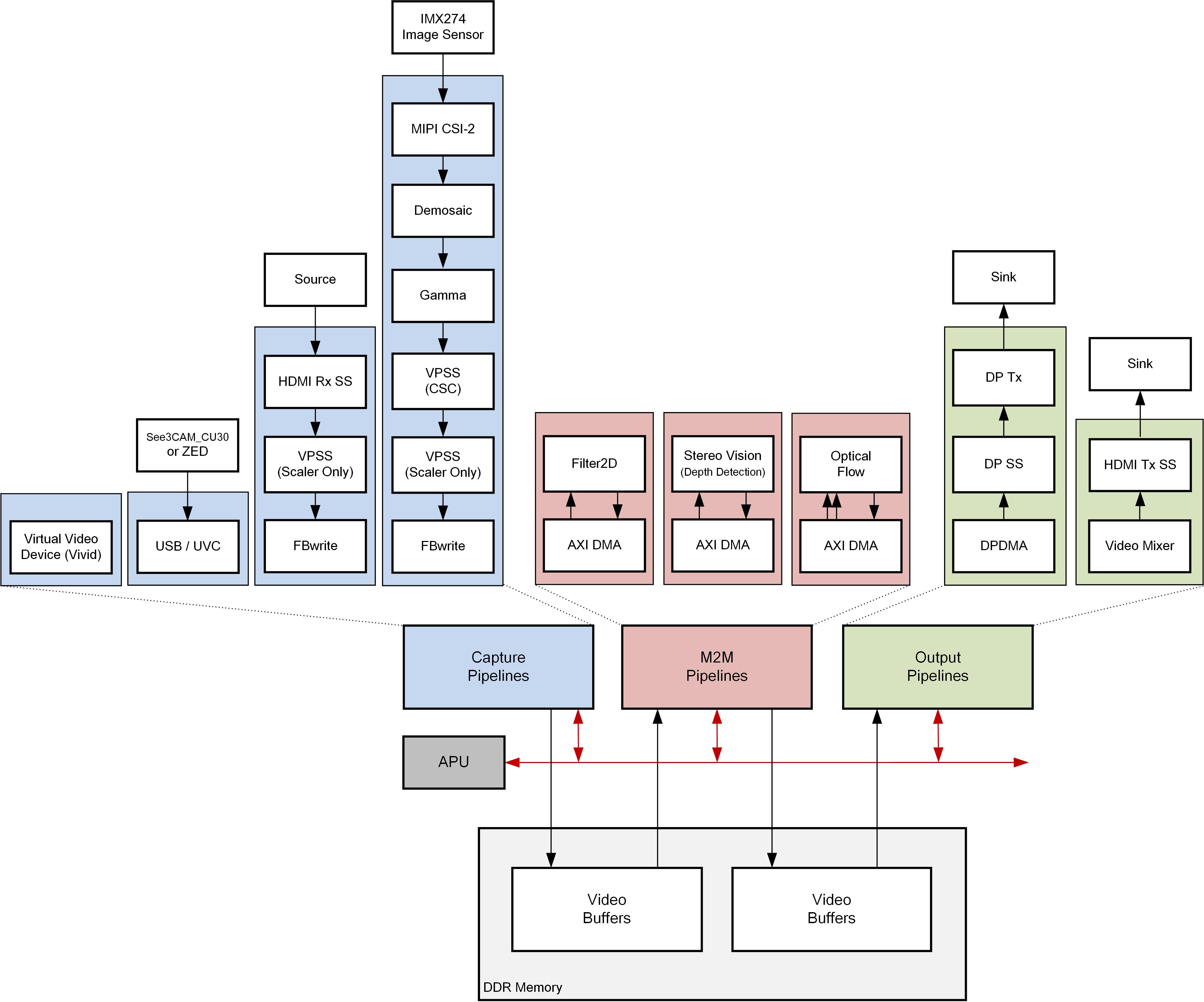
A simple command line based application controls the design over a serial terminal emulator. It constructs a video pipeline graph consisting of one source, one accelerator (optional), and one sink. It is responsible for initializing the capture, m2m, and display pipelines as well as managing the video buffer flow through the pipeline stages.
3.1 Platform
The ZCU102 reVISION platform supports the following video interfaces:
Sources:
- USB2/3 camera up to 1080p60 or stereo 1080p30
- The USB controller is part of the processing system (PS). It uses the standard Linux Universal Video Class (UVC) driver.
- HDMI Rx up to 4k60
- The HDMI capture pipeline is implemented in the programmable logic (PL) and consists of HDMI Rx Subsystem, Video Processing Subsystem (Scaler only configuration), and Frame Buffer Write. The HDMI Rx subsystem receives and decodes the HDMI data stream from an HDMI source and converts it to AXI4-Stream. The Video Processing Subsystem converts the incoming color format (one of RGB, YUV444, YUV422) to YUV422 and optionally scales the image to the target resolution. The Frame Buffer Write IP writes the YUV422 stream to memory as packed YUYV format. The HDMI capture pipeline uses the V4L Linux framework.
- MIPI CSI via optional FMC card up to 4k60
- The MIPI capture pipeline is implemented in the PL and consists of Sony IMX274 image sensor, MIPI CSI2 Subsystem, Demosaic, Gamma, Video Processing Subsystem (CSC configuration), Video Processing Subsystem (Scaler only configuration), and Frame Buffer Write. The IMX274 image sensor provides raw image data over the camera sensor interface (CSI) link. The MIPI CSI2 Subsystem receives and decodes the incoming data stream to AXI4-Stream. The Demosaic IP converts the raw image format to RGB. The Gamma IP provides per-channel gamma correction functionality. The VPSS-CSC provides color correction functionality. The VPSS-Scaler converts the RGB image to YUV422. The Frame Buffer Write IP writes the YUV422 stream to memory as packed YUYV format. The MIPI capture pipeline uses the V4L Linux framework.
Sinks:
- HDMI Tx up to 4k60
- The HDMI display pipeline is implemented in the PL and consists of a Video Mixer and HDMI Tx Subsystem. The Video Mixer is configured to read one ARGB and two YUYV layers from memory. In the provided design examples, only a single YUYV layer is used. The video layers are then composed and alpha-blended into a single output frame which is sent to the HDMI Tx Subsystem via AXI4-Stream. The HDMI Tx Subsystem encodes the incoming video into an HDMI data stream and sends it to the HDMI display. The HDMI display pipeline uses the DRM/KMS Linux framework.
- DP Tx up to 4k30
- The DP display pipeline is configured for dual-lane mode and is part of the PS. It includes a simple two-layer blender with run-time programmable color format converters per layer. The two layers are always full screen matching the target display resolution. The DP display pipeline uses the DRM/KMS Linux framework.
3.2 Design Examples
The platform ships with 5 file I/O and 3 live I/O design examples demonstrating popular OpenCV functions accelerated on the programmable logic:
Live I/O:
- Dense Optical Flow - requires LI-IMX274MIPI-FMC or HDMI source or See3CAM_CU30 USB camera
- This algorithm uses two successive images in time, and calculates the direction and magnitude of motion at every pixel position in the image. The calculation is a simple implementation of the Lucas–Kanade method for optical flow estimation. The optical flow algorithm returns two signed numbers at each pixel position, representing up or down motion in the vertical direction, and left or right motion in the horizontal direction. The brightness of the false-color output, from black up to bright color, indicates the magnitude of the motion, and the color indicates the direction.
- Stereo Vision (Depth Detection) - requires ZED USB stereo camera
- This algorithm uses two side-by-side images from the stereo camera taken at the same moment in time, and calculates the depth, or distance from the camera, at every pixel position in the image. The stereo block-matching algorithm calculates depth based on binocular parallax, similar to the way human eyes perceive depth. The depth map is coded in false colors. Objects far away appear deep blue. Closer and closer objects appear in rainbow succession green, yellow, orange, red, purple and finally white, closest to the camera.
- Filter2D - requires LI-IMX274MIPI-FMC or HDMI source or See3CAM_CU30 USB camera
- Convolution is a common image processing technique that changes the intensity of a pixel to reflect the intensities of the surrounding pixels. This is widely used in image filters to achieve popular image effects like blur, sharpen, and edge detection. The implemented algorithm uses a 3x3 kernel with programmable filter coefficients.
File I/O:
- Bilateral Filter
- Harris Filter
- Dense Optical Flow
- Stereo Vision (Depth Detection)
- Warp Transformation
4 Software Tools and System Requirements
4.1 Hardware
Required:
- ZCU102 Evaluation Board
- rev 1.0 with ES2 silicon or
- rev 1.0 with production silicon
- Micro-USB cable, connected to laptop or desktop for the terminal emulator
- Note: Do Not connect a Micro-USB cable to the USB-JTAG connector, as this can interfere with the normal system boot.
- SD card
Optional (only needed for live I/O examples):
- Monitor with DisplayPort or HDMI input supporting one of the following resolutions:
- 3840x2160 or
- 1920x1080 or
- 1280x720
- Display Port cable (DP certified) or HDMI cable
- Leopard LI-IMX274MIPI-FMC
- Stereolabs ZED USB stereo camera
- e-con Systems See3CAM_CU30_CHL_TC USB camera
- Xilinx USB3 micro-B adapter
- adapter shipped with ZCU102 rev 1.0 + production silicon
- adapter needs to be purchased separately from Whizz for ZCU102 rev 1.0 + ES2 silicon
- HDMI video source with output supporting one of the following resolutions:
- 3840x2160 or
- 1920x1080 or
- 1280x720
4.2 Software
Required:
- Linux or Windows host machine with a minimum memory of 32GB for tool flow tutorials (see UG1238 for supported OS version).
- SDSoC Development Environment version 2017.4 (see UG1238 for installation instructions)
- Serial terminal emulator e.g. teraterm
- 7zip utility to extract the design zip file. Note: Other zip utilities might produce incorrect results!
- ZCU102 Production Silicon reVISION Package: Includes SDSoC platform, design examples, and pre-built SD card images OR
- ZCU102 ES2 Silicon reVISION Package: Includes SDSoC platform, design examples, and pre-built SD card images.
4.3 Licensing
- Important: Certain material in this reference design is separately licensed by third parties and may be subject to the GNU General Public License version 2, the GNU Lesser General License version 2.1, or other licenses.
The Third Party Library Sources zip file provides a copy of separately licensed material that is not included in the reference design. - You will need only the SDSoC license to build the design. You can evaluate for 60-days or purchase it here.
Steps to generate the license:
- Log in here with your work E-mail address (If you do not yet have an account, follow the steps under Create Account)
- Generate a license from “Create New Licenses” by checking "SDSoC Environment, 60 Day Evaluation License"
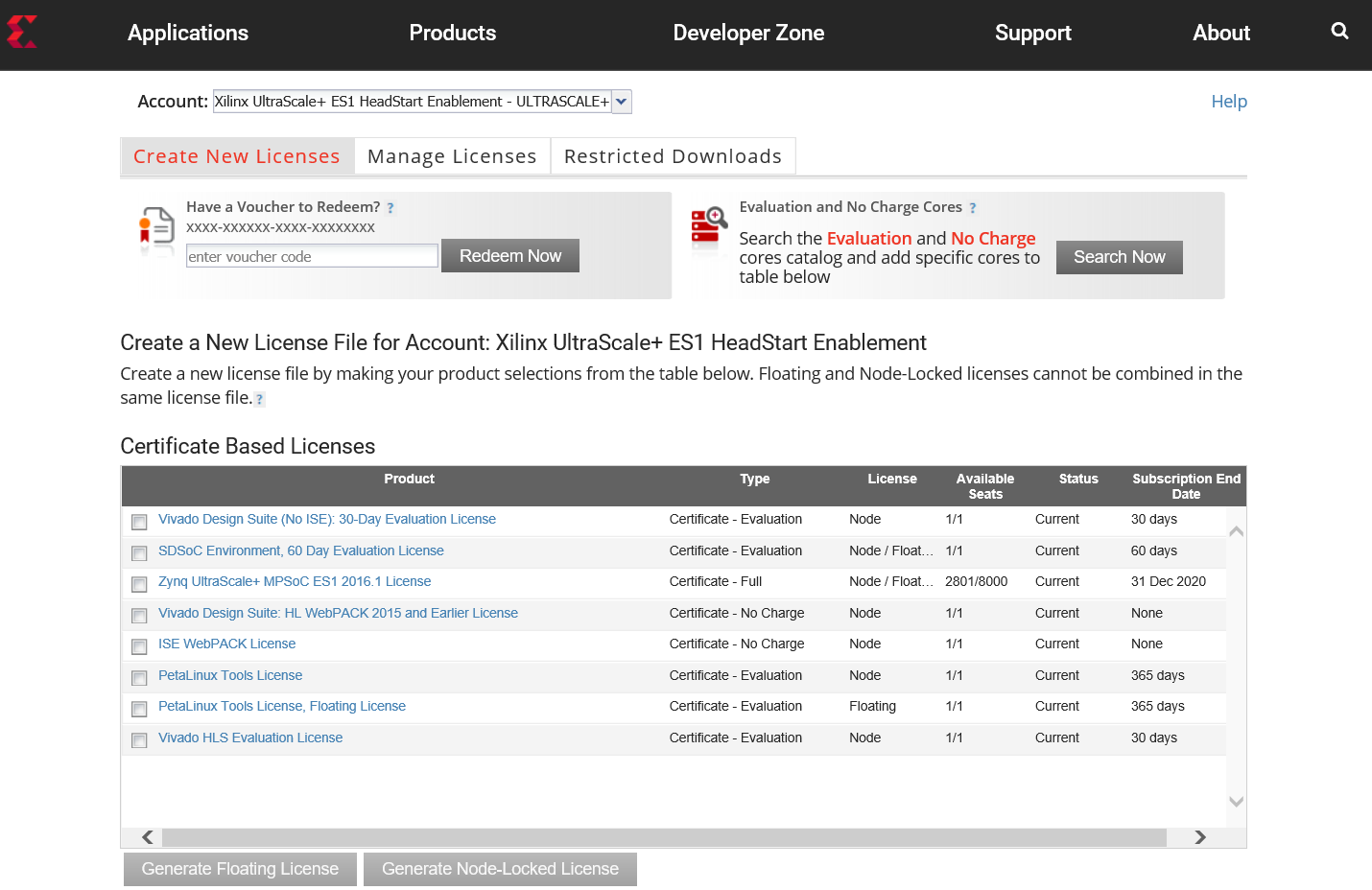
- Under system information, give the host details.
- Proceed until you get the license agreement and accept it.
- The License (.lic file) will be sent to the email-id mentioned in the login details.
- Copy the license file locally and give the same path in the SDSoC license manager.
4.4 Compatibility
The reference design has been tested successfully with the following user-supplied components.
Monitors:
| Make/Model | Native Resolution |
| Viewsonic VP2780-4K | 3840x2160 |
| Acer S277HK | 3840x2160 |
| Dell U2414H | 1920x1080 |
HDMI Sources:
| Make/Model | Resolutions |
| Nvidia Shield TV | 3840x2160, 1920x1080 |
| OTT TV BOX M8N | 3840x2160, 1920x1080, 1280x720 |
| Roku 2 XS | 1920x1080, 1280x720 |
| TVix Slim S1 Multimedia Player | 1920x1080, 1280x720 |
USB3 Cameras:
| Make/Model | Resolutions |
| ZED stereo camera | 3840x1080, 2560x720 |
| See3CAM_CU30 | 1920x1080, 1280x720 |
DisplayPort Cables:
- Cable Matters DisplayPort Cable-E342987
- Monster Advanced DisplayPort Cable-E194698
5 Design File Hierarchy
The Zynq UltraScale+ MPSoC reVISION Platform zip file is released with the binary and source files required to create Xilinx SDx projects and build the sample applications. The provided samples include 5 file I/O examples and 3 live I/O examples. The file I/O examples read an input image file and produce an output image file whereas the live I/O examples take live video input from a video source and output live video on a display.
For the advanced user who wants to create their own platform, a PetaLinux BSP is included as well as the sources for the video_lib library which provides APIs to interface with video sources, sinks, and accelerators.
Pre-built SD card images are included that enable the user to run the 3 live I/O example applications on the ZCU102 board.
The top-level directory structure:
zcu102_[es2_]rv_ss
├── hw
│   └── zcu102_[es2_]rv_ss.dsa
├── IMPORTANT_NOTICE_CONCERNING_THIRD_PARTY_CONTENT.txt
├── README.txt
├── samples
│   ├── file_IO
│   │   ├── bilateral_fileio
│   │   ├── harris_fileio
│   │   ├── opticalflow_fileio
│   │   ├── steoreolbm_fileio
│   │   └── warptransform_fileio
│   └── live_IO
│       ├── filter2d
│       ├── optical_flow
│       └── stereo
├── sd_card
│   ├── filter2d
│   ├── optical_flow
│   └── stereo
├── sw
│   ├── a53_linux
│   |   ├── boot
│   |   ├── image
│   |   ├── inc
│   |   ├── lib
│   |   └── qemu
│   ├── petalinux_bsp
│   ├── prebuilt
│   ├── sysroot
│   ├── video_lib
│   └── zcu102_[es2_]rv_ss.spfm
└── zcu102_[es2_]rv_ss.xpfm
6 Installation and Operating Instructions
6.1 Board Setup
Required:
- Connect power supply to the 12V power connector.
- Display
- Connect a DisplayPort cable to DisplayPort connector on the board; connect the other end to a monitor OR
- Connect an HDMI cable to HDMI Output (top HDMI connector) on the board; connect the other end to a monitor.
Note: Make sure you only connect either DisplayPort or HDMI Output on the board, not both, otherwise the design might malfunction.
- Connect micro-USB cable to the USB-UART connector; use the following settings for your terminal emulator:
- Baud Rate: 115200
- Data: 8 bit
- Parity: None
- Stop: 1 bit
- Flow Control: None
- Insert SD card (FAT formatted) with pre-built image copied from one of the following directories:
- Optical Flow: zcu102_[es2_]rv_ss/sd_card/optical_flow
- Stereo Block Matching: zcu102_[es2_]rv_ss/sd_card/stereo
- Filter2D: zcu102_[es2_]rv_ss/sd_card/filter2d
Optional:
- Connect an HDMI cable to HDMI Input (bottom HDMI connector) on the board; connect the other end to an HDMI source
- Connect the See3CAM_CU30 or ZED USB camera to the USB3 micro-AB connector via the Xilinx USB3 micro-B adapter
- Connect the LI-IMX274MIPI-FMC module to the HPC0 FMC connector on the board
Note: Vadj needs to be set to 1.2V for correct operation of the daughter card. If the FMC card does not seem functional, please follow the instructions explained in Answer Record AR67308 for rev 1.0 and beyond to check and/or set Vadj.
Jumpers & Switches:
- Set boot mode to SD card
- SW6[4:1]: off,off,off, on
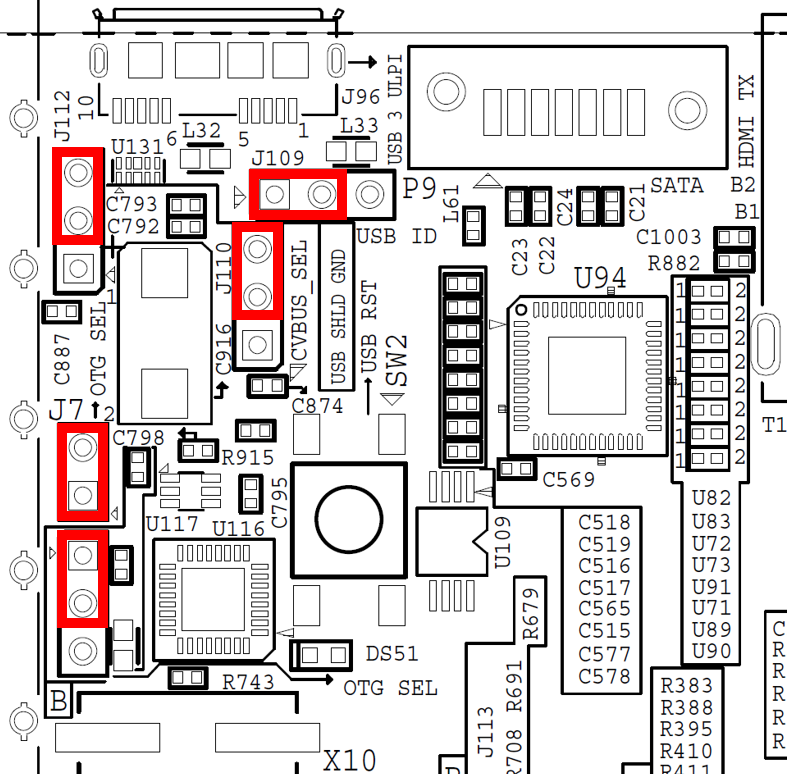
- Configure USB jumpers for host mode. The drawing shows the area on the board near the USB connector.
- J110: 2-3
- J109: 1-2
- J112: 2-3
- J7: 1-2
- J113: 1-2

6.2 Extract the design zip file
Download and unzip the reference design zip file matching your silicon version :
ES2 silicon: zcu102_es2_rv_ss
Production silicon: zcu102_rv_ss
For Linux, use the unzip utlity.
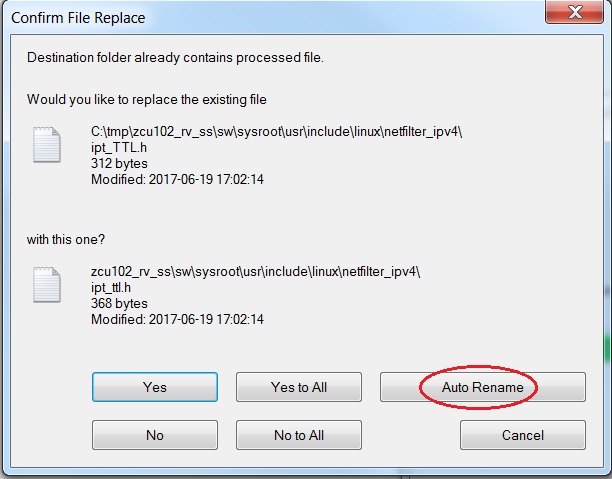
For Windows, make sure that the reference design zip file is unzipped in a directory path which contains no spaces. Use the 7zip utility and follow the steps below.
- When prompted to confirm file replace, select ‘Auto Rename’
6.3 Run the Application
Run the Dense Optical Flow sample application
- Copy all files from the release package directory
./zcu102_[es2_]rv_ss/sd_card/optical_flow
onto your SD card and insert it into the SD card slot on the zcu102 board. - Power on the board; make sure the large "INIT_B" LED and the "DONE" LED next to it go green after a few seconds.
- Control the system from your computer: start a terminal session using TeraTerm, PuTTY or the like. Use the settings mentioned above under Board Setup. With the USB-UART cable connected and the board powered up, you can locate the COM port that is responsive. You'll see several pages of Linux bootstrap and debug messages scroll by, finishing at the linux command line prompt:
root@zcu102_base_trd:~#
- Run the Optical Flow app:
- If your output is to DisplayPort, issue this command
root@zcu102_base_trd:~# of2.elf
- If your output is to HDMI, issue this command
root@zcu102_base_trd:~# of2.elf -d 1
- Four things may be controlled, either from the menu, or from command-line switches when the app in launched.
- Video Source - MIPI FMC camera, HDMI input or USB camera. The default is the MIPI camera.
- Filter Type - pass through, or HW accelerated Optical Flow processing. The default is pass through.
- Filter Mode - select HW accelerated processing vs SW processing (note that the Optical Flow sample only has the HW mode).
- Video Output - DisplayPort or HDMI output. The default is DisplayPort (video output is controlled only from the command line, not the menu).
So, if you run the app as shown above, you'll get the default input and processing: the MIPI camera input, passed through to the output. You should see live video from your MIPI camera on the monitor. The menu displayed is shown below.
Video Control application:
------------------------
Display resolution: 3840x2160

--------------- Select Video Source ---------------
1 : MIPI CSI2 Rx (*)
2 : HDMI Input
3 : USB Webcam
4 : Virtual Video Device

--------------- Select Filter Type ----------------
5 : pass through (*)
6 : Optical Flow

--------------- Exit Application ------------------
0 : Exit

Enter your choice :
- Activate the HW accelerated Optical Flow processing with command "6" <enter>. The false-color optical flow output appears on the monitor, showing the motion seen by the MIPI camera.
- Note that the menu numbers may vary, depending on the number of video sources plugged into your board.
Enter your choice : 6

...

--------------- Select Filter Type ----------------
5 : pass through
6 : Optical Flow (*)

...

Enter your choice :
- The command "5" turns off the processing - puts the system back into pass through.
- Select the HDMI input using the command "2".
- Again, toggle processing on/off using commands "6" / "5".
- Switch back to MIPI input using the command "1".
- Again, toggle processing on/off using commands "6" / "5".
- Exit the app with command "0".
A number of command-line switches are available for selecting video input, filter type and mode, and video output when the app is launched. To do this you must know the ID number of the choices for each one of these catagories. Note that these IDs differ from the menu command numbers discussed above.
- Query the available video Sources with switch "-S" (if HDMI is your output display, please include the switch -d 1 with all of the following commands)
# of2.elf -S
- The system responds with the ID numbers of the video Sources
VIDEO SOURCE          ID
MIPI CSI2 Rx          0
  HDMI Input          1
  USB Webcam          2
Virtual Video Device  3
- Query the available filter Modes with switch "-M"
# of2.elf -M
- The system responds with the ID numbers of the filter Modes. The Optical Flow sample has only the HW mode available (when a SW mode for a filter is available, another mode will be displayed: "SW 1")
Optical Flow (1):
       MODE           ID
         HW           0
- Query the available Filters with switch "-L"
# of2.elf -L
- The system responds with the ID numbers of the filters
      FILTER          ID
pass through          0
Optical Flow          1
These ID numbers are used with the "-s" and "-m" and "-l' switches (lower case) on the command line to select the video input and the filter mode when the app is launched. Here are some examples:
- Launch the app selecting the HDMI video input - the system comes up with HDMI input, pass through, to DisplayPort output.
# of2.elf -s 1
- Launch the app selecting the HDMI input, filter Optical Flow - the system comes up with HDMI input, Optical Flow (HW accelerated) activated, to DisplayPort output.
# of2.elf -s 1 -l 1
- Launch the app selecting the MIPI input, filter Optical Flow - the system comes up with MIPI input, Optical Flow activated, to DisplayPort output.
# of2.elf -s 0 -l 1
To control the video output, the command line switch is "-d". ID "0" selects DisplayPort output, and ID "1" selects HDMI output. There is no query command for these IDs, because they do not vary.
- Launch the app selecting the HDMI input, optical flow activated, HDMI output.
# of2.elf -s 1 -l 1 -d 1
The command line switches are independent of each other and may be used in any combination and in any order. If you do not specify a switch, the default ID "0" is used" : i.e. "MIPI" input, filter "pass through", "DisplayPort" output.
The desired image resolution in terms of width and height (in pixels) of the input video may be selected with the "-i" switch. In general the output resolution is the same as the input resolution. If the resolution is possible, meaning the input source is capable of supplying video in that resolution, it will use that resolution. Otherwise is will refuse to run and display a message to that effect.
- Launch the app selecting the MIPI input, in 1920x1080 resolution, pass-through, to DisplayPort. Note that resolution is specified as WIDTHxHEIGHT with no spaces.
# of2.elf -i 1920x1080
- Launch the app selecting the HDMI input, in 1920x1080 resolution, Optical Flow active, to HDMI output.
# of2.elf -s 1 -i 1920x1080 -l 1 -d 1
Note that the USB camera mentioned in section 3.4 above, the See3CAM_CU30 from e-con Systems, has an unusual pixel format called "UYVY". The pixel format describes the ordering of the luma and chroma data stored in memory for each pixel. By far the most common 4:2:2 pixel format is "YUYV" which is the default for the reVISION platform and for the MIPI and HDMI video input sources. To use the USB See3CAM_CU30 camera as source for Optical Flow, this special pixel format must be specified by attaching "@UYVY" to the input resolution WIDTHxHEIGHT string.
- Start the app in 1920x1080 resolution, in "UYVY" format, from the USB video input
# of2.elf -s 2 -i 1920x1080@UYVY
Note that some video sources will function with the UYVY format, and others will not. If you attempt to select an input with the UYVY format, the system may refuse to do so if that source does not support UYVY.
Run the Stereo Vision sample application
- Copy all files from the release package directory
./zcu102_es2_rv_ss/sd_card/stereo
onto your SD card and insert it into the SD card slot on the zcu102 board.
In general, the steps and details explained above in the Optical Flow tutorial apply here in the same way.
However, the stereo vision demo is special in several ways. First, you MUST use the ZED stereo camera connected to the USB video input. Second, and quite particular to this app, the width of the input image resolution is twice the width of the output resolution. The input actually consists of two images side-by-side, the synchronized left and right stereo input supplied by the camera. Two cases are possible: 2560x720 in to 1280x720 out, and 3840x1080 in to 1920x1080 out. For this we need to use the input resolution switch "-i" and the output resolution switch "-o". The default 3840x2160 output resolution is not supported by the Stereo Vision app. Also, you may NOT toggle between pass through and Stereo processing in this case, because in the pass through case the output and input must be the same resolution, not true when Stereo processing is active.
The other special thing about this app is that a configuration file corresponding to the camera you have connected to your system must be used. Each StereoLabs ZED camera has a unique parameters file associated with it. This text file comes from StereoLabs, and must be present on the SD Card for the Stereo Vision demo to work properly. You need the file unique to your camera, identified by its Serial Number (found on the ZED camera box and also on a black tag near the USB plug of the ZED camera itself). This number will be, e.g., S/N 000012345. The parameter file for that camera would be named SN12345.conf. To download your parameter file, enter this URL into your browser:
http://calib.stereolabs.com/?SN=12345 (using your serial number in place of 12345)
This will download your configuration file to your computer. Copy this file to the SD Card root directory. Also, you must specify this file on the command line when you run the app, as :
--filter-sv-cam-params /media/card/SN12345.conf
- The stereo vision app is called stv.elf. Launch the app selecting the USB input, in 1920x1080 output resolution, stereo vision active, to HDMI output.
# stv.elf -s 2 -l 1 -d 1 -i 3840x1080 -o 1920x1080 --filter-sv-cam-params /media/card/SN12345.conf
- Launch the app selecting the USB input, in 1280x720 output resolution, stereo vision active, to HDMI output.
# stv.elf -s 2 -l 1 -d 1 -i 2560x720 -o 1280x720 --filter-sv-cam-params /media/card/SN12345.conf
Run the Filter 2D sample application
- Copy all files from the release package directory ./zcu102_es2_rv_ss/sd_card/filter2d onto your SD card and insert it into the SD card slot on the zcu102 board.
In general, the steps and details explained above in the Optical Flow tutorial apply here in the same way.
- The filter2d app is called f2d.elf. Example: launch the app selecting the USB UYVY input, 1920x1080 input/output resolution, filter active, to HDMI output.
# f2d.elf -s 2 -l 1 -d 1 -i 1920x1080@UYVY
- Launch the app selecting the MIPI input, 3840x2160 input/output resolution, filter active in SW mode, HDMI output. The "-l" switch, "filter type" selects between pass through(0) and the filter(1). The "-m" switch "filter mode" selects HW(0) or SW(1) operation of the filter.
# f2d.elf -s 0 -l 1 -m 1 -d 1
- Launch the app selecting the MIPI input, 3840x2160 input/output resolution, filter active in HW mode, HDMI output.
# f2d.elf -s 0 -l 1 -m 0 -d 1
Commandline Options
The full list of supported command line switches may be displayed using the "- h" switch:
-d, --dri-card N                      DRI card number N (default N=0)
-h, --help                            Show this help screen
-i, --input-format WxH[@FMT]          Input Width'x'Height@Fmt
-o, --output-format WxH[-HZ][@FMT]    Output Width'x'Height-Hz@Fmt
-f, --fps N/D                         Capture frame rate
-I, --non-interactive                 Non-interactive mode
-S, --list-sources                    List video sources
-L, --list-filters                    List filters
-M, --list-filter-modes               List filter modes
-s, --video-source                    Video source ID
-l, --filter                          Set filter
-m, --filter-mode                     Set filter mode
-P, --plane <id>[:<w>x<h>[+<x>+<y>]]  Use specific plane
-b, --buffer-count                    Number of frame buffers
    --filter-sv-cam-params            File for stereo camera parameters
The list commands - S, M and L, output a list of sources, modes and filters, and their IDs that then can be set directly from the commandline using a corresponding s, m or l option. You may do them all at once, using -SML. Example list output:
    VIDEO SOURCE        ID
    MIPI CSI2 Rx        0
      HDMI Input        1
      USB Webcam        2
Virtual Video De        3

          FILTER        ID
    pass through        0
       2D Filter        1

2D Filter (1):
            MODE        ID
              HW        0
              SW        1
The input and output options allow specifying the resolution and pixel format for source and sink device. The pixel format needs to be specified as fourcc code.
The plane option allows selecting a specific plane and its resolution, which does not have to match the screen resolution. I.e. if the resolution provided in to the output option (-o) is greater (in both dimensions) than the resolution provided to the plane option (-P), the input video (which has to match the plane resolution) is displayed in a window on the screen. This enables pass-through of the Zed camera video on HDMI monitors (the DisplayPort hardware does not support cases where plane resolution != output resolution).
A list of supported resolutions, valid planes and their supported video formats can be obtained through the "modetest" command.
# modetest -M xilinx_drm_mixer

...
Connectors:
id
33
  modes:
name      Hz hdsp hss  hse  htot vdsp vss  vse  vtot
3840x2160 60 3840 3888 3920 4000 2160 2163 2168 2222  flags: phsync, nvsync; type: preferred driver
3840x2160 30 3840 4016 4104 4400 2160 2168 2178 2250  flags: phsync, pvsync; type: driver
...
1920x1080 ...
...
1280x720 ...

CRTCs:
id      fb      pos     size
31      58      (0,0)   (3840x2160)
  3840x2160 30 3840 3888 3920 4000 2160 2163 2168 2191 flags: phsync, nvsync; type: preferred driver
  props:

Planes:
id      crtc    fb      CRTC x,y        x,y     gamma size      possible crtcs
26      0       0       0,0             0,0     0               0x00000001
  formats: YUYV
  ...

27      0       0       0,0             0,0     0               0x00000001
  formats: YUYV
  ...

28      0       0       0,0             0,0     0               0x00000001
  formats: UYVY
  ...

29      31      58      0,0             0,0     0               0x00000001
  formats: AR24
  ...

30      0       0       0,0             0,0     0               0x00000001
  formats: BG24
  ...
7 Tool Flow Tutorials
Firstly, the SDx Development Environment, version 2017.4, must be installed and working on your host computer, either the Linux or the Windows version.
Further, it is assumed that you have already downloaded zcu102_[es2_]rv_ss.zip and extracted its contents (see section 4.2).
The top-level directory name of the platform is 'zcu102_[es2_]rv_ss'.
- IMPORTANT: Before starting SDx, set the SYSROOT environment variable to point to the Linux root file system delivered with the EV platform, for example:
Linux:
export SYSROOT=<local>/zcu102_[es2_]rv_ss/sw/sysroot

Windows:
Start->Control Panel->System->Advanced->Environment Variables
Create environment variable SYSROOT with value <local>\zcu102_[es2_]rv_ss\sw\sysroot
7.1 Build the Optical Flow sample application
The following steps are virtually identical whether you are running the Linux or Windows version of SDx.
- Start SDx and create a new workspace. Make sure you use the same shell to run SDx as the one where you have set $SYSROOT.
- Close the Welcome screen and select 'File' → 'New' → 'SDx Project'... from the menu bar. This brings up the Project Type dialog box, with Application Project selected, click "Next". Now, in the "Create a New SDx Project" dialog, enter Project name "of2" meaning "Optical Flow, 2 pixels/clock".
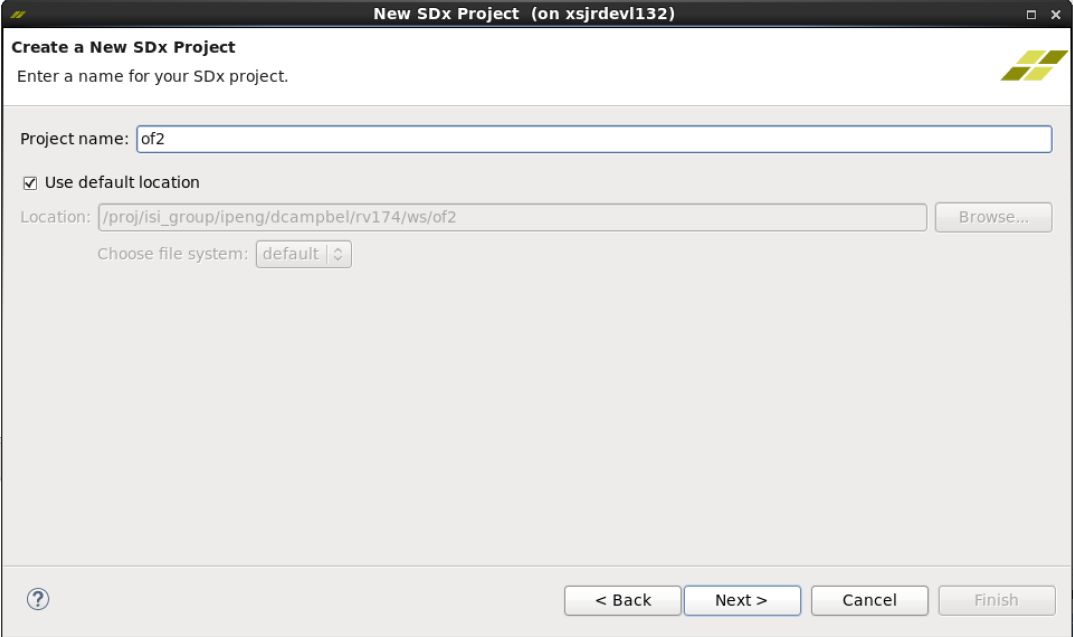
- Leave the "Use default location" box checked, hit Next>, this opens the "Platform" dialog.
- Select the platform. The very first time you do this for a new workspace, you must hit Add Custom Platform..., and browse to ./zcu102_[es2_]rv_ss, hit OK, note that "zcu102_[es2_]rv_ss (custom)" now appears in the Name column.
- Select your newly added custom platform "zcu102_[es2_]rv_ss (custom)", hit Next>
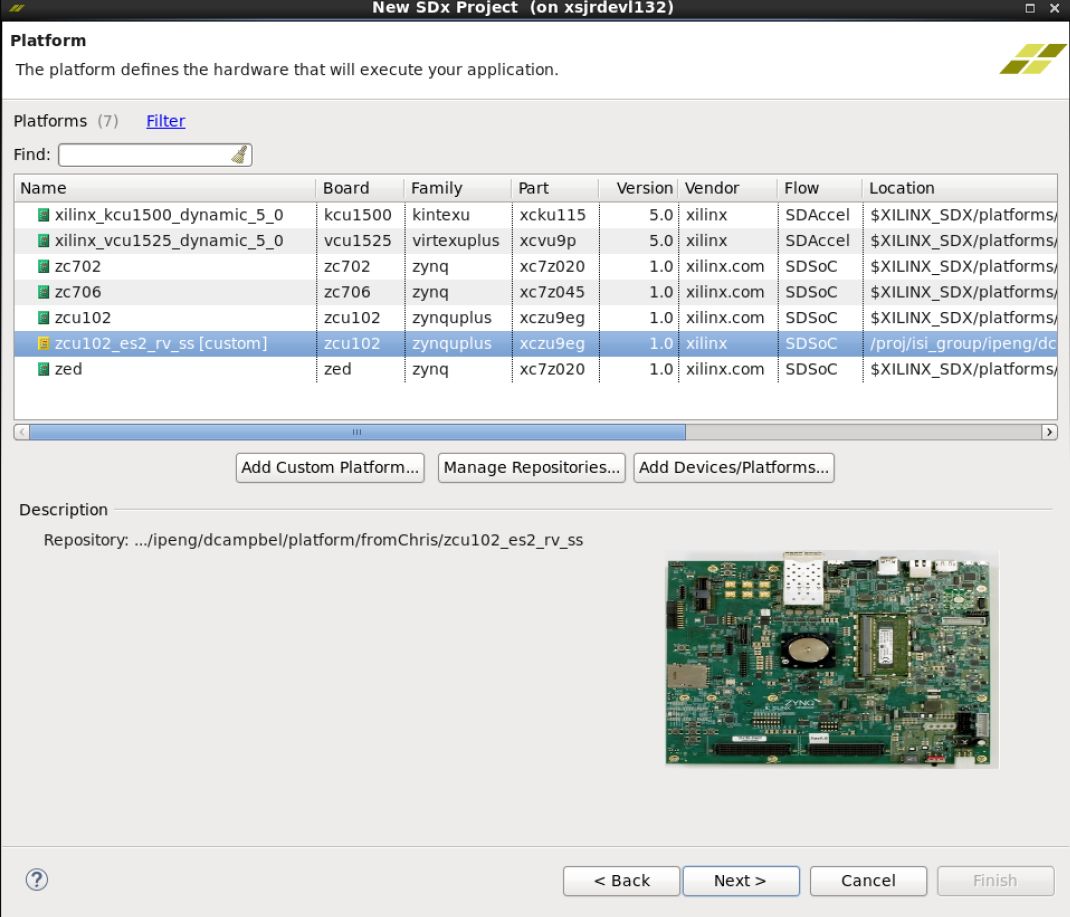
- This opens the "System Configuration" dialog.
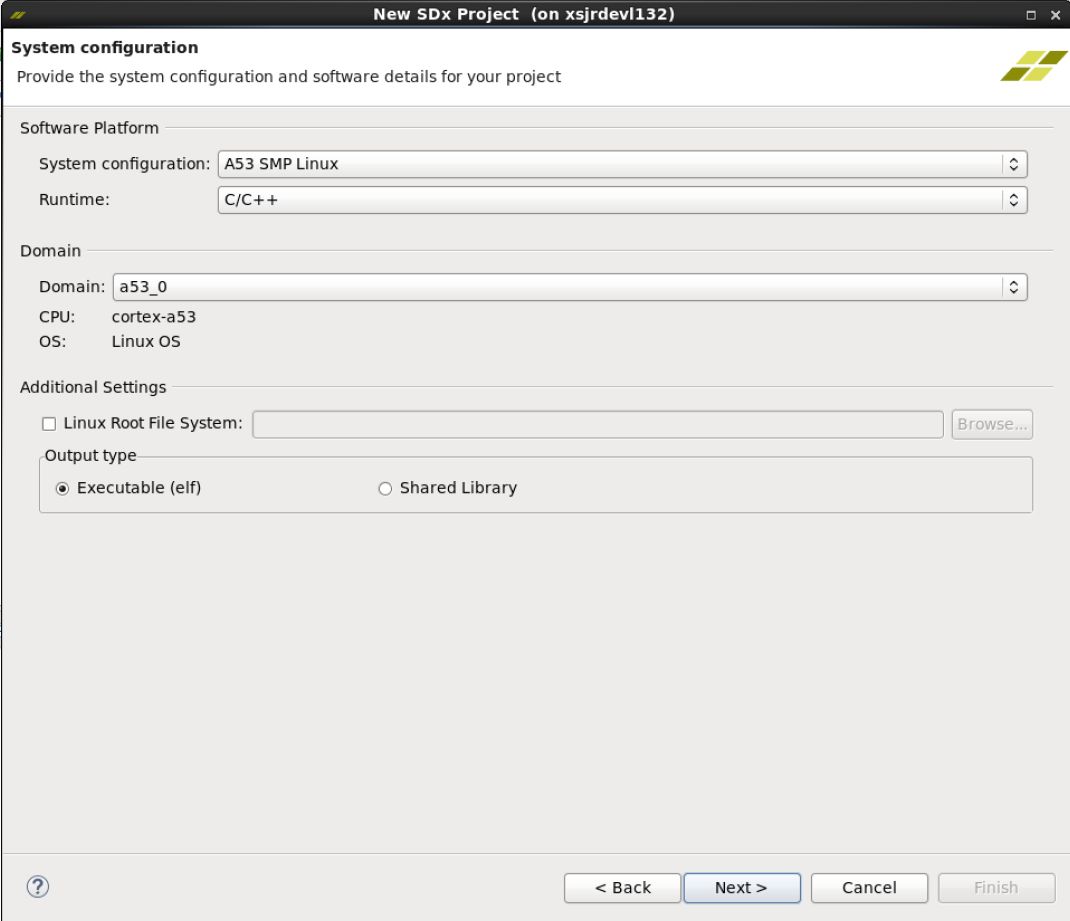
- Leave everything as is, hit Next>, this opens the "Templates" page.
- Select Dense Optical Flow (2PPC), hit Finish
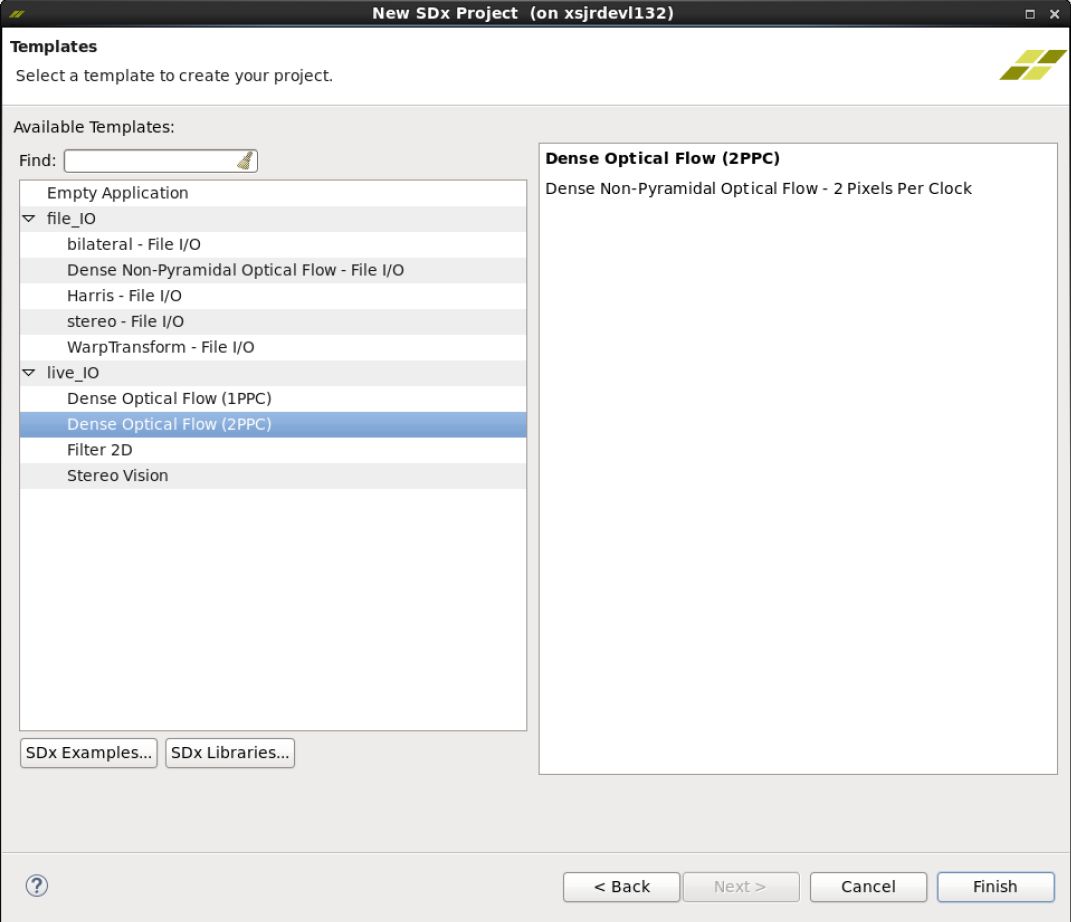
- The dialog box closes, and you now see the Application Project Settings pane in the center of the SDx GUI. Notice the progress bar in the lower right border of the pane, saying "C/C++ Indexer" - wait a few moments for this to finish. Locate the "Active build configuration:" in the upper right corner of the pane, which says "Debug" - click it and select Release. Your window should now look something like this:
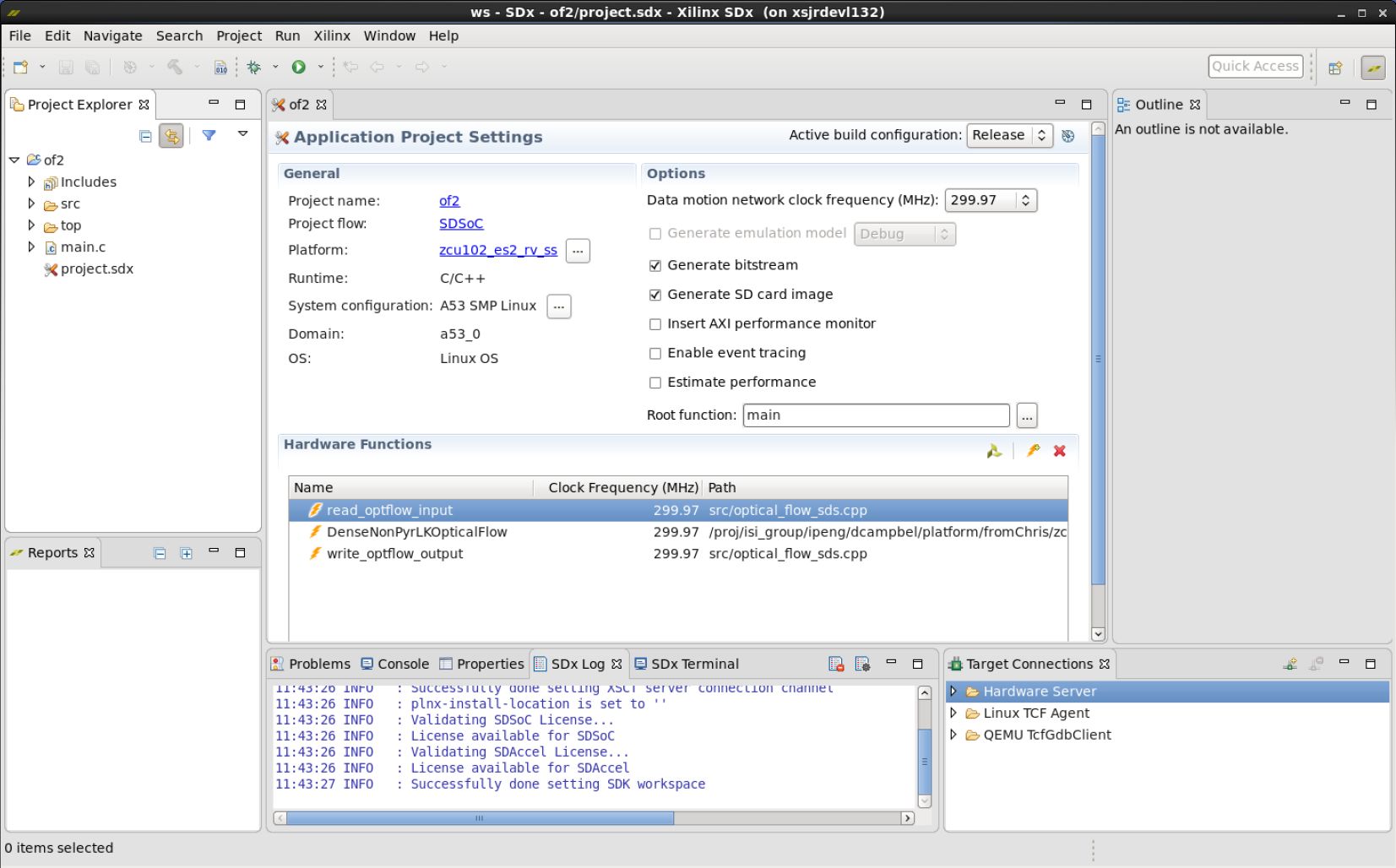
- In the left hand "Project Explorer" pane, select the of2 project, click right on it, then select Build Project. The "Hammer" icon in the menu bar also performs "Build Project". In the small Build Project dialog that opens, you may hit the "Run in Background" button. That causes the small dialog box to disappear, though you can still see a progress icon in the lower right part of the GUI, showing that work is in progress. Select the Console tab in the lower central pane of the GUI to observe the steps of the build process as it progresses. The build process may take tens of minutes, up to several hours, depending on the power of your host machine, whether you are running on Linux or Windows, and of course the complexity of your design. By far the most time is spent processing the routines that have been tagged for realization in hardware - note the "HW functions" window in the lower part of the SDx Project Settings pane. In our example above, the routines read_optflow_input, DenseNonPyrLKOpticalFlow, and write_optflow_output are tagged to be built in hardware. The synthesis of the C code found in these routines into RTL, and the Placement and Routing of that RTL into the programmable logic in the Zynq MPSoC, are the steps that take most of the time.
- Once the Build completes, you will find an sd_card directory has been created, with all the files you need to copy to your SD card and run your application on the zcu102 board, as explained in section 5.2 above. This directory is found in:
- .\<workspace>\of2\Release\sd_card
7.2 Build the Stereo Vision and the Filter2D sample applications
- The Stereo Vision or the Filter2D project may be created and built in the same way just explained for the Optical Flow project. All the steps are analogous.
- In the Templates dialog box, select the Stereo Vision or Filter2D template.
7.3 Build the File IO sample applications
- Start SDx and create a new workspace. Make sure you use the same shell to run SDx as the one where you have set $SYSROOT.
- Close the Welcome screen and select 'File' → 'New' → 'SDx Project'... from the menu bar. This brings up the Create a New SDx Project dialog box. Enter a name for project (e.g. “bil_fil” which stands for bilateral filter).
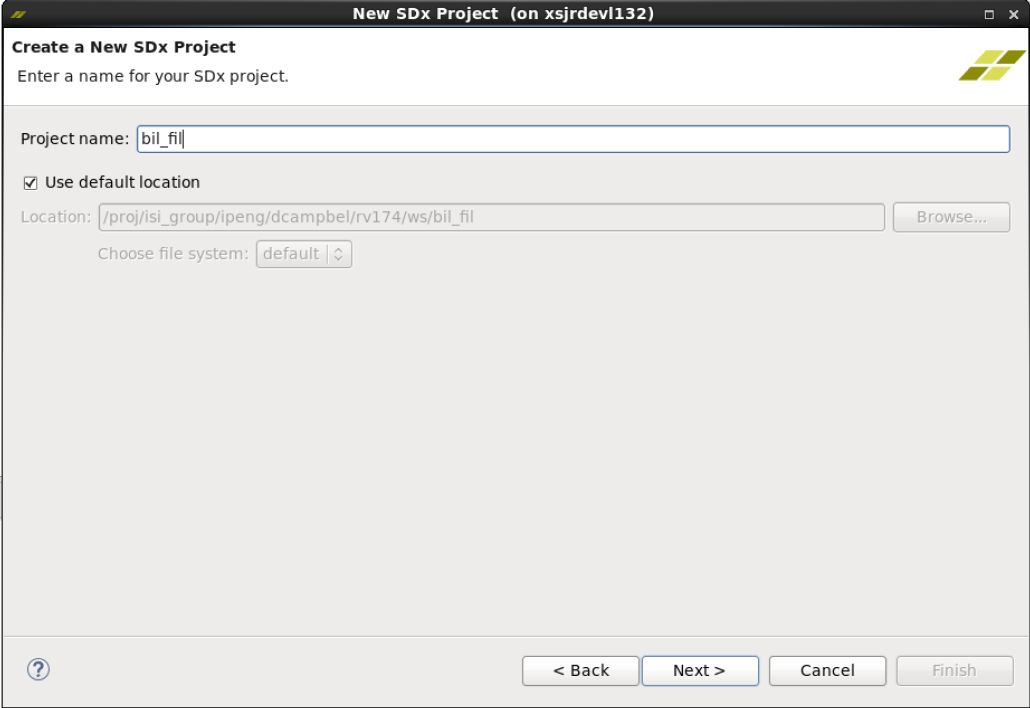
- Leave the "Use default location" box checked, hit Next>, this opens the "Platform" page.
- Select the platform. The very first time you do this for a new workspace, you must hit Add Custom Platform..., and browse to ./zcu102_[es2_]rv_ss, hit OK, note that "zcu102_[es2_]rv_ss (custom)" now appears in the Name column.
- Select custom platform "zcu102_[es2_]rv_ss (custom)", hit Next>, this opens the "System configuration" page.
- Leave everything as is, hit Next>, this opens the "Templates" page.
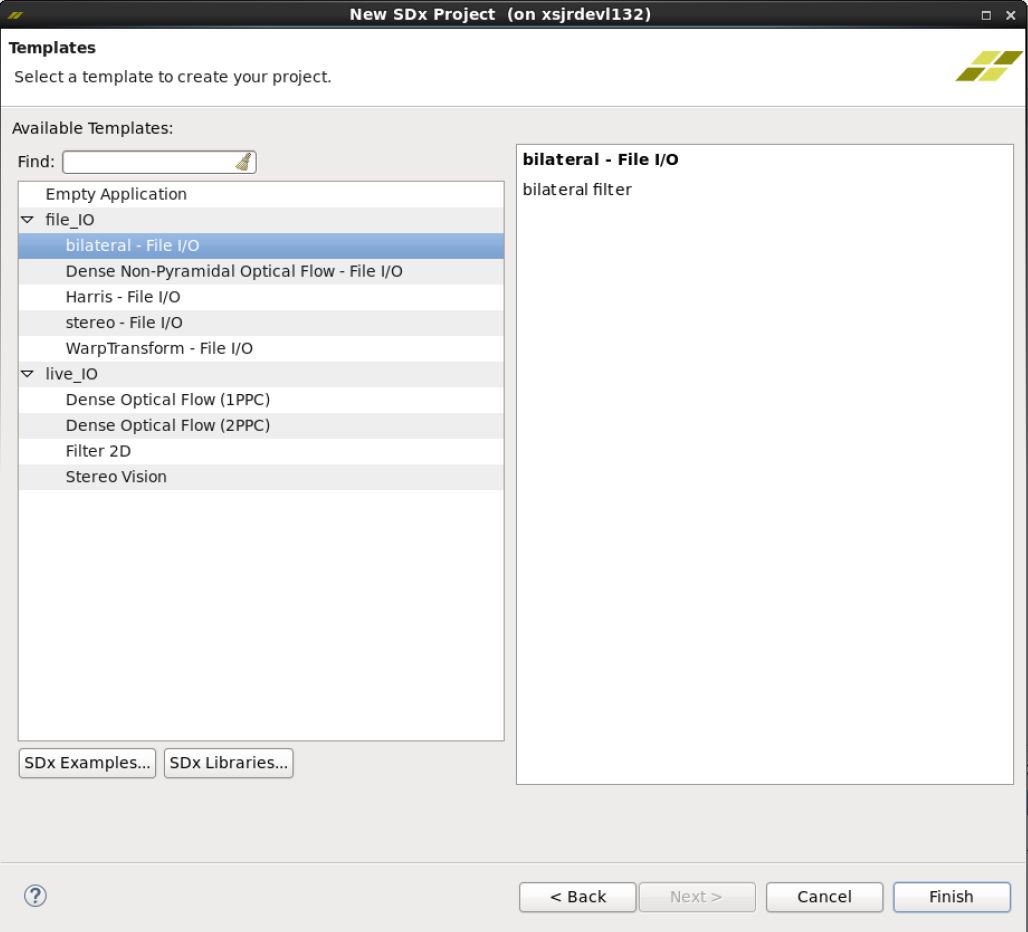
- Select “bilateral – File I/O” from the set of templates and click on “Finish”.
- The dialog box closes, and you now see the SDx Project Settings pane in the center of the SDx GUI. Notice the progress bar in the lower right border of the pane, saying "C/C++ Indexer" - wait a few moments for this to finish. Locate the "Active build configuration:" in the upper right corner of the pane, which says "Debug" - click it and select Release. Your window should now look something like this:
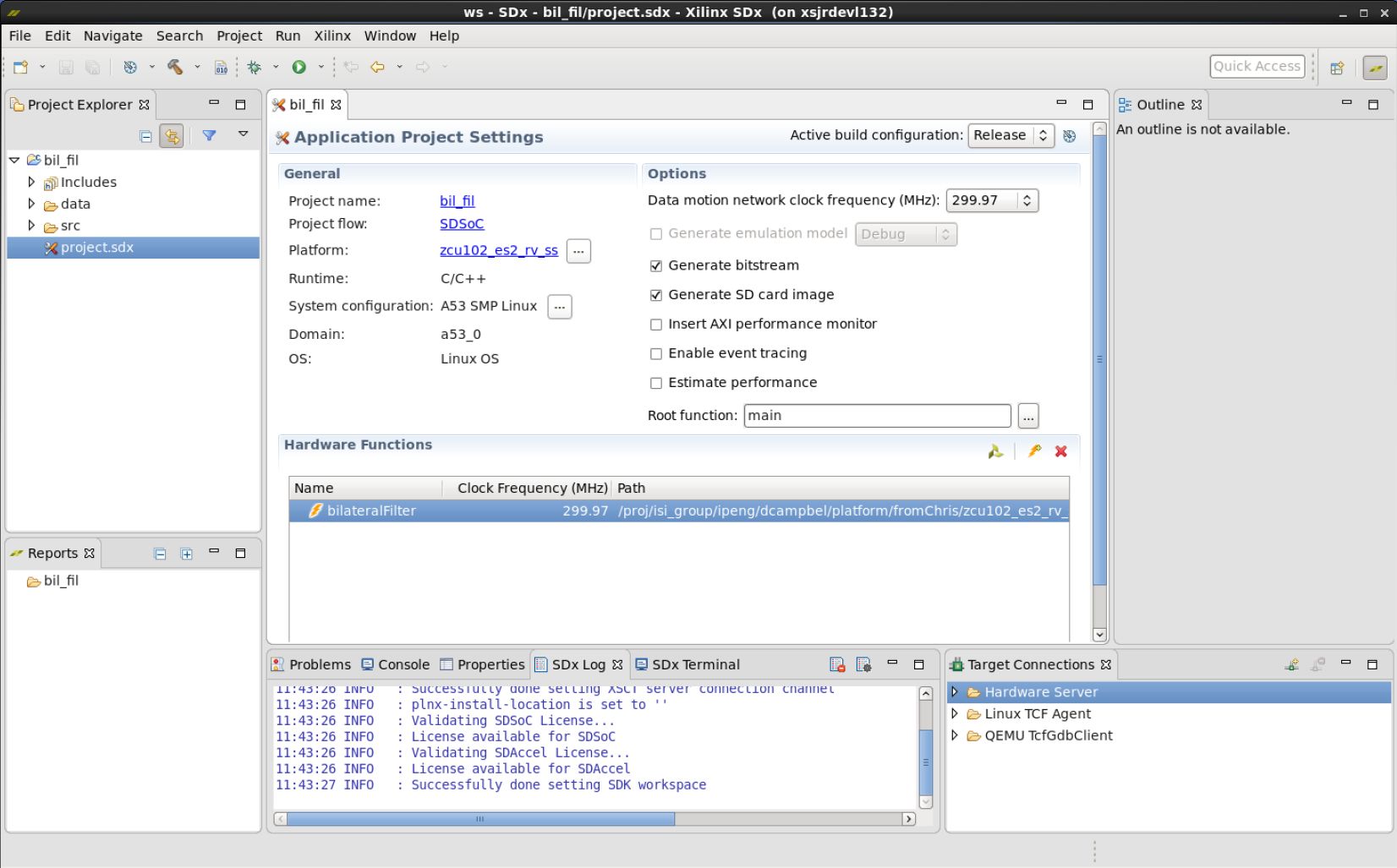
- In the left hand "Project Explorer" pane, select the bil_fil project, click right on it, then select Build Project. The "Hammer" icon in the menu bar also performs "Build Project". In the small Build Project dialog that opens, you may hit the "Run in Background" button. That causes the small dialog box to disappear, though you can still see a progress icon in the lower right part of the GUI, showing that work is in progress. Select the Console tab in the lower central pane of the GUI to observe the steps of the build process as it progresses. The build process may take tens of minutes, up to several hours, depending on the power of your host machine, whether you are running on Linux or Windows, and of course the complexity of your design. By far the most time is spent processing the routines that have been tagged for realization in hardware - note the "HW functions" window in the lower part of the SDx Project Settings pane. “bilateralFilter” is listed as a function tagged to be moved to hardware.
- Once the Build completes, you will find an sd_card directory has been created at
- .\<workspace>\bil_fil\Release\sd_card
- In order to run the function on the board, mount the SD card on the board and power it on.
- At the prompt, go to the directory “/media/card”. Use the following command: cd /media/card
- Run the executable using the following command: ./bil_fil.elf im0.jpg
- If the run is successful, the following text appears at the terminal:
sigma_color: 7.72211 sigma_space: 0.901059
elapsed time 9133271
Minimum error in intensity = 0
Maximum error in intensity = 1
Percentage of pixels above error threshold = 0.00168789 Count: 35
- Follow the same procedure for other file I/O samples – Harris corner detection, optical flow, stereo block matching and warpTransform.
8 Platform Details
8.1 Vivado Hardware Design
The Vivado hardware design is packaged inside the DSA located at zcu102_[es2_]rv_ss/hw/zcu102_[es2_]rv_ss.dsa. The DSA also includes the hpfm file that describes the available AXI interfaces, clocks, resets, and interrupts. To open the hardware design in Vivado, run the following command from the tcl console:
% open_dsa zcu102_[es2_]rv_ss/hw/zcu102_[es2_]rv_ss.dsa
8.2 PetaLinux BSP
The PetaLinux BSP is located at zcu102_[es2_]rv_ss/sw/petalinux_bsp. The hdf file exported from the corresponding Vivado project (see 8.1) is available in the project-spec/hw-description/system.hdf subfolder inside to the PetaLinux BSP. To configure and build the PetaLinux BSP, run the following commands:
% petalinux-config --oldconfig
% petalinux-build
8.3 Video Library
The Xilinx software library libvideo is used to interface with V4L2 capture devices, DRM display devices, and SDSoC based hardware accelerators. A prebuilt version of this library is available at zcu102_[es2_]rv_ss/sw/a53_linux/lib/libvideo.a. The public API is available at zcu102_[es2_]rv_ss/sw/a53_linux/inc/video_lib/. The file filter.h describes the filter_s struct that needs to be implemented by SDSoC hardware accelerators along with callback functions.
The libvideo sources are provided as XSDK project and are located at zcu102_[es2_]rv_ss/sw/video_lib/. Perform the following steps from the SDx GUI to build libvideo.a:
- Make sure the SYSROOT environment variable is set correctly before starting SDx. See design example tutorials for details.
- From the SDx menu bar, select 'File -> Import -> General -> Existing Projects into Workspace'. Click 'Next'.
- In the 'Import Project' dialog, browse to the project root directory at zcu102_[es2_]rv_ss/sw/a53_linux/inc/video_lib/. Make sure the video_lib project is checked. Also check the 'Copy projects into workspace' option and click 'Finish'.
- Right-click the newly added 'video_lib' project in the 'Project Explorer' and select 'Build Project'. The libvideo.a output product will be placed inside the Debug subfolder relative to your workspace and project depending on the chosen build configuration.
9 Other Information
9.1 Known Issues
- SDSoC accelerator code runs very slowly in pure software implementation when Debug configuration is used.
Solution: Set project build configurations to Release which sets sdsoc compiler to optimize most (-O3). - Building the video_lib project in Release configuration results in a run-time error.
Solution: The video_lib project needs to be built in Debug configuration. - Running the filter2d accelerator in SW mode with UYVY input format selected results in a green image
Solution: Run the filter2d accelerator in HW mode or set the input format to YUYV in SW mode.
9.2 Limitations
- Do not connect a DisplayPort cable and HDMI Tx at the same time.
- Make sure the DisplayPort or HDMI Tx cable is plugged in when you power on the board.
- DP-to-HDMI adapters are not supported, see AR 67462
- HDMI Rx:
- Does not support YUV 4:2:0 input.
- Does not support HDCP encrypted input.
- Does not support hotplug or dynamic resolution changes while the application is running.
- SDSoC does not support “Estimate Performance” for the xfopenCV library and in general for all the C++ templates (the part of Performance Estimation flow not yet supported is the estimate of software performance for function templates). Once the HLS estimate of HW resources pops up, the Ethernet P2P communication process between the SDSoC GUI and the board stalls forever and no error message is displayed.
10 Support
To obtain technical support for this reference design, go to the:
- Xilinx Answers Database to locate answers to known issues
- Xilinx Community Forums to ask questions or discuss technical details and issues. Please make sure to browse the existing topics first before filing a new topic. If you do file a new topic, make sure it is filed in the sub-forum that best describes your issue or question e.g. Embedded Linux for any Linux related questions. Please include "ZCU102 reVISION" and the release version in the topic name along with a brief summary of the issue.
11 References
Additional material that is not hosted on the wiki:
- Base TRD User Guide: Contains information about system, software and hardware architecture which is similar to the reVISION platform.
- Xilinx OpenCV User Guide: Contains detailed description of Xilinx OpenCV functions and file I/O design examples.
- Xilinx Fast OpenCV on Github
- Xilinx Linux Drivers:
© Copyright 2019 - 2022 Xilinx Inc. Privacy Policy